# Software

# Microsoft Imagine

<p class="callout warning">To use this service, you need to own a @deec.uc.pt account!</p>

<div id="bkmrk-microsoft-imagine-is">Microsoft Imagine is a protocol that Microsoft signs with the Departments of Universities that teach disciplines in the STEM (Science, Technology, Engineering and Mathematics) areas that gives FREE access to its students, teachers and employees of the Department to Microsoft tools.  
</div><div id="bkmrk-">  
</div><div id="bkmrk-the-protocol-can-be-">The protocol can be used through a Web based platform. In this way, it is possible for the community to obtain a personal copy of all available software, with a personal account for each user. The software delivery process is automated, freeing those responsible / administrators to essentially manage the painful process of assigning the unique Keys to which each user is entitled to obtain their personal copy of the software. On the part of users, access to the software becomes available uninterruptedly, at any time and in any place, as long as they are registered in the system. The fact that each student has their own personal account gives them full access to “their” software, being able to access their Product Keys at any time or order new software products.</div>#### Who has access?

- <div>DEEC students, who attend courses in the current academic year;</div>
- Teachers;
- <div>Contributors;</div>

#### Microsoft Imagine Accounts

Access to Microsoft Imagine is dependent on the creation of accounts by the management of the DEEC Computer Network (GRI).

For this purpose, the GRI creates the accounts as follows:

- For students, at the beginning of each academic year;
- For teachers and collaborators, when creating the departmental account;

At that moment, each user receives an email, in the institutional email account, automated by the platform, with the initial access instructions to the platform.

Accounts on the Dreamspark platform are independent of departmental accounts, with no connection to DEEC's centralized authentication services. For this reason, they may have a different password.

#### Platform Access

<div id="bkmrk-the-username-is-the-">The username is the institutional email address.</div><div id="bkmrk--0">  
</div><div id="bkmrk-the-password-is%2C-as-">The password is, as already mentioned, generated by Microsoft, and is automatically sent in the initial email.</div><div id="bkmrk--1">  
</div><div id="bkmrk-if-you-have-lost-or-">If you have lost or do not know your password, you can recover it on the Microsoft Imagine authentication page (“Sign In”), using the following options:</div><div id="bkmrk-%E2%80%9Cforgot-you-password">“Forgot you password?” - This option sends the user a new password.</div><div id="bkmrk-the-address-%28url%29-fo">The address (URL) for accessing the platform is:</div>[http://web.deec.uc.pt/go/dreamspark](http://web.deec.uc.pt/go/dreamspark)

#### Rules of Use

- <div>The available software can be used in academic projects, classes, research, group work or departmental projects of the faculty;</div>
- <div>Students covered by the protocol will be able to install the software on their personal machines, as long as they are only for their own use and only for academic purposes;</div>
- <div>The use of tools obtained by students under the protocol is authorized, even after leaving or finishing the course, only for academic or research purposes;</div>
- <div>The installation of Microsoft Windows or other operating systems made available, can only be carried out on PCs without a pre-installed system (OEM) for academic purposes and for the student's own use, and the operating system cannot be transferred in case of computer transfer. ;</div>
- <div>The student can save A SINGLE copy of the software provided, when it is provided in the * .ISO format;</div>

#### Incorret Use

- <div>The use of the tools available for the development of products that are not of academic and / or research scope;</div>
- <div>The installation of the operating systems made available for the use of other software not covered by the protocol that runs on them;</div>
- <div>The use of the software made available for commercial purposes;</div>
- <div>The software provided cannot be rented, sold, transferred or transferred to third parties, whether they are (for example) other departments, other students, companies or consultants;</div>

# Microsoft Office 365 Education

![](https://helpdesk.deec.uc.pt/api/v1/attachments/1533)

### Presentation

<div id="bkmrk-office-365-education"><div><div>Office 365 Education Plus for students is available free of charge to students and employees enrolled at the University of Coimbra.</div><div>Install Office on a maximum of 5 PCs or Macs and on other mobile devices, including Android ™, iPad® and Windows tablets.</div></div></div>Enjoy access to Office 365 services, such as 1TB online storage on OneDrive and Yammer.

To make the initial registration, use one of the links below:

<div id="bkmrk-students-%28use-your-a"><div>- <div>Students (use your address @ students.deec.uc.pt or @ student.uc.pt for registration)</div>
- Teachers (use your address @ deec.uc.pt for registration)

</div></div>**ATTENTION:** The Office 365 system is independent, so it uses its own username + password set, which are not the same as DEEC.

###   


### What's Included?

#### Complete applications installed  


<div id="bkmrk-create-reports-and-p"><div><div>Create reports and presentations with the latest versions of the applications you know so well and trust. It includes Word, Excel, PowerPoint, OneNote, Outlook, Publisher and Access.</div></div></div>#### Easy real-time collaboration

<div id="bkmrk-work-with-your-colle"><div><div>Work with your colleagues online and see each other's changes in real time with Office Online and OneDrive. The time for exchanging emails with outdated versions is a thing of the past.</div></div></div>#### Optimized note-taking tools

Type or write notes by hand, capture web pages, record audio / video, embed spreadsheets and more with OneNote, available on all your devices

# Software JMP

<div id="bkmrk-">![](https://helpdesk.deec.uc.pt/api/v1/attachments/1535)  
</div><div id="bkmrk--0">  
</div>The JMP Software is available to the entire academic community, a program designed to support activities in statistics and data science, from the planning of experiences to the visualization and analysis of large volumes of information, predictive analytics, Quality engineering, reliability and maintenance.

<div id="bkmrk-as-a-result-of-an-ag"><div>As a result of an agreement between Social Action Services and the University of Coimbra, the software is made available by the technicians responsible for the computer service of the various Organic Units / Faculties.</div><div>  
</div><div>Please select the operating system to install:</div></div>[Windows](https://box.deec.uc.pt/sharing/4nYsjgmK4 "https://box.deec.uc.pt/sharing/4nYsjgmK4")

[Macintosh](https://box.deec.uc.pt/sharing/5i6sy8n3j "https://box.deec.uc.pt/sharing/5i6sy8n3j")

# Software in the Labs

<div id="bkmrk-to-support-teaching-"><div>To support teaching activities, DEEC has a set of laboratories equipped with work stations. On these computers, a set of software called Base Software is installed, which is installed on all. In addition, other software is also installed, specific to the activities of each laboratory at each moment and the subjects taught there.</div><div>On this page, you can consult at all times which base software is installed in all laboratories and which software is installed in each laboratory.</div><div>In case it is necessary, teachers can request the installation of additional software in the laboratories, through the Helpdesk service. At the beginning of each semester, orders must be placed with additional advance, since they are times with high requests.</div></div><div id="bkmrk-">  
</div>## Base Software 

#### Windows

<table id="bkmrk-software-function-li" style="width: 48.3951%; height: 433.953px;"><tbody><tr style="height: 29.7969px;"><th style="width: 31.6645%; height: 29.7969px;">**Software**</th><th style="width: 47.9791%; height: 29.7969px;">**Function**</th><th style="width: 20.0255%; height: 29.7969px;">**License**</th></tr><tr style="height: 29.7969px;"><td class="align-center" style="width: 31.6645%; height: 29.7969px;">7Zip</td><td class="align-center" style="width: 47.9791%; height: 29.7969px;">(Des)Compressing File</td><td class="align-center" style="width: 20.0255%; height: 29.7969px;">Freeware</td></tr><tr style="height: 29.7969px;"><td class="align-center" style="width: 31.6645%; height: 29.7969px;">Adobe Reader</td><td class="align-center" style="width: 47.9791%; height: 29.7969px;">Viewing PDF files</td><td class="align-center" style="width: 20.0255%; height: 29.7969px;">Freeware</td></tr><tr style="height: 29.7969px;"><td class="align-center" style="width: 31.6645%; height: 29.7969px;">CDBurner XP</td><td class="align-center" style="width: 47.9791%; height: 29.7969px;">Burning Optical Disks</td><td class="align-center" style="width: 20.0255%; height: 29.7969px;">Freeware</td></tr><tr style="height: 29.7969px;"><td class="align-center" style="width: 31.6645%; height: 29.7969px;">CutePDF</td><td class="align-center" style="width: 47.9791%; height: 29.7969px;">Generation of PDF Files</td><td class="align-center" style="width: 20.0255%; height: 29.7969px;">Freeware</td></tr><tr style="height: 29.7969px;"><td class="align-center" style="width: 31.6645%; height: 29.7969px;">ESET Nod32</td><td class="align-center" style="width: 47.9791%; height: 29.7969px;">Anti-virues</td><td class="align-center" style="width: 20.0255%; height: 29.7969px;">Comercial</td></tr><tr style="height: 29.7969px;"><td class="align-center" style="width: 31.6645%; height: 29.7969px;">Google Chrome</td><td class="align-center" style="width: 47.9791%; height: 29.7969px;">Web Browser</td><td class="align-center" style="width: 20.0255%; height: 29.7969px;">Freeware</td></tr><tr style="height: 29.7969px;"><td class="align-center" style="width: 31.6645%; height: 29.7969px;">Java JRE</td><td class="align-center" style="width: 47.9791%; height: 29.7969px;">Runtime Java</td><td class="align-center" style="width: 20.0255%; height: 29.7969px;">Freeware</td></tr><tr style="height: 29.7969px;"><td class="align-center" style="width: 31.6645%; height: 29.7969px;">Mozilla Firefox</td><td class="align-center" style="width: 47.9791%; height: 29.7969px;">Browser Web</td><td class="align-center" style="width: 20.0255%; height: 29.7969px;">Freeware</td></tr><tr style="height: 29.7969px;"><td class="align-center" style="width: 31.6645%; height: 29.7969px;">Microsoft Office</td><td class="align-center" style="width: 47.9791%; height: 29.7969px;">Office Productivity</td><td class="align-center" style="width: 20.0255%; height: 29.7969px;">Comercial</td></tr><tr style="height: 46.5938px;"><td class="align-center" style="width: 31.6645%; height: 46.5938px;">Notepad++</td><td class="align-center" style="width: 47.9791%; height: 46.5938px;"><div><div><div><div><div><div><div>  
</div></div></div></div></div></div></div><div>Editing text files</div></td><td class="align-center" style="width: 20.0255%; height: 46.5938px;">Freeware</td></tr><tr style="height: 29.7969px;"><td class="align-center" style="width: 31.6645%; height: 29.7969px;">Putty</td><td class="align-center" style="width: 47.9791%; height: 29.7969px;">SSH Client</td><td class="align-center" style="width: 20.0255%; height: 29.7969px;">Freeware</td></tr><tr style="height: 29.7969px;"><td class="align-center" style="width: 31.6645%; height: 29.7969px;">WinSCP</td><td class="align-center" style="width: 47.9791%; height: 29.7969px;">Browser Ficheiros SFTP/SSH</td><td class="align-center" style="width: 20.0255%; height: 29.7969px;">Freeware</td></tr><tr style="height: 29.7969px;"><td class="align-center" style="width: 31.6645%; height: 29.7969px;">VLC Media Player</td><td class="align-center" style="width: 47.9791%; height: 29.7969px;">Media Player</td><td class="align-center" style="width: 20.0255%; height: 29.7969px;">Freeware</td></tr></tbody></table>

#### Linux

<table id="bkmrk-software-function-li-0"><tbody><tr><th>**Software**</th><th>**Function**</th><th>**License**</th></tr><tr><td>Geany</td><td><div>Editing text files</div></td><td>Freeware</td></tr><tr><td>GCC</td><td>Software Compiler C/C++</td><td>Freeware</td></tr></tbody></table>

###   


## Aditional Software

#### LAI 1

LAI1, located at Tower T, Floor 6, has the following specific software installed:

<table id="bkmrk-software-function-li-1"><tbody><tr><th class="align-center">**Software**</th><th class="align-center">**Function**</th><th class="align-center">**License**</th></tr><tr><td class="align-center">QT Creator</td><td class="align-center"><div>Integrated Development Environment</div></td><td class="align-center">Freeware</td></tr><tr><td class="align-center">Matlab</td><td class="align-center"><div>High-level language for engineering</div></td><td class="align-center">Comercial</td></tr><tr><td class="align-center">MySQL Workbench</td><td class="align-center"><div>Database management</div></td><td class="align-center">Freeware</td></tr><tr><td class="align-center">Visual Studio Professional</td><td class="align-center"><div>Development environment</div></td><td class="align-center">Comercial</td></tr></tbody></table>

#### LAI 3

<div id="bkmrk-lai3%2C-located-in-tow">LAI3, located in Tower S, Floor 4, has the following specific software installed:</div><table id="bkmrk-software-function-li-2"><tbody><tr><th class="align-center">**Software**</th><th class="align-center">**Function**</th><th class="align-center">**License**</th></tr><tr><td class="align-center">Kinect for Windows</td><td class="align-center"><div>API for Kinect systems</div></td><td class="align-center">Comercial (protocol Matlab TAH)</td></tr><tr><td class="align-center">Labview</td><td class="align-center"><div>Development of commercial measurement and control systems</div></td><td class="align-center">Comercial</td></tr><tr><td class="align-center">Matlab</td><td class="align-center"><div>high-level language for commercial engineering</div></td><td class="align-center">Comercial (license Matlab TAH)</td></tr><tr><td class="align-center">MySQL Workbench</td><td class="align-center"><div>Database management</div></td><td class="align-center">Freeware</td></tr><tr><td class="align-center">Softkinetic API</td><td class="align-center"><div>API for SofKinetic systems</div></td><td class="align-center">Freeware</td></tr><tr><td class="align-center">Codeblocks</td><td class="align-center"><div>Development environment</div></td><td class="align-center">Freeware</td></tr><tr><td class="align-center">Visual Studio Professional</td><td class="align-center"><div>Development environment</div></td><td class="align-center">Comercial (licenseMicrosoft Dreamspark)</td></tr></tbody></table>

#### LSRC

<div id="bkmrk-lsrc%2C-located-at-tow">LSRC, located at Tower R, Floor 6, has the following specific software installed:</div><table id="bkmrk-software-function-li-3" style="width: 68.1481%; height: 186.578px;"><tbody><tr style="height: 63.5938px;"><th style="width: 28.2779%; height: 63.5938px;">**Software**</th><th style="width: 56.7964%; height: 63.5938px;">**Function**</th><th style="width: 14.79%; height: 63.5938px;">**License**</th></tr><tr style="height: 46.5938px;"><td style="width: 28.2779%; height: 46.5938px;">Matlab</td><td style="width: 56.7964%; height: 46.5938px;"><div>high-level language for commercial engineering</div></td><td style="width: 14.79%; height: 46.5938px;">Comercial</td></tr><tr style="height: 46.5938px;"><td style="width: 28.2779%; height: 46.5938px;">Quartus II Web Edition</td><td style="width: 56.7964%; height: 46.5938px;">Design of FPGA and CPLD</td><td style="width: 14.79%; height: 46.5938px;">Freeware</td></tr><tr style="height: 29.7969px;"><td style="width: 28.2779%; height: 29.7969px;">Riverbed</td><td style="width: 56.7964%; height: 29.7969px;"><div>Simulation of data networks</div></td><td style="width: 14.79%; height: 29.7969px;">Freeware</td></tr></tbody></table>

####   
LSD

<div id="bkmrk-lsd%2C-located-at-towe">LSD, located at Tower R, Floor 6, has the following specific software installed:</div><table id="bkmrk-software-function-li-4"><tbody><tr><th class="align-center">**Software**</th><th class="align-center">**Function**</th><th class="align-center">**License**</th></tr><tr><td class="align-center">Matlab</td><td class="align-center"><div>high-level language for commercial engineering</div></td><td class="align-center">Comercial</td></tr><tr><td class="align-center">Quartus II Web Edition</td><td class="align-center">Design of FPGA and CPLD</td><td class="align-center">Freeware</td></tr><tr><td class="align-center">Visual Studio Professional</td><td class="align-center"><div>Development environment</div></td><td class="align-center">Comercial (licenciamento Microsoft Dreamspark)</td></tr><tr><td class="align-center">Codeblocks</td><td class="align-center"><div>Development environment</div></td><td class="align-center">Freeware</td></tr><tr><td class="align-center">MySQL Workbench</td><td class="align-center"><div>Database management</div></td><td class="align-center">Freeware</td></tr></tbody></table>

####   
LPDS

<div id="bkmrk-lpds%2C-located-at-tow">LPDS, located at Tower S, Floor 5, has the following specific software installed:</div><table id="bkmrk-software-function-li-5"><tbody><tr><th>**Software**</th><th>**Function**</th><th>**License**</th></tr><tr><td class="align-center">Matlab</td><td class="align-center"><div>high-level language for commercial engineering</div></td><td class="align-center">Comercial</td></tr><tr><td class="align-center">Blender</td><td class="align-center"><div>3D Modeling Program</div></td><td class="align-center">Freeware</td></tr><tr><td class="align-center">QT Creator</td><td class="align-center"><div>Integrated Development Environment</div></td><td class="align-center">Freeware</td></tr><tr><td class="align-center">Eclipse</td><td class="align-center"><div>Development platform</div></td><td class="align-center">Freeware</td></tr><tr><td class="align-center">Codeblocks</td><td class="align-center"><div>Development environment</div></td><td class="align-center">Freeware</td></tr><tr><td class="align-center">Labview</td><td class="align-center"><div>Development of measurement and control systems</div></td><td class="align-center">Comercial</td></tr><tr><td class="align-center">MySQL Workbench</td><td class="align-center"><div>Database management</div></td><td class="align-center">Freeware</td></tr><tr><td class="align-center">Visual Studio Profissional</td><td class="align-center"><div>Development environment</div></td><td class="align-center">Comercial (license Microsoft Dreamspark)</td></tr></tbody></table>

####   
LMI

<div id="bkmrk-lmi%2C-located-in-towe">LMI, located in Tower S, Floor 5, has the following specific software installed:</div><table id="bkmrk-software-function-li-6" style="width: 100%; height: 212.375px;"><tbody><tr style="height: 29.7969px;"><th style="width: 20.8719%; height: 29.7969px;">**Software**</th><th style="width: 40.4089%; height: 29.7969px;">**Function**</th><th style="width: 38.5957%; height: 29.7969px;">**License**</th></tr><tr style="height: 29.7969px;"><td class="align-center" style="width: 20.8719%; height: 29.7969px;">Matlab</td><td class="align-center" style="width: 40.4089%; height: 29.7969px;"><div>high-level engineering language</div></td><td class="align-center" style="width: 38.5957%; height: 29.7969px;">Comercial</td></tr><tr style="height: 46.5938px;"><td class="align-center" style="width: 20.8719%; height: 46.5938px;">Visual Studio Profissional</td><td class="align-center" style="width: 40.4089%; height: 46.5938px;"><div>Development environment</div></td><td class="align-center" style="width: 38.5957%; height: 46.5938px;">Comercial (licenciamento Microsoft Dreamspark)</td></tr><tr style="height: 29.7969px;"><td class="align-center" style="width: 20.8719%; height: 29.7969px;">MySQL Workbench</td><td class="align-center" style="width: 40.4089%; height: 29.7969px;"><div>Database management</div></td><td class="align-center" style="width: 38.5957%; height: 29.7969px;">Freeware</td></tr><tr style="height: 29.7969px;"><td class="align-center" style="width: 20.8719%; height: 29.7969px;">Codeblocks</td><td class="align-center" style="width: 40.4089%; height: 29.7969px;"><div>Development environment</div></td><td class="align-center" style="width: 38.5957%; height: 29.7969px;">Freeware</td></tr><tr style="height: 46.5938px;"><td class="align-center" style="width: 20.8719%; height: 46.5938px;"> Labview</td><td class="align-center" style="width: 40.4089%; height: 46.5938px;"><div>Development of measurement and control systems</div></td><td class="align-center" style="width: 38.5957%; height: 46.5938px;"> Comercial</td></tr></tbody></table>

####   
LT

<div id="bkmrk-lt%2C-located-at-tower">LT, located at Tower S, Floor 6, has the following specific software installed:</div><table id="bkmrk-software-function-li-7" style="width: 56.2963%; height: 136.188px;"><tbody><tr style="height: 46.7969px;"><th class="align-center" style="width: 34.2586%; height: 46.7969px;">**Software**</th><th class="align-center" style="width: 47.598%; height: 46.7969px;">**Function**</th><th class="align-center" style="width: 17.9036%; height: 46.7969px;">**License**</th></tr><tr style="height: 29.7969px;"><td class="align-center" style="width: 34.2586%; height: 29.7969px;">Matlab</td><td class="align-center" style="width: 47.598%; height: 29.7969px;"><div>high-level engineering language</div></td><td class="align-center" style="width: 17.9036%; height: 29.7969px;">Comercial</td></tr><tr style="height: 29.7969px;"><td class="align-center" style="width: 34.2586%; height: 29.7969px;">Wireshark (c/WinPcap)</td><td class="align-center" style="width: 47.598%; height: 29.7969px;"><div>Protocol analysis tool</div></td><td class="align-center" style="width: 17.9036%; height: 29.7969px;">Freeware</td></tr><tr style="height: 29.7969px;"><td class="align-center" style="width: 34.2586%; height: 29.7969px;">Riverbed</td><td class="align-center" style="width: 47.598%; height: 29.7969px;"><div>Simulation of data networks</div></td><td class="align-center" style="width: 17.9036%; height: 29.7969px;">Freeware</td></tr></tbody></table>

####   
LC

<div id="bkmrk-lc%2C-located-in-tower">LC, located in Tower S, Floor 3, has the following specific software installed:</div><table id="bkmrk-software-fun%C3%A7%C3%A3o-lice" style="width: 82.2222%; height: 152.781px;"><tbody><tr style="height: 29.7969px;"><th class="align-center" style="width: 25.7086%; height: 29.7969px;">**Software**</th><th class="align-center" style="width: 32.5896%; height: 29.7969px;">**Função**</th><th class="align-center" style="width: 41.608%; height: 29.7969px;">**Licença**</th></tr><tr style="height: 46.5938px;"><td class="align-center" style="width: 25.7086%; height: 46.5938px;">Matlab</td><td class="align-center" style="width: 32.5896%; height: 46.5938px;"><div>high-level engineering language</div></td><td class="align-center" style="width: 41.608%; height: 46.5938px;">Comercial</td></tr><tr style="height: 29.7969px;"><td class="align-center" style="width: 25.7086%; height: 29.7969px;">MySQL Workbench</td><td class="align-center" style="width: 32.5896%; height: 29.7969px;"><div>Database management</div></td><td class="align-center" style="width: 41.608%; height: 29.7969px;">Freeware</td></tr><tr style="height: 46.5938px;"><td class="align-center" style="width: 25.7086%; height: 46.5938px;">Visual Studio Profissional</td><td class="align-center" style="width: 32.5896%; height: 46.5938px;"><div>Development environment</div></td><td class="align-center" style="width: 41.608%; height: 46.5938px;"> Comercial (license Microsoft Dreamspark)</td></tr></tbody></table>

####   
LH

<div id="bkmrk-lh%2C-located-at-tower">LH, located at Tower S, Floor 6, has the following specific software installed:</div><table id="bkmrk-software-function-li-8"><tbody><tr><th>**Software**</th><th>**Function**</th><th>**License**</th></tr><tr><td class="align-center">Matlab</td><td class="align-center"><div>high-level engineering language</div></td><td class="align-center">Comercial</td></tr><tr><td class="align-center">Labview</td><td class="align-center"><div>Development of measurement and control systems</div></td><td class="align-center">Comercial</td></tr><tr><td class="align-center">MySQL Workbench</td><td class="align-center"><div>Database management</div></td><td class="align-center">Freeware</td></tr><tr><td class="align-center">Visual Studio Profissional</td><td class="align-center"><div>Development environment</div></td><td class="align-center">Comercial (license Microsoft Dreamspark)</td></tr><tr><td class="align-center">Codeblocks</td><td class="align-center"><div>Development environment</div></td><td class="align-center">Freeware</td></tr></tbody></table>

# Desktop Virtualization (VDS) @ LAI3

<p class="callout warning">To use this service you need a @deec.uc.pt account!</p>

#### Introduction

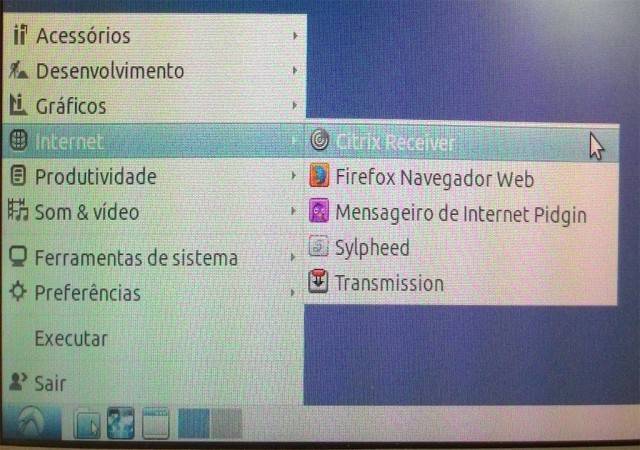
<div id="bkmrk-the-first-step-will-"><div>The first step will be to open the Lubuntu "Start" menu, select "Internet" and open the "Citrix Receiver":</div></div><div id="bkmrk-">![](https://helpdesk.deec.uc.pt/api/v1/attachments/1536)  
</div><div id="bkmrk--0">The software will start.  
</div><div id="bkmrk-the-software-will-st"><div>  
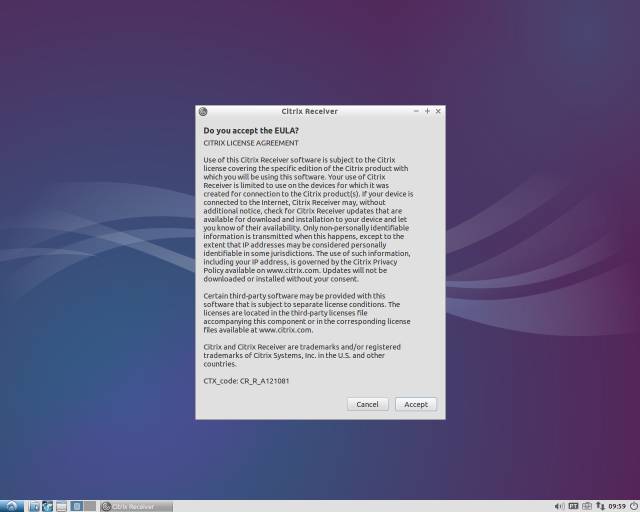
</div><div>Then, click on “Accept”</div></div><div id="bkmrk--1">![](https://helpdesk.deec.uc.pt/api/v1/attachments/1537)  
</div><div id="bkmrk--2">  
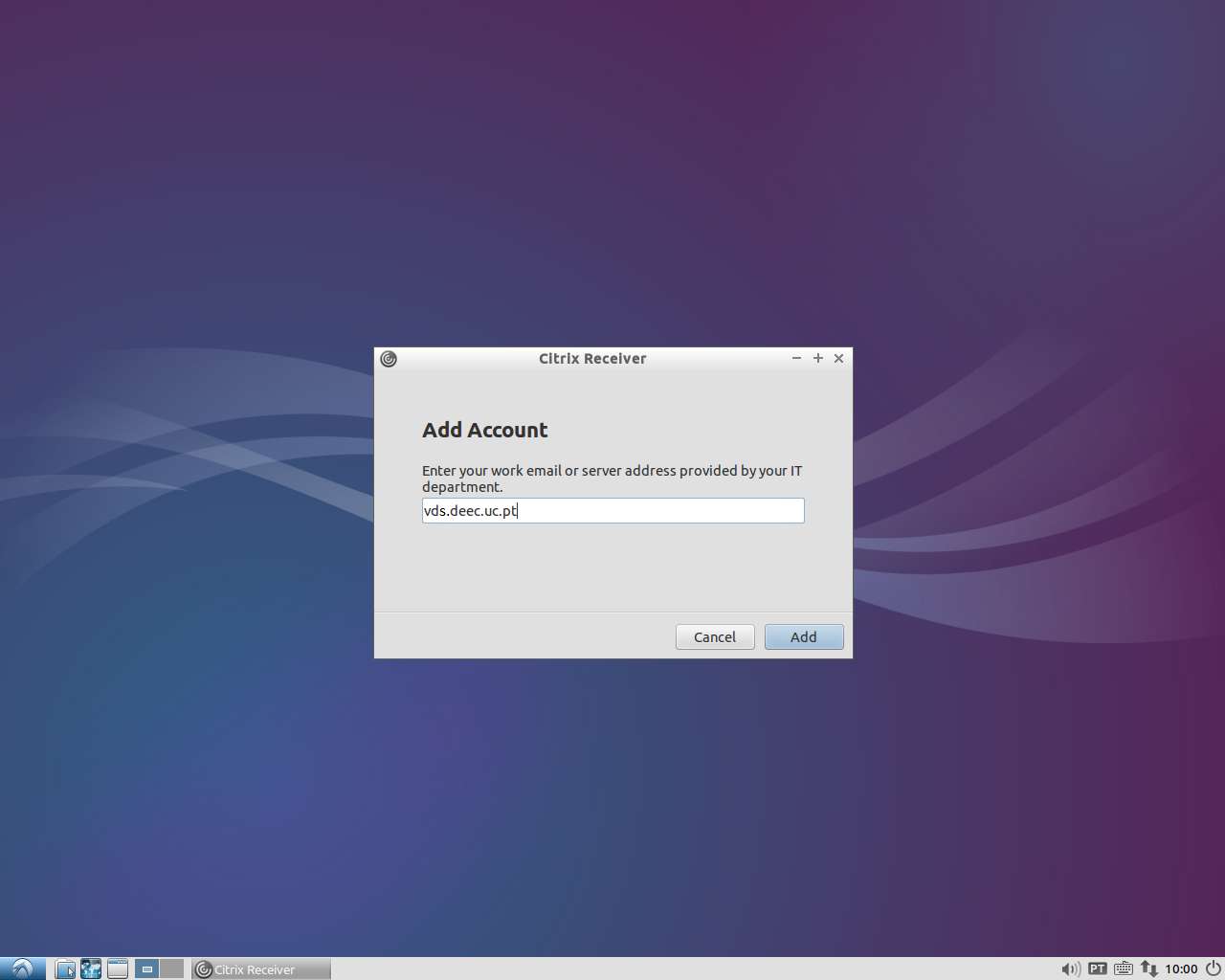
</div><div id="bkmrk-you-must-enter-the-f"><div>You must enter the following server address: vds.deec.uc.pt</div></div><div id="bkmrk--3">![](https://helpdesk.deec.uc.pt/api/v1/attachments/1538)  
</div><div id="bkmrk--4">  
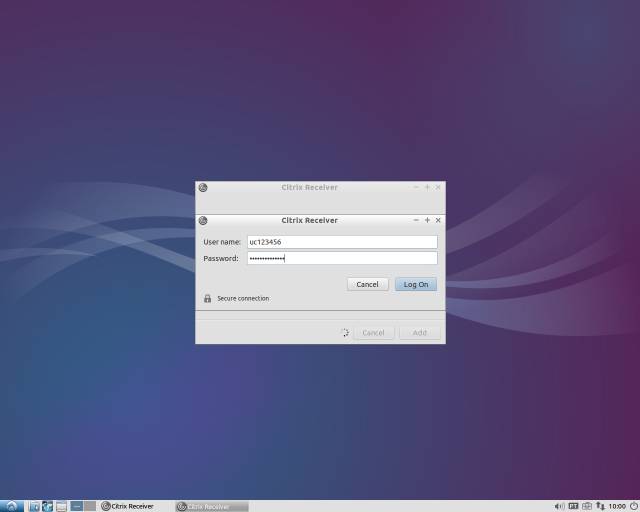
</div><div id="bkmrk-you-must-complete-yo"><div>You must complete your DEEC credentials</div><div>![](https://helpdesk.deec.uc.pt/api/v1/attachments/1539)  
</div><div>Authentication to the VDS system is now complete.</div><div>  
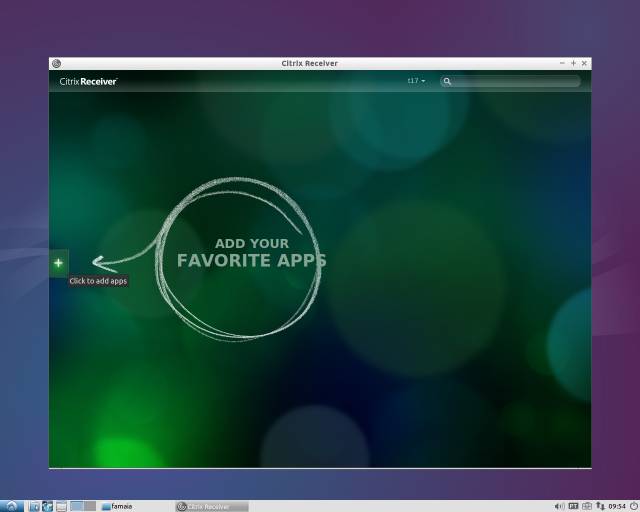
</div><div>Click on the “+” to add access to the Virtual Desktop:</div><div>![](https://helpdesk.deec.uc.pt/api/v1/attachments/1540)  
</div><div>  
</div><div>  
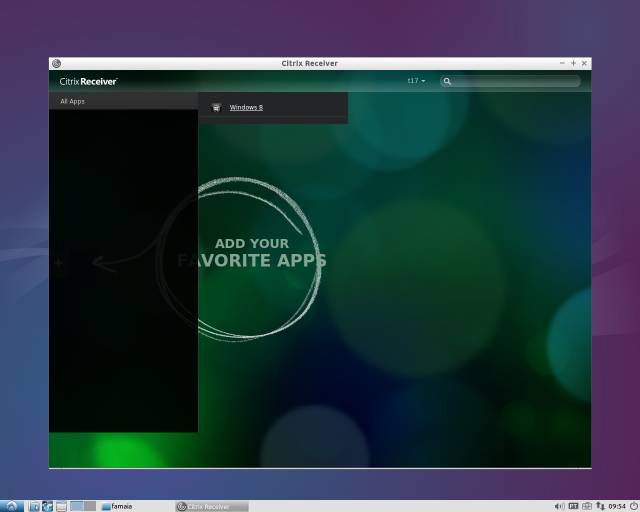
</div><div>Go to "All Apps" and select "Windows 8/10":</div><div>![](https://helpdesk.deec.uc.pt/api/v1/attachments/1541)  
</div><div>  
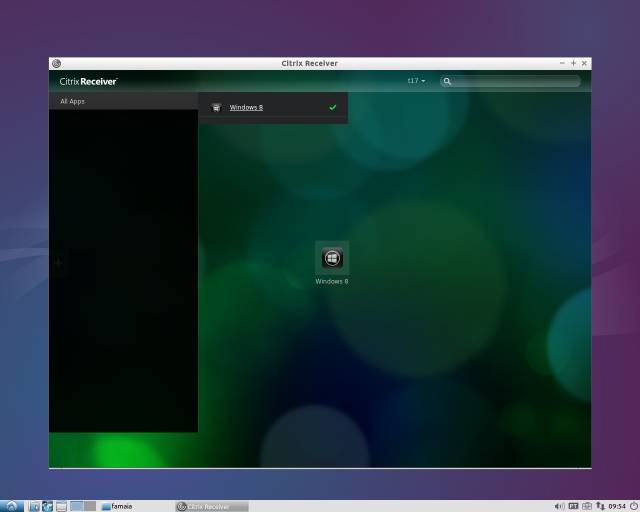
</div><div>Click on the icon and the Virtual Desktop with Windows 8 will start.</div><div>![](https://helpdesk.deec.uc.pt/api/v1/attachments/1542)  
</div><div>  
</div><div>Wait a moment for the working session to become available.</div></div><div id="bkmrk--5"></div>

# Matlab Faculty & Researchers

<p class="callout warning">To use this service you need a @deec.uc.pt or @uc.pt account!</p>

#### 1. Create a MathWorks account (If you already have a MathWorks account you can skip this step)

• Go to [http://www.mathworks.com](http://www.mathworks.com/) and click on *“Log in”.*
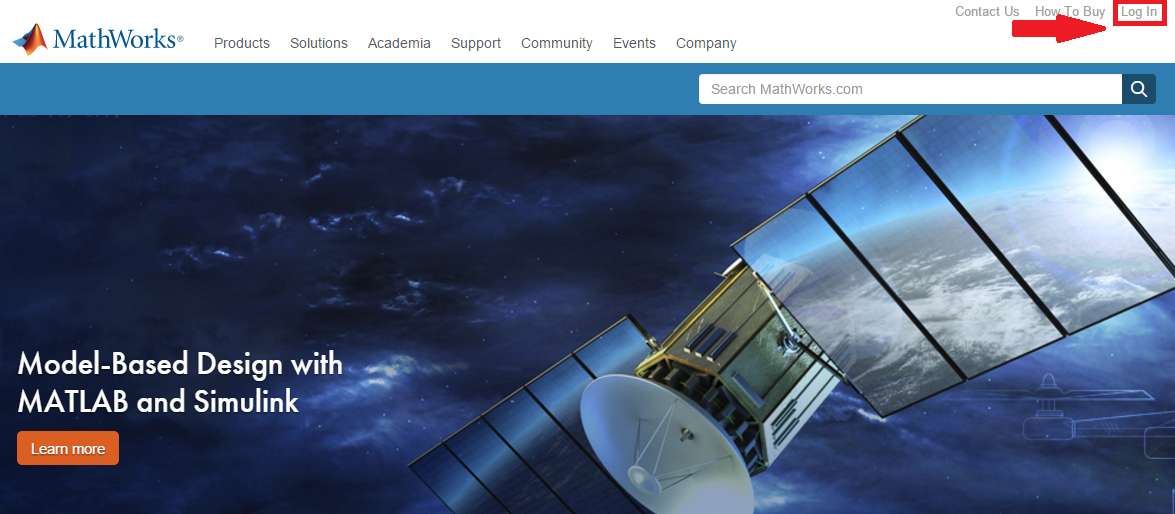
![](https://helpdesk.deec.uc.pt/api/v1/attachments/1501)

• Click on “Create Account”.

![](https://helpdesk.deec.uc.pt/api/v1/attachments/1502)

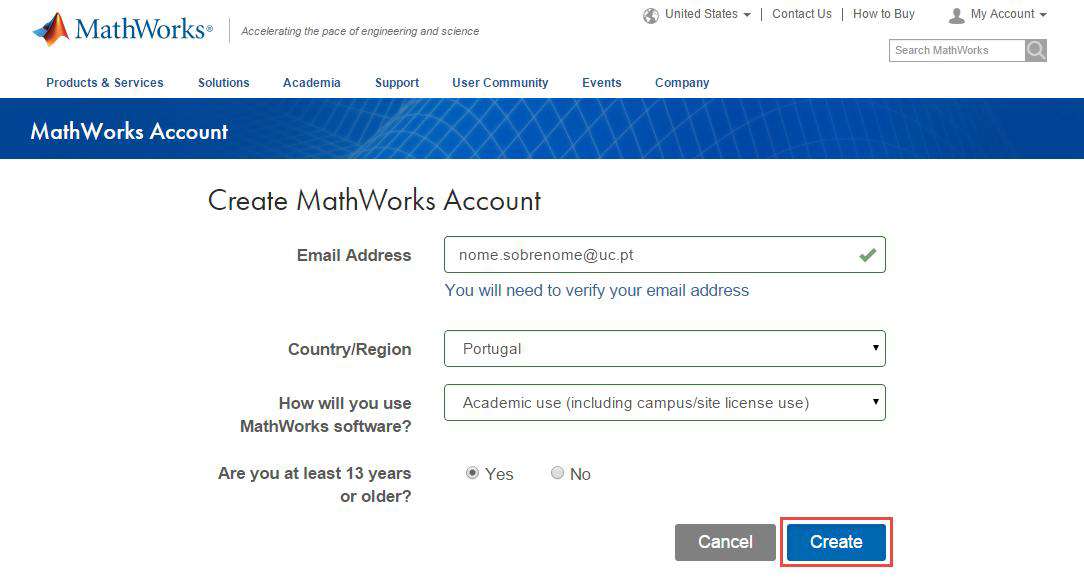
• You must use your institutional email (@ [deec.uc.pt](http://deec.uc.pt/ "http://deec.uc.pt") or @ [uc.pt](http://uc.pt/ "http://uc.pt")) and select the option “Academic Use”.

 ![](https://helpdesk.deec.uc.pt/api/v1/attachments/1503)

• At this point, you can finish creating your MathWorks account.
![](https://helpdesk.deec.uc.pt/api/v1/attachments/1504)

### 2. Associate the MathWorks account with the license

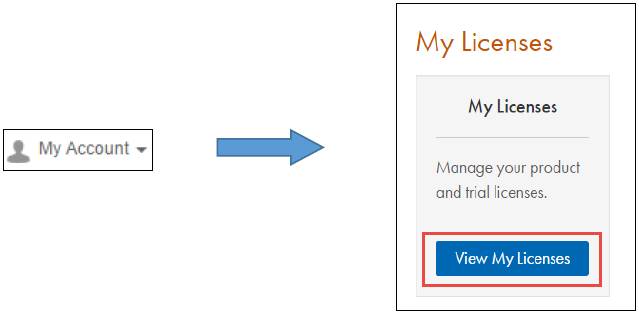
• After logging into your MathWorks account, go to “My Account” and click on “View My Licenses”.
 ![](https://helpdesk.deec.uc.pt/api/v1/attachments/1505)

• Click on the “Add License” button

![](https://helpdesk.deec.uc.pt/api/v1/attachments/1506)

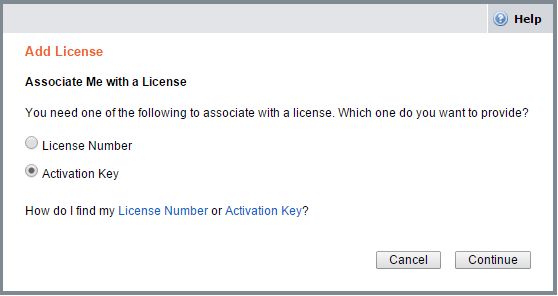
• Select the “Activation Key” option and click “Continue”.
![](https://helpdesk.deec.uc.pt/api/v1/attachments/1507)

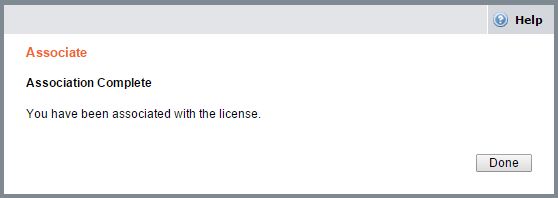
• Enter the Activation Key: 18583-36985-43947-39097-18102 and click on “Continue”.
![](https://helpdesk.deec.uc.pt/api/v1/attachments/1508)

<div id="bkmrk--3"><div>  
</div></div>### 3. Download and / or install the Software

<div id="bkmrk-you-can-download-the"><div><div>You can download the software from the Mathworks website (method b), however we suggest and recommend that you choose to install it directly or download it from the local BOX server (method a), the process being much faster, since it only uses the local network.</div><div>  
</div></div></div>#### METHOD A - INSTALLATION OVER THE LOCAL NETWORK (RECOMMENDED)

<div id="bkmrk-you-can-directly-ins"><div><div>- [Windows](https://drive.deec.uc.pt/d/s/pYApj2fV6CTwNvJn9kmwDexPVDmWrQ3P/W7NHLPuSS7VwYoxtK7SYqSIVw4jt1kjb-Q79A1QBGrwk)
- [Linux](https://drive.deec.uc.pt/d/s/pYAhzbbbs2YpZzMN6gicovRS7UoSBS0W/-2QN1fizStZ4Uu1cXnTO4ZAeIYtFlbDa-erig4gpGrwk)
- [macOS](https://drive.deec.uc.pt/d/s/pYAquBDU0soePfNDmo1LiiM1Ka3kkyPs/qJR-uDFohe0c7g1CHL17XJhIcJxfmDJv-IrPgPBdGrwk)

</div><div><span style="color: #222222; font-size: 1.666em; font-weight: 400;">METHOD B - TRANSFER VIA THE MATHWORKS WEBSITE (ALTERNATIVE)</span>  
</div></div></div><div id="bkmrk-a.-when-the-license-"><div><div>  
</div><div>a. When the license is activated in your MathWorks account, go to:</div></div></div>[http://www.mathworks.com/downloads/web\_downloads/select\_release](http://www.mathworks.com/downloads/web_downloads/select_release)

<div id="bkmrk-alternatively%2C-you-c"><div><div>Alternatively, you can download the software from the address ...</div><div>• Select the version of the software you want to install.</div><div>• Select the platform:</div></div></div>![](https://helpdesk.deec.uc.pt/api/v1/attachments/1509)

• You can then download the installer of the desired version and platform.

b. When the download is complete, **run the installation file.**

![](https://helpdesk.deec.uc.pt/api/v1/attachments/1510)

• Read and accept the terms of the license agreement:

![](https://helpdesk.deec.uc.pt/api/v1/attachments/1511)

• Enter your MathWorks account email address and password:

![](https://helpdesk.deec.uc.pt/api/v1/attachments/1512)

<div id="bkmrk-%E2%80%A2-choose-the-newly-a"><div><div>• Choose the newly activated license and click “Next”.</div></div></div>• Choose the installation folder.

![](https://helpdesk.deec.uc.pt/api/v1/attachments/1513)

• Select the products to install.

![](https://helpdesk.deec.uc.pt/api/v1/attachments/1514)

• Choose additional shortcut options and click “install”

c. When the installation process is finished, it is necessary to activate the software.

![](https://helpdesk.deec.uc.pt/api/v1/attachments/1515)

![](https://helpdesk.deec.uc.pt/api/v1/attachments/1516)

![](https://helpdesk.deec.uc.pt/api/v1/attachments/1517)

![](https://helpdesk.deec.uc.pt/api/v1/attachments/1518)

<span style="color: #000000;">**You can now use your copy of MATLAB.**</span>

<div id="bkmrk--12"><div>  
</div></div>

# MATLAB Students

<p class="callout warning">To use this service you need a @student.uc.pt account</p>

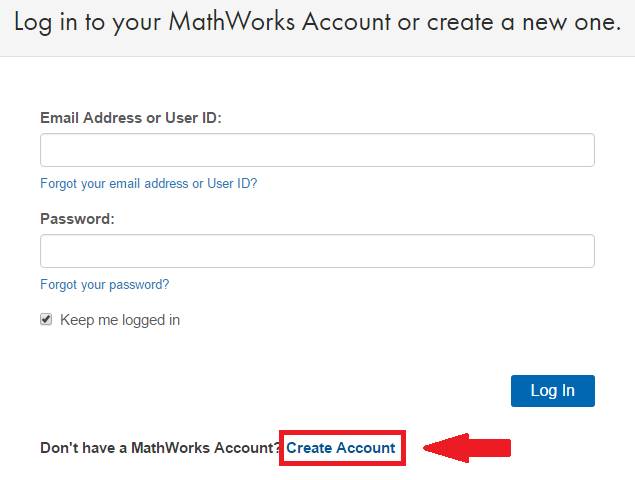
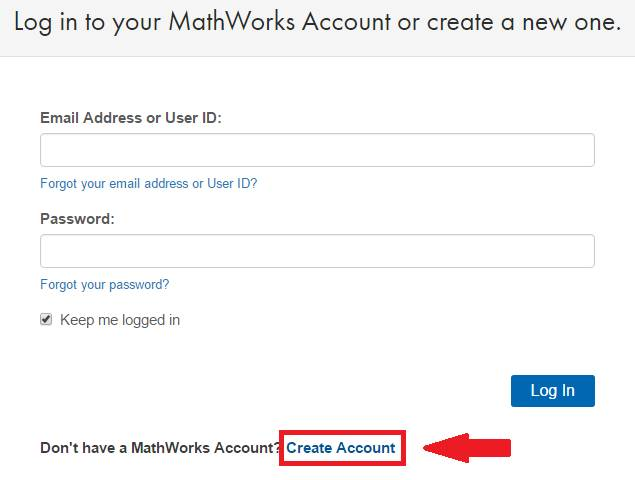
### 1. Create a MathWorks account (If you already have a MathWorks account you can skip this step)  


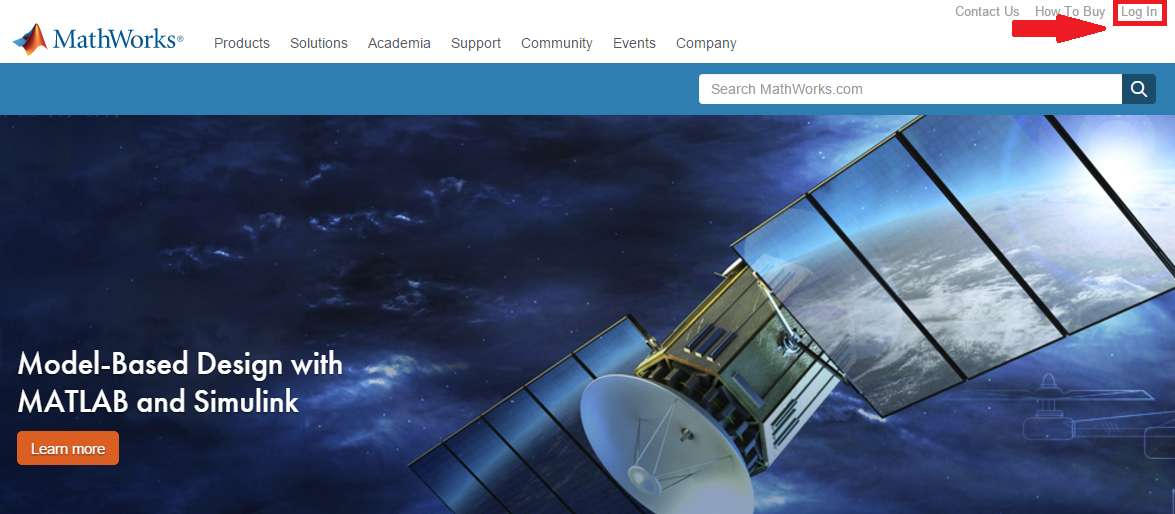
• Go to [http://www.mathworks.com](http://www.mathworks.com/) and click on *“Log in”.*

[![image-1678460775170.png](https://kb.deec.uc.pt/uploads/images/gallery/2023-03/scaled-1680-/image-1678460775170.png)](https://kb.deec.uc.pt/uploads/images/gallery/2023-03/image-1678460775170.png)
• Click on “Create Account”.

[![image-1678460784456.png](https://kb.deec.uc.pt/uploads/images/gallery/2023-03/scaled-1680-/image-1678460784456.png)](https://kb.deec.uc.pt/uploads/images/gallery/2023-03/image-1678460784456.png)
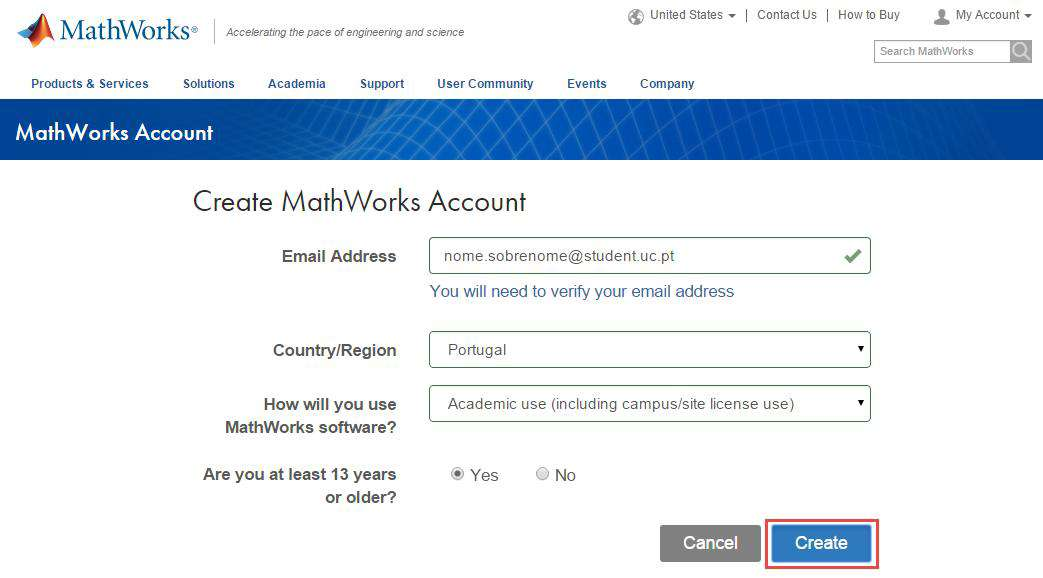
• You must use your institutional email (@student.deec.uc.pt) and select the option “Academic Use”.

[![image-1678460810603.png](https://kb.deec.uc.pt/uploads/images/gallery/2023-03/scaled-1680-/image-1678460810603.png)](https://kb.deec.uc.pt/uploads/images/gallery/2023-03/image-1678460810603.png)

• At this point, you can finish creating your MathWorks account.

[![image-1678460826699.png](https://kb.deec.uc.pt/uploads/images/gallery/2023-03/scaled-1680-/image-1678460826699.png)](https://kb.deec.uc.pt/uploads/images/gallery/2023-03/image-1678460826699.png)
<div id="bkmrk--4"><div><span style="color: #222222; font-size: 2.333em; font-weight: 400;">2. Associate the MathWorks account with the license</span>  
</div></div>• After logging into your MathWorks account, go to “My Account” and click on “View My Licenses”.

 ![](https://helpdesk.deec.uc.pt/api/v1/attachments/1524)

• Click on the “Add License” button

![](https://helpdesk.deec.uc.pt/api/v1/attachments/1525)

• Select the “Activation Key” option and click “Continue”.

 ![](https://helpdesk.deec.uc.pt/api/v1/attachments/1526)

• Enter the Activation Key: **16700-37878-73264-69266-93873** and click on “Continue”.

![](https://helpdesk.deec.uc.pt/api/v1/attachments/1527)

<div id="bkmrk--10"></div>### 3. Download and / or install the Software

<div id="bkmrk-you-can-download-the"><div><div>You can download the software from the Mathworks website (method b), however we suggest and recommend that you choose to install it directly or download it from the local BOX server (method a), the process being much faster, since it only uses the local network.</div><div>  
</div></div></div>#### METHOD A - INSTALLATION OVER THE LOCAL NETWORK (RECOMMENDED)

<div id="bkmrk-you-can-directly-ins"><div><div>- [Windows](https://drive.deec.uc.pt/d/s/shHWlxPCRCHy4JWaAFatNuvCzX9PIO4g/F3M2Gbr8C7V3gYY8-hd_zCDDjGt7RBP7-l7iAwQuvRgo)
- [Linux](https://drive.deec.uc.pt/d/s/shHQTBR4CShos1mXlLfeTcxdsgxvxZpK/Uu2V9RRI5VjW9jLdRtrjONpFWypAoyaH-wbiABRSvRgo)
- [macOS](https://drive.deec.uc.pt/d/s/shHYIK2Lw0fWwJ0RYAzSvZYfXcXixLHM/bZbRbg0xbdMgztUB4QrKsGBfG0AMRbZ_-JrlgkSKvRgo)

</div></div></div>#### METHOD B - TRANSFER VIA THE MATHWORKS WEBSITE (ALTERNATIVE)

<div id="bkmrk-a.-when-the-license-"><div><div>  
</div><div>a. When the license is activated in your MathWorks account, go to:</div></div></div>[http://www.mathworks.com/downloads/web\_downloads/select\_release](http://www.mathworks.com/downloads/web_downloads/select_release)

<div id="bkmrk-alternatively%2C-you-c"><div><div>Alternatively, you can download the software from the address ...</div><div>• Select the version of the software you want to install.</div><div>• Select the platform:</div></div></div>![](https://helpdesk.deec.uc.pt/api/v1/attachments/1528)

• You can then download the installer of the desired version and platform.

b. When the download is complete, **run the installation file.**

 ![](https://helpdesk.deec.uc.pt/api/v1/attachments/1529)

• Read and accept the terms of the license agreement:

 ![](https://helpdesk.deec.uc.pt/api/v1/attachments/1530)

• Enter your MathWorks account email address and password:

 ![](https://helpdesk.deec.uc.pt/api/v1/attachments/1519)

<div id="bkmrk-%E2%80%A2-choose-the-newly-a"><div><div>• Choose the newly activated license and click “Next”.</div></div></div>• Choose the installation folder.

![](https://helpdesk.deec.uc.pt/api/v1/attachments/1531)

• Select the products to install.

![](https://helpdesk.deec.uc.pt/api/v1/attachments/1532)

• Choose additional shortcut options and click “install”

c. When the installation process is finished, it is necessary to activate the software.

• You can now use your copy of MATLAB.

<div id="bkmrk--19"><div>  
</div></div>

# Matlab software renewal and reactivation process

1. Open MATLAB (If the license has already expired the activation client will launch and you can skip the next step)
2. Navigate to Help Menu and select Licensing
3. Click on Activate Software
4. Choose to Activate using Internet
5. Once reactivated you will need to restart MATLAB before the new license file is recognized If the installation has already expired, you will be prompted to activate when attempting to launch MATLAB. As long as the activation finishes successfully it will roll over to the new license file once the old one expires. You might continue to see the expiration warning in MATLAB until the old file expires."

# Labview and Multisim Installation

**DEEC has a licensed Labview and Multisim software for students and staff:**

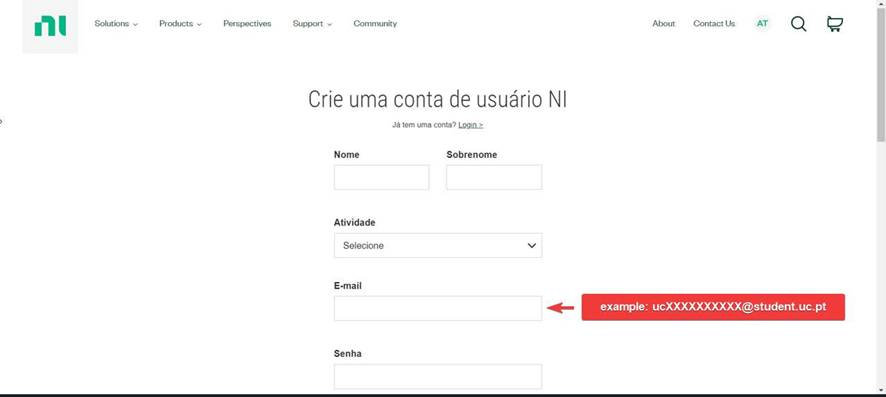
<p class="callout warning">**Before using the software, you must register your account with NI, using the site:** [https://lumen.ni.com/nicif/us/header\_create/content.xhtml?action=create&amp;du=https://www.ni.com/myni/dashboard/](https://www.ni.com/myni/dashboard/ "https://www.ni.com/myni/dashboard/")</p>

<p class="callout warning">You must use your institutional e-mail for his step (ucXXXXXXXXXX@student.uc.pt)</p>

![](https://helpdesk.deec.uc.pt/api/v1/attachments/21244)

**To access this software:**

- Download the software at [https://installers.deec.uc.pt/labview\_multisim/labview\_multisim.zip](https://installers.deec.uc.pt/labview_multisim/labview_multisim.zip)
- Extract the file and install the software:
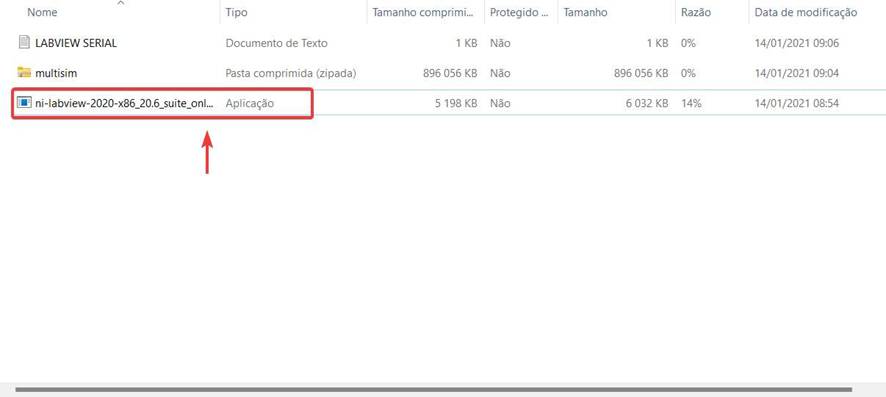
![](https://helpdesk.deec.uc.pt/api/v1/attachments/21245)

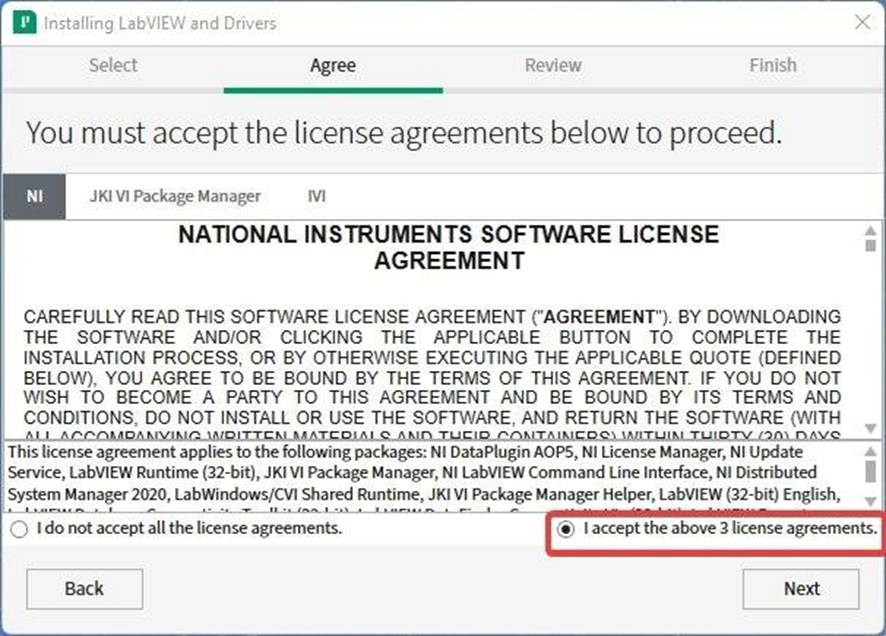
\- In the next steps click "next" and accept all the license agreements that will appear :
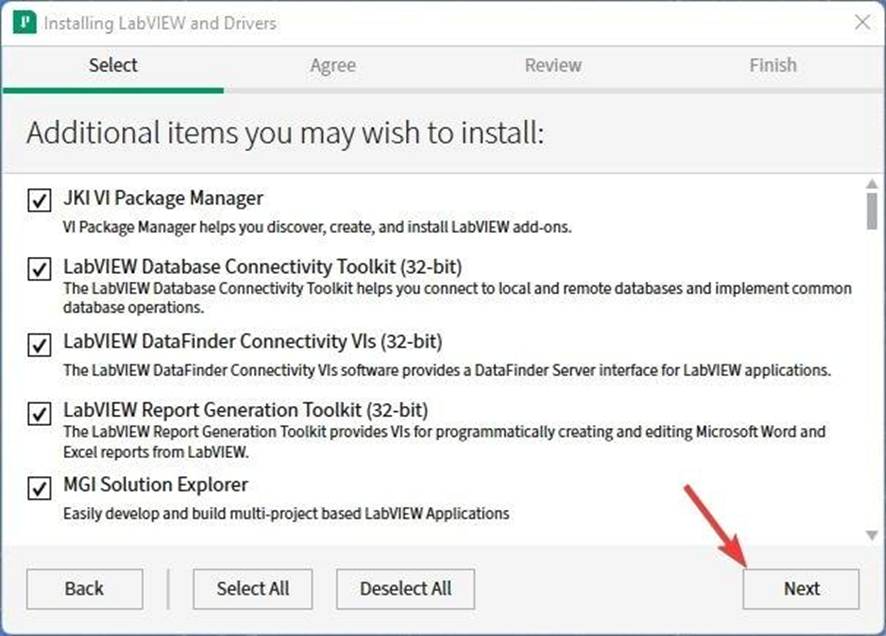
![](https://helpdesk.deec.uc.pt/api/v1/attachments/21246)

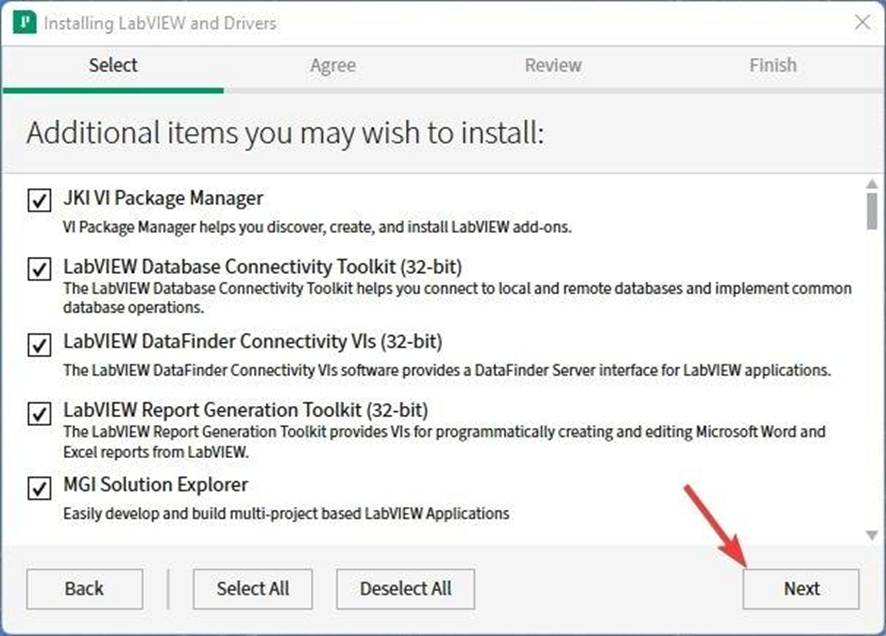
\- Choose the software that you will need to install and click "next":
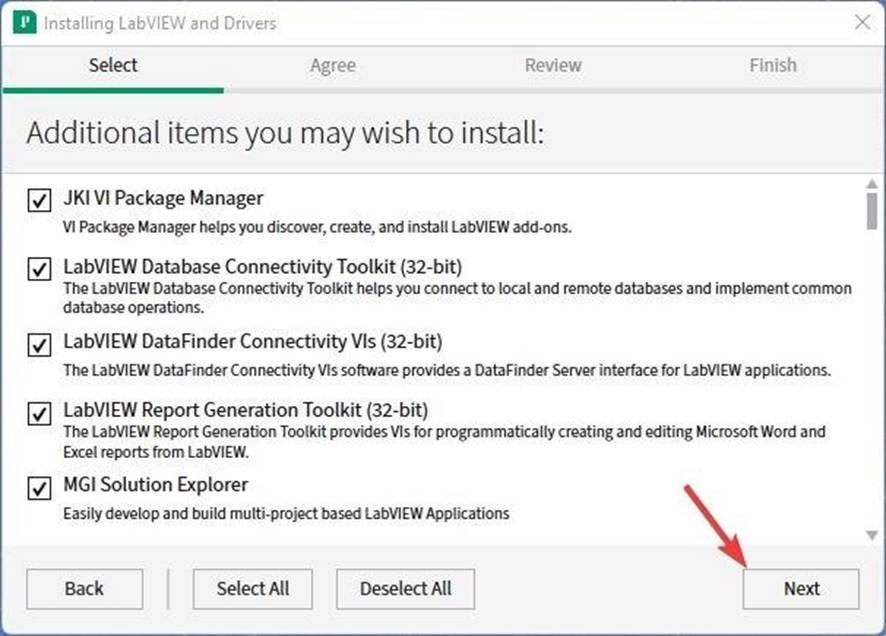
![](https://helpdesk.deec.uc.pt/api/v1/attachments/21247)

![](https://helpdesk.deec.uc.pt/api/v1/attachments/21248)

\- In the next steps click "next" and accept all the license agreements that will appear :
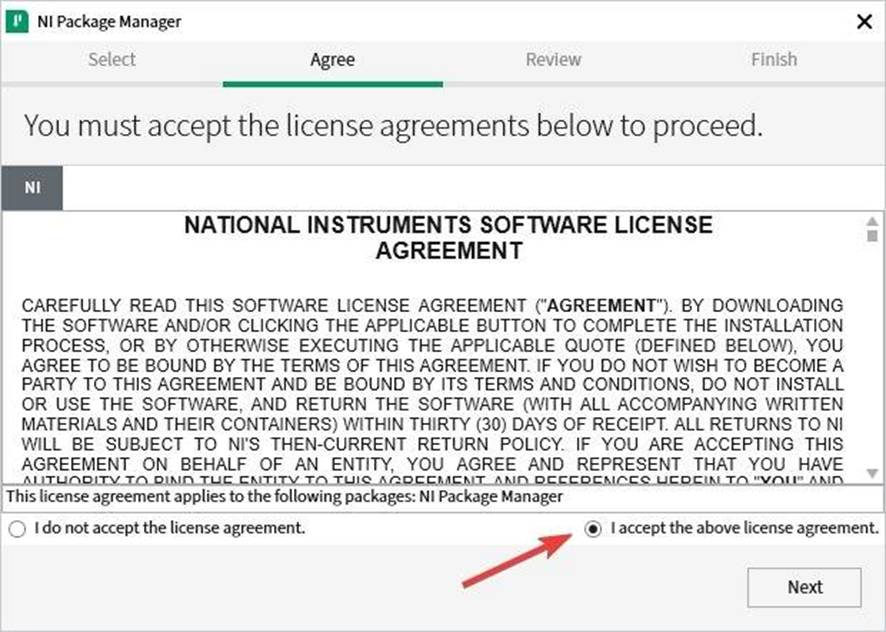
![](https://helpdesk.deec.uc.pt/api/v1/attachments/21249)

![](https://helpdesk.deec.uc.pt/api/v1/attachments/21250)

\- Confirm that the chosen software is correct:
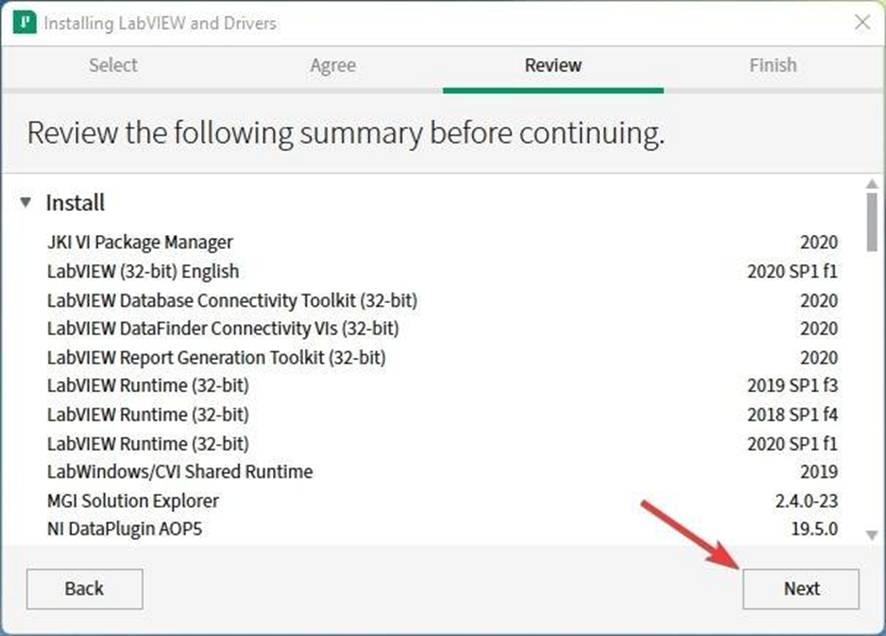
![](https://helpdesk.deec.uc.pt/api/v1/attachments/21252)

\- Accept that NI Update Service checks for updates:
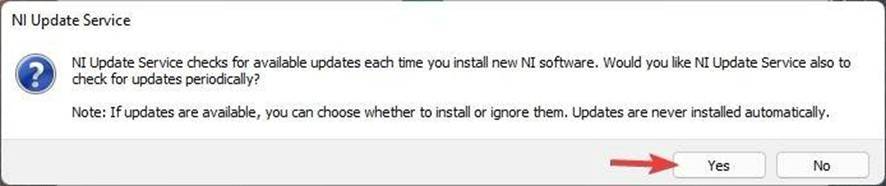
![](https://helpdesk.deec.uc.pt/api/v1/attachments/21253)

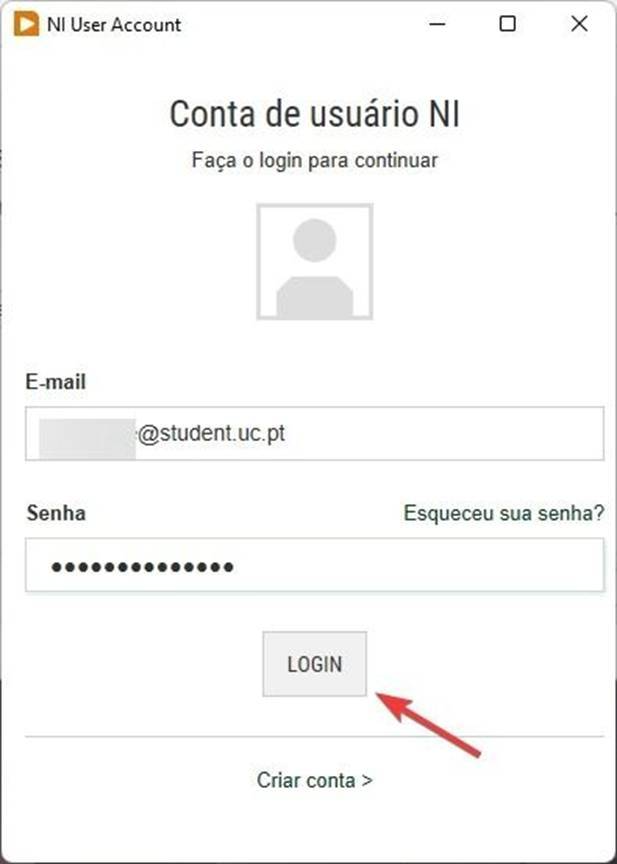
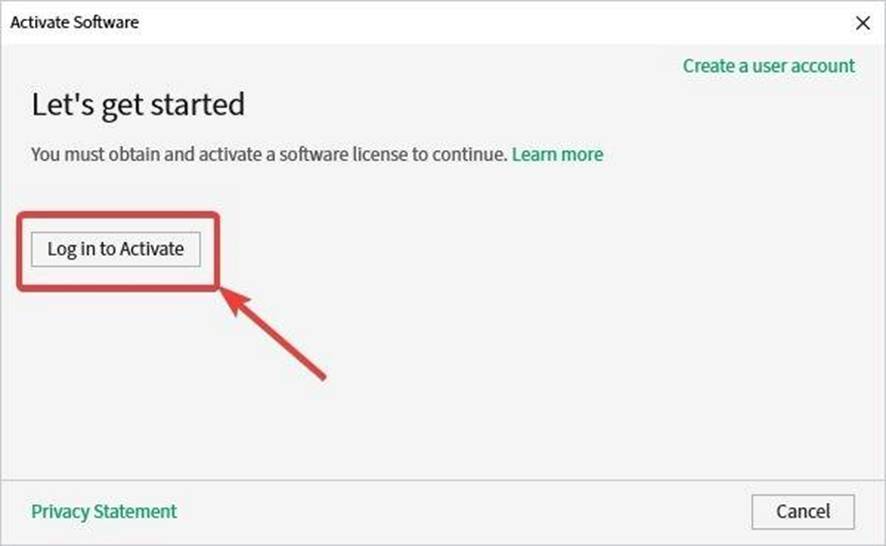
\- Login using the account you created:
![](https://helpdesk.deec.uc.pt/api/v1/attachments/21254)

![](https://helpdesk.deec.uc.pt/api/v1/attachments/21255)

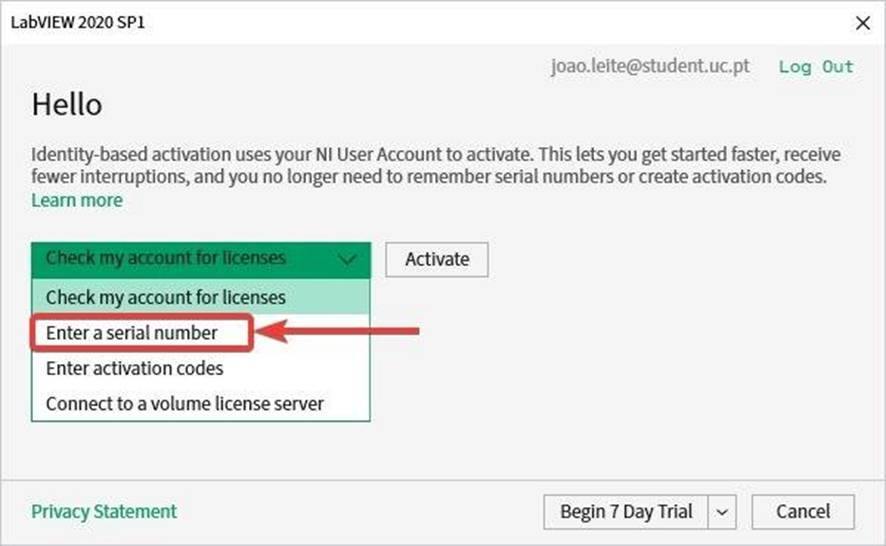
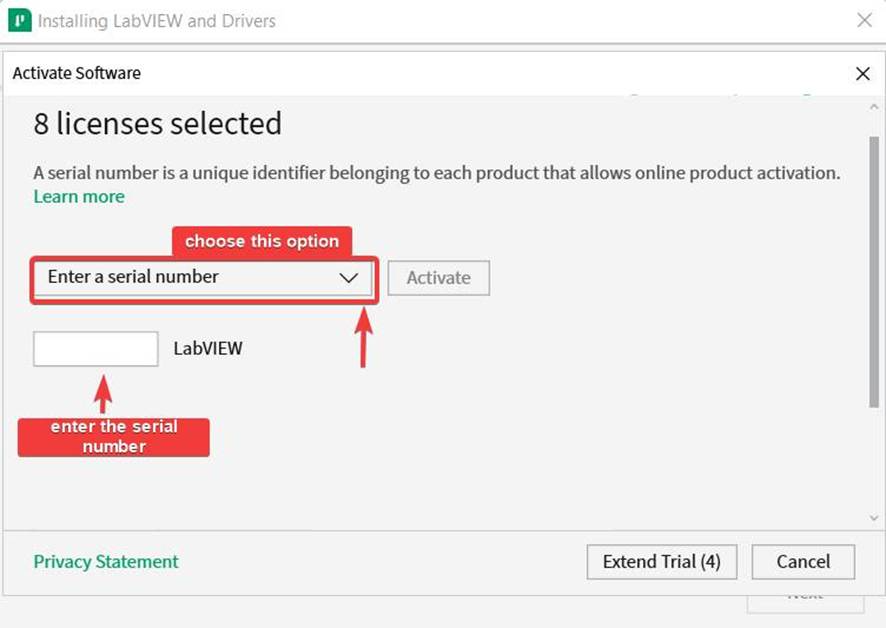
\- Choose "Enter a serial number":

![](https://helpdesk.deec.uc.pt/api/v1/attachments/21257)

\- Enter the serial number, from the file "LABVIEW SERIAL" inside the downloaded zip file, and click "Activate":
![](https://helpdesk.deec.uc.pt/api/v1/attachments/21258)