# VPN

# VPN Client for students - Windows

<p class="callout warning">To use this service you need a @deec.uc.pt or @student.uc.pt account</p>

### **Installation**

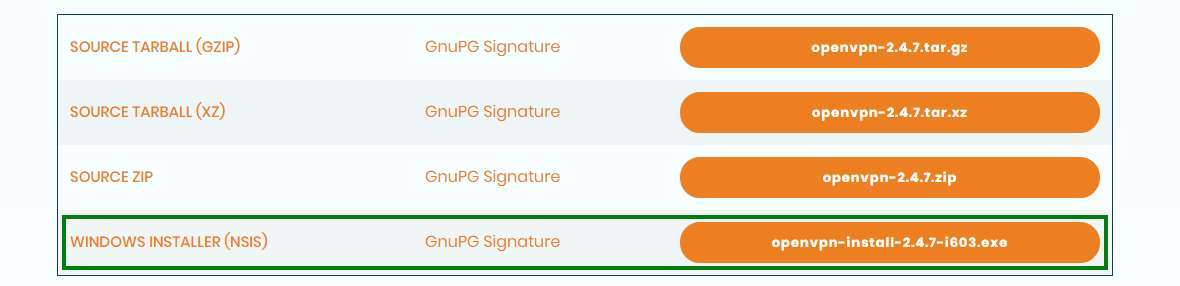
To download OpenVPN just go [here](https://openvpn.net/community-downloads/), and below you will find the respective download
![](https://helpdesk.deec.uc.pt/api/v1/attachments/20997)

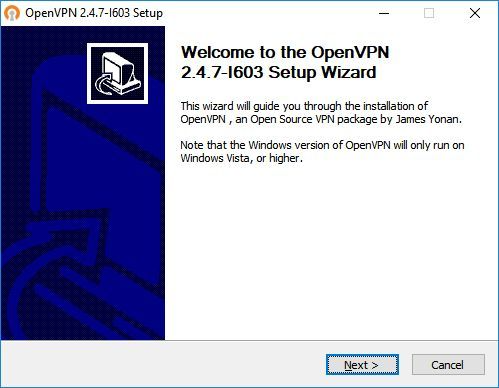
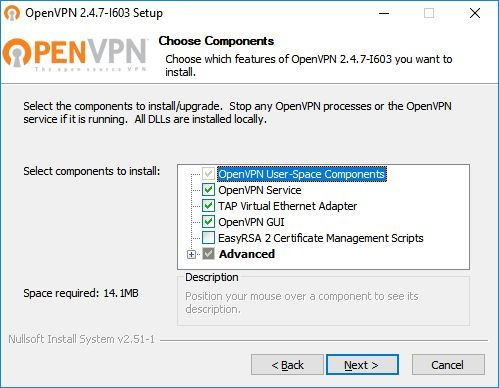
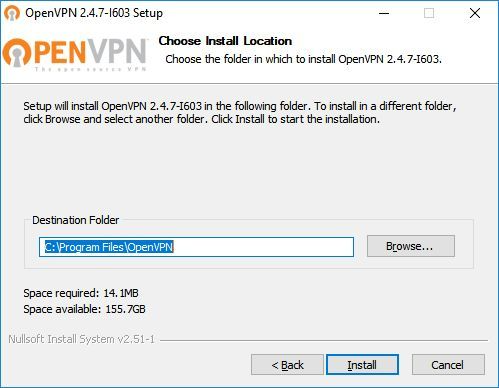
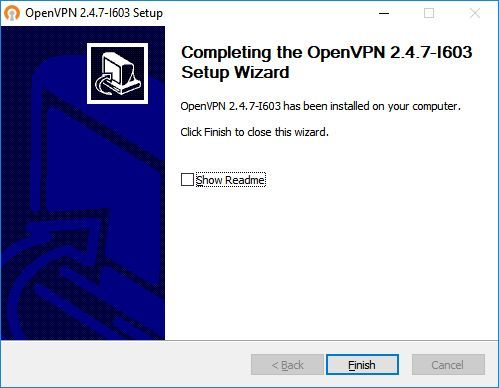
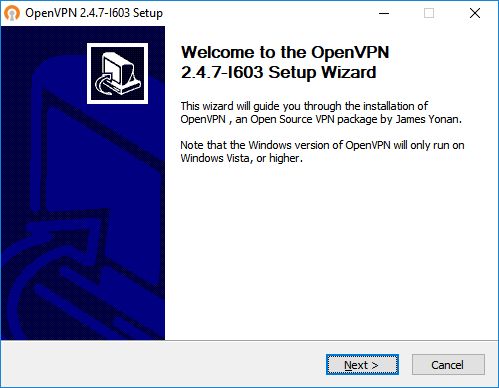
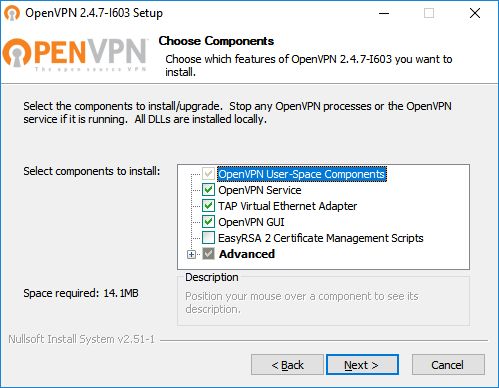
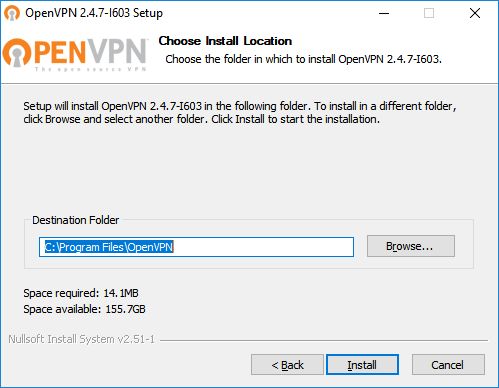
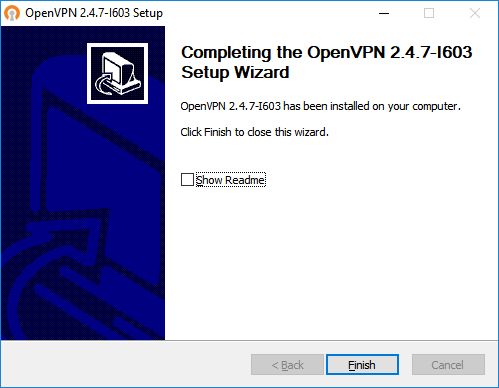
<div id="bkmrk-em-seguida%2C-fazer-a-"><center></center><div id="bkmrk-then%2C-perform-the-re">Then, perform the respective installation</div></div><div id="bkmrk--0"></div><div id="bkmrk--1">![](https://helpdesk.deec.uc.pt/api/v1/attachments/20998)  
</div><div id="bkmrk--2">  
</div><div id="bkmrk--3">![](https://helpdesk.deec.uc.pt/api/v1/attachments/20999)  
</div><div id="bkmrk--4">  
</div><div id="bkmrk--5">![](https://helpdesk.deec.uc.pt/api/v1/attachments/21000)  
</div><div id="bkmrk--6">  
</div><div id="bkmrk--7">![](https://helpdesk.deec.uc.pt/api/v1/attachments/21001)  
</div>### **Configuration**

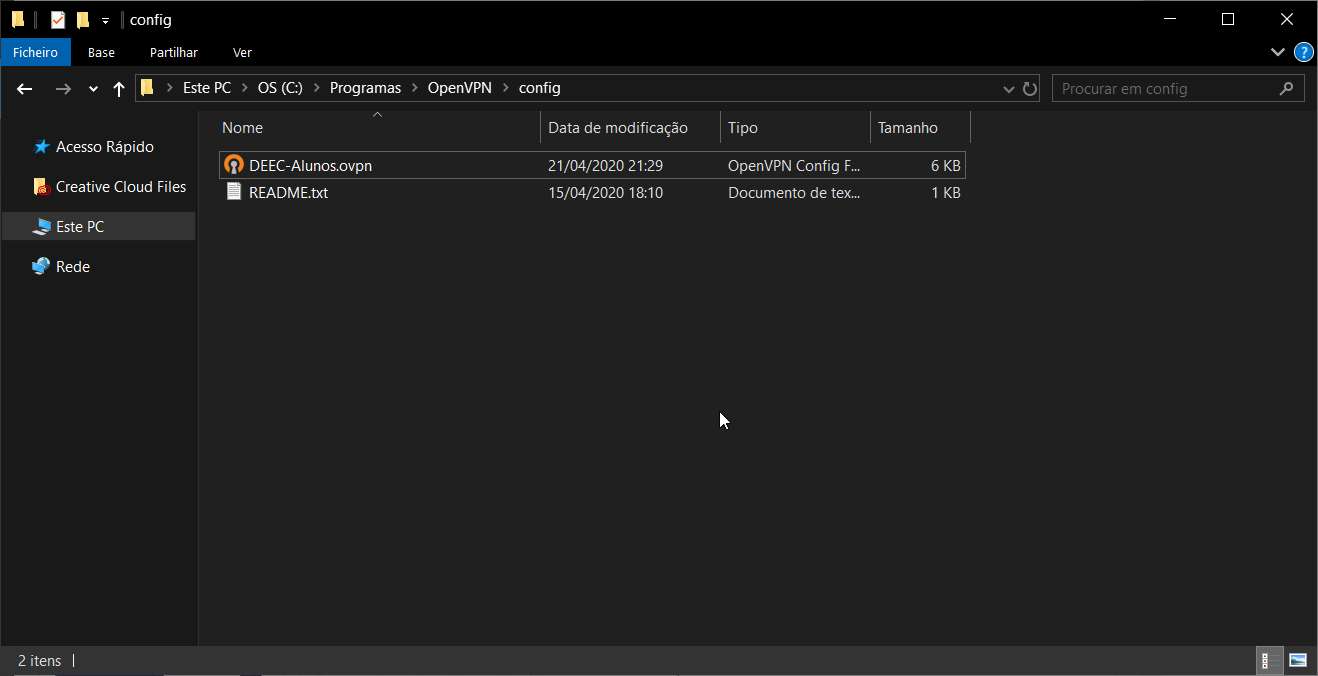
For your configuration, you should download [DEEC-Alunos.ovpn](https://kb.deec.uc.pt/attachments/18) and move it to “**C:\\Program Files\\OpenVPN\\config**”.
![](https://helpdesk.deec.uc.pt/api/v1/attachments/21002)

### **Connection**

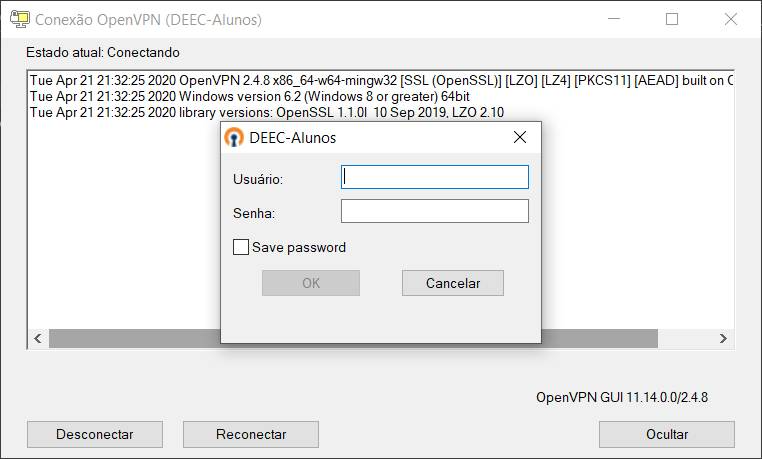
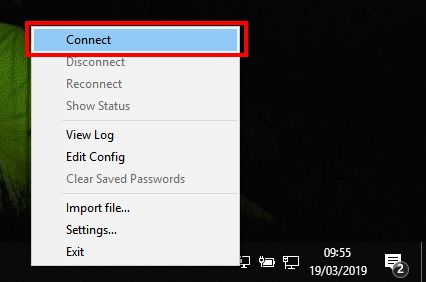
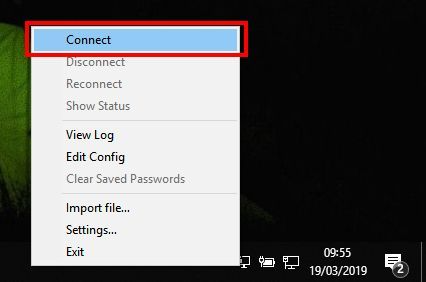
To finish, you will have to start the program “OpenVPN GUI” which, with its execution, will show an icon of a monitor with a lock on your task bar.

![](https://helpdesk.deec.uc.pt/api/v1/attachments/21004)

<div id="bkmrk-com-o-lado-direito-d"><center></center>To finish, you will have to start the program “OpenVPN GUI” which, with its execution, will show an icon of a monitor with a lock on your task bar.  
</div><div id="bkmrk--10">![](https://helpdesk.deec.uc.pt/api/v1/attachments/21005)  
</div><div id="bkmrk--11">  
</div><div id="bkmrk--12">![](https://helpdesk.deec.uc.pt/api/v1/attachments/21006)</div><div id="bkmrk--13"></div><div id="bkmrk--14"></div><div id="bkmrk-1-attached-files">  
</div>

# DEEC VPN Client - Windows

<p class="callout warning">To use this service you need a @deec.uc.pt or @student.uc.pt account</p>

### OpenVPN Profiles

- [DEEC Teachers and Researchers](https://kb.deec.uc.pt/attachments/56)
- [DEEC Students](https://kb.deec.uc.pt/attachments/57)

<div id="bkmrk-installation"><span style="color: #222222; font-size: 2.333em;">Installation</span>  
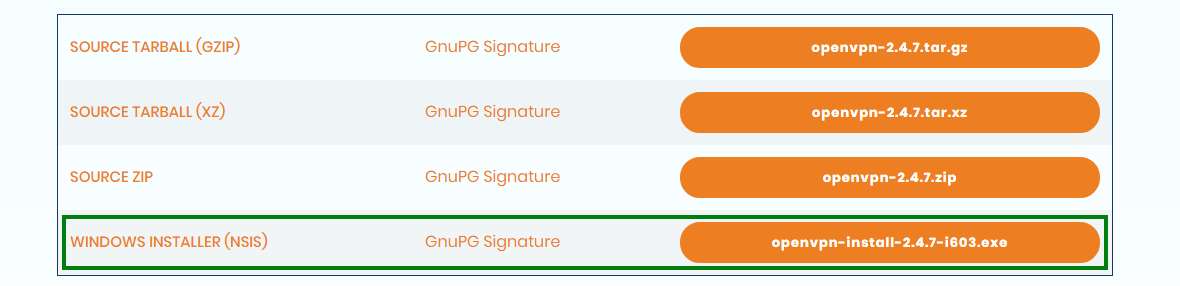
</div>To download OpenVPN just go [here](https://openvpn.net/community-downloads/ "https://openvpn.net/community-downloads/"), and below you will find the respective download.
![](https://helpdesk.deec.uc.pt/api/v1/attachments/1545)

<div id="bkmrk-then%2C-perform-the-re">Then, perform the respective installation.</div><div id="bkmrk--2">![](https://helpdesk.deec.uc.pt/api/v1/attachments/1647)  
</div><div id="bkmrk--3">  
</div><div id="bkmrk--4">![](https://helpdesk.deec.uc.pt/api/v1/attachments/1648)  
</div><div id="bkmrk--5">  
</div><div id="bkmrk--6">![](https://helpdesk.deec.uc.pt/api/v1/attachments/1649)  
</div><div id="bkmrk--7">  
</div><div id="bkmrk--8">![](https://helpdesk.deec.uc.pt/api/v1/attachments/1650)  
</div>### Configuration  


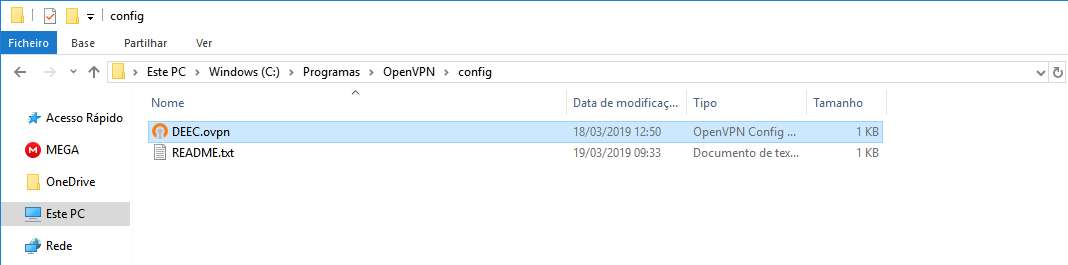
Move the OpenVPN profile to “**C:\\Program Files\\OpenVPN\\config**”.
![](https://helpdesk.deec.uc.pt/api/v1/attachments/1546)

### Connection

<div id="bkmrk-to-finish%2C-you-will-">To finish, you will have to start the program “OpenVPN GUI” which, with its execution, will show an icon of a monitor with a lock on your task bar.</div>![](https://helpdesk.deec.uc.pt/api/v1/attachments/1547)

<div id="bkmrk-to-finish%2C-you-will--0">To finish, you will have to start the program “OpenVPN GUI” which, with its execution, will show an icon of a monitor with a lock on your task bar.</div>![](https://helpdesk.deec.uc.pt/api/v1/attachments/1548)

# VPN Client for teachers and researchers - Ubuntu

<p class="callout warning">To use this service you need a @deec.uc.pt account!</p>

### Installation

Install OpenVPN network manager by entering (copy/paste) into the terminal

```bash
sudo apt-get install network-manager-openvpn-gnome
```

When the installation is complete, restart the network-manager service

```
systemctl restart NetworkManager
```

<div id="bkmrk-when-the-installatio"></div><div id="bkmrk-"></div>### Configuration

Download the OpenVPN profile: [DEEC.ovpn](https://kb.deec.uc.pt/attachments/20)

Go to the Network Manager and under VPN, click the "+" button

[![image-1667407490016.png](https://kb.deec.uc.pt/uploads/images/gallery/2022-11/scaled-1680-/image-1667407490016.png)](https://kb.deec.uc.pt/uploads/images/gallery/2022-11/image-1667407490016.png)
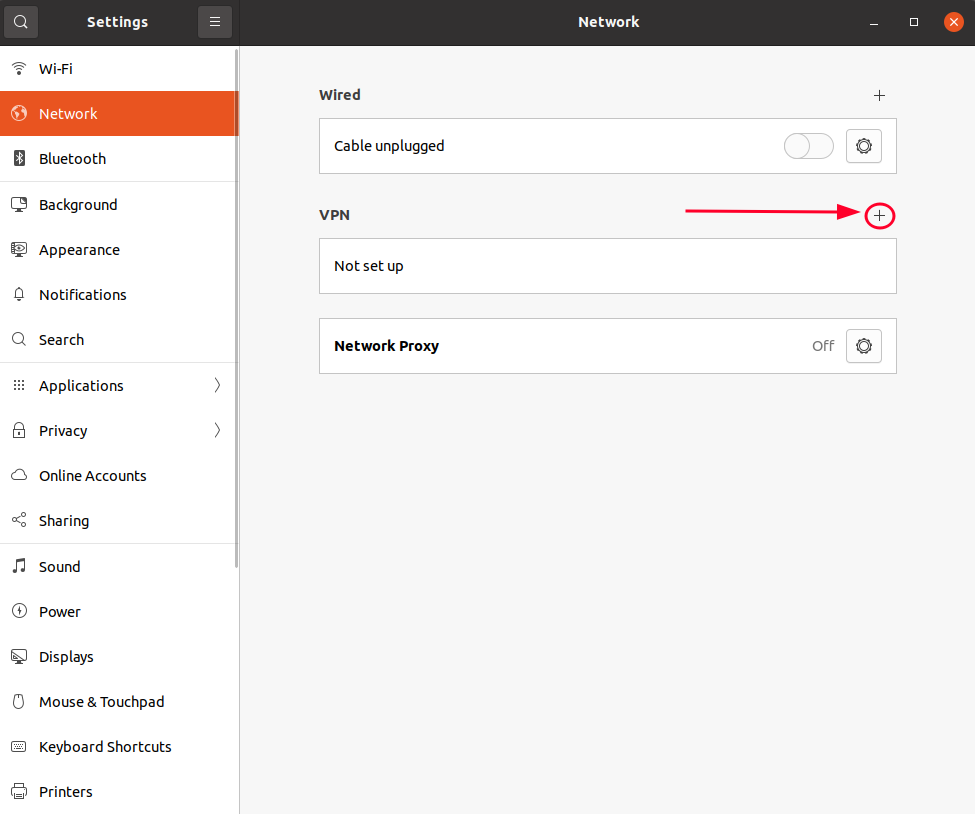
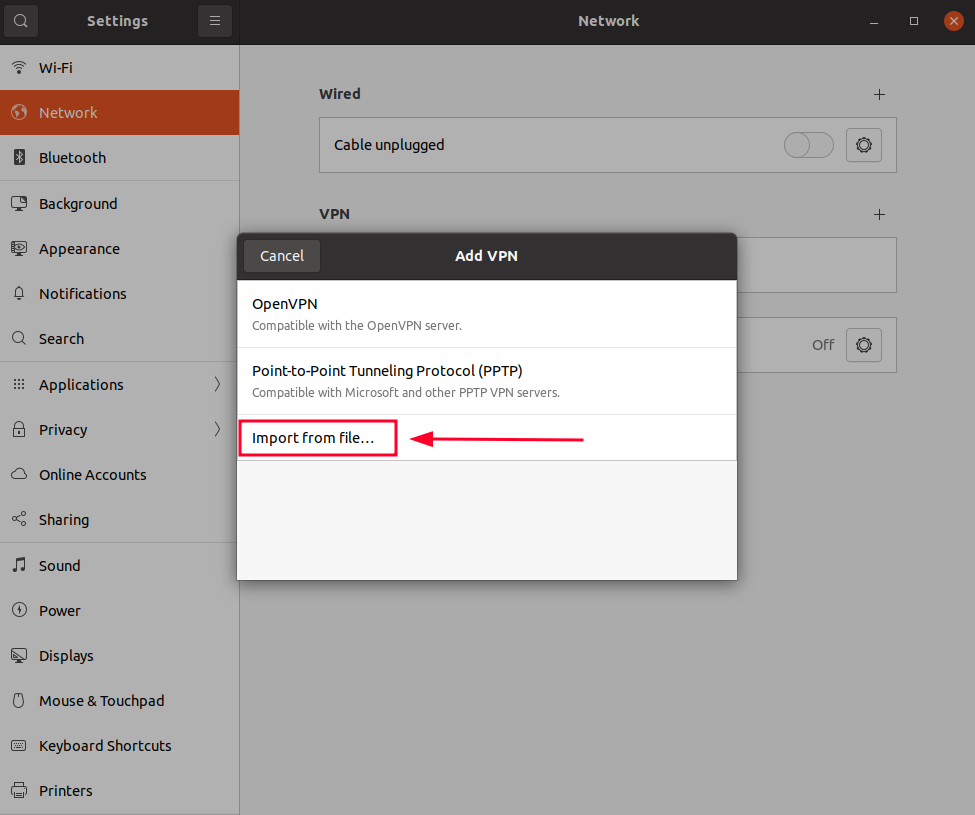
Click "Import from file..." and select the .ovpn file I've downloaded

[![image-1667407545580.png](https://kb.deec.uc.pt/uploads/images/gallery/2022-11/scaled-1680-/image-1667407545580.png)](https://kb.deec.uc.pt/uploads/images/gallery/2022-11/image-1667407545580.png)
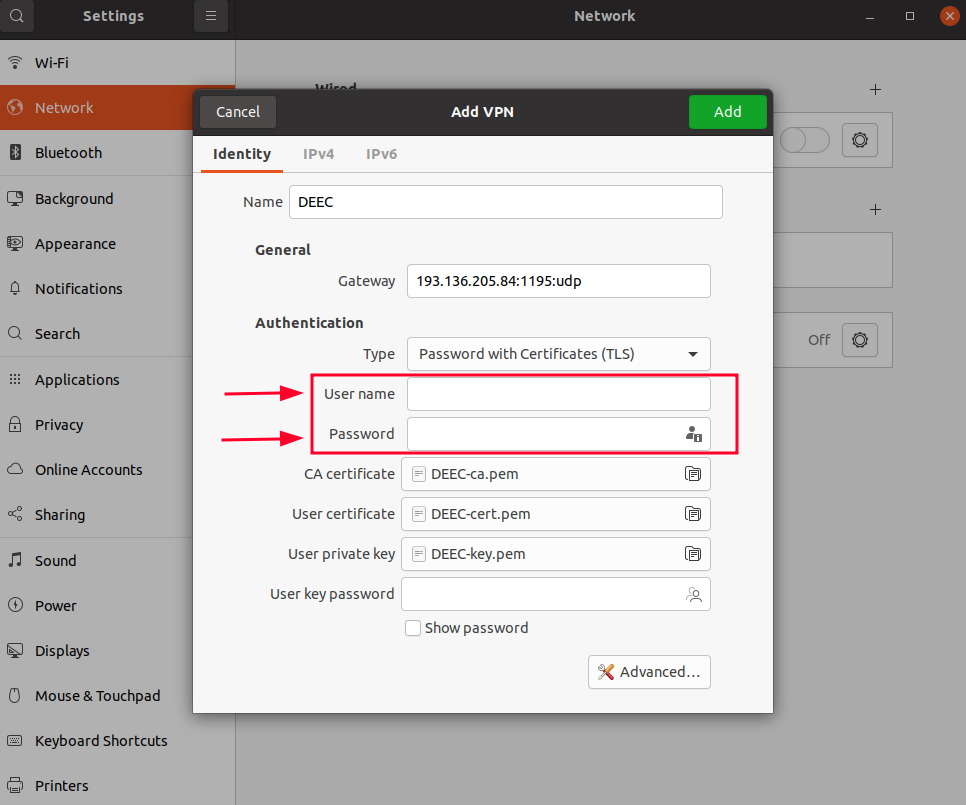
Input your credentials and click "Add"

[![image-1667407690728.png](https://kb.deec.uc.pt/uploads/images/gallery/2022-11/scaled-1680-/image-1667407690728.png)](https://kb.deec.uc.pt/uploads/images/gallery/2022-11/image-1667407690728.png)
### Connection

<div id="bkmrk-finally-select-the-n"><div><div><div>Finally select the network manager icon, go to VPN Connections and select the created VPN.</div><div>  
</div></div></div></div>[![image-1667407771826.png](https://kb.deec.uc.pt/uploads/images/gallery/2022-11/scaled-1680-/image-1667407771826.png)](https://kb.deec.uc.pt/uploads/images/gallery/2022-11/image-1667407771826.png)

# VPN Client for teachers and researchers - Android

<p class="callout warning">To use this service you need a @deec.uc.pt account!</p>

<div id="bkmrk-openvpn-installation"><div>OpenVPN Installation, Configuration and Execution Manual on Android  
</div></div>#### **Introduction:**

<div id="bkmrk-this-document-will-p"><div><div>This document will present, step by step, the installation, configuration and execution of OpenVPN on Android operating systems.</div></div></div>#### **Preparation:**

<div id="bkmrk-before-starting-the-"><div><div>Before starting the installation and configuration of OpenVPN on your SmartPhone, you should check the following point:</div>- <div>Have an account for the configuration of OpenVPN, which is requested from the Management Office of the Computer Network</div>

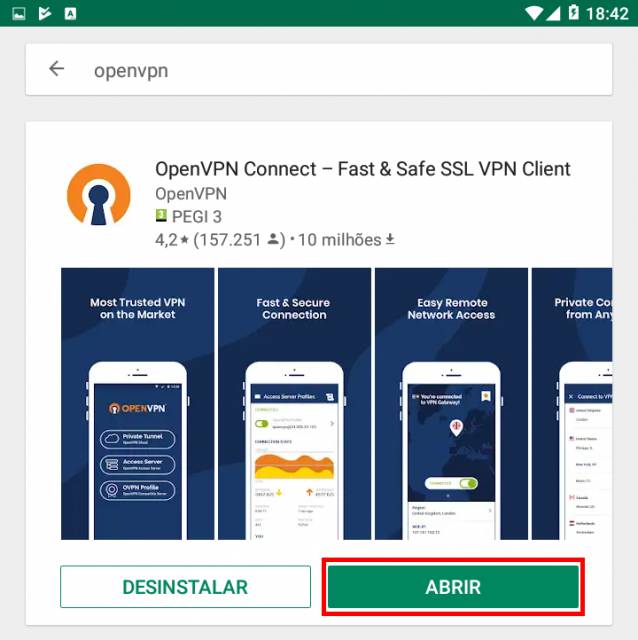
</div></div>To download OpenVPN just go to the Google Store and download the following application “[OpenVPN Connect – Fast &amp; Saf SSL VPN Client](https://play.google.com/store/apps/details?id=net.openvpn.openvpn&hl=pt_PT "https://play.google.com/store/apps/details?id=net.openvpn.openvpn&hl=pt_PT")”.

### ![](https://helpdesk.deec.uc.pt/api/v1/attachments/1566)  


<div id="bkmrk--0">  
</div><div id="bkmrk--1">![](https://helpdesk.deec.uc.pt/api/v1/attachments/1567)  
</div><div id="bkmrk--2">  
</div>#### **Configuration and Execution:**

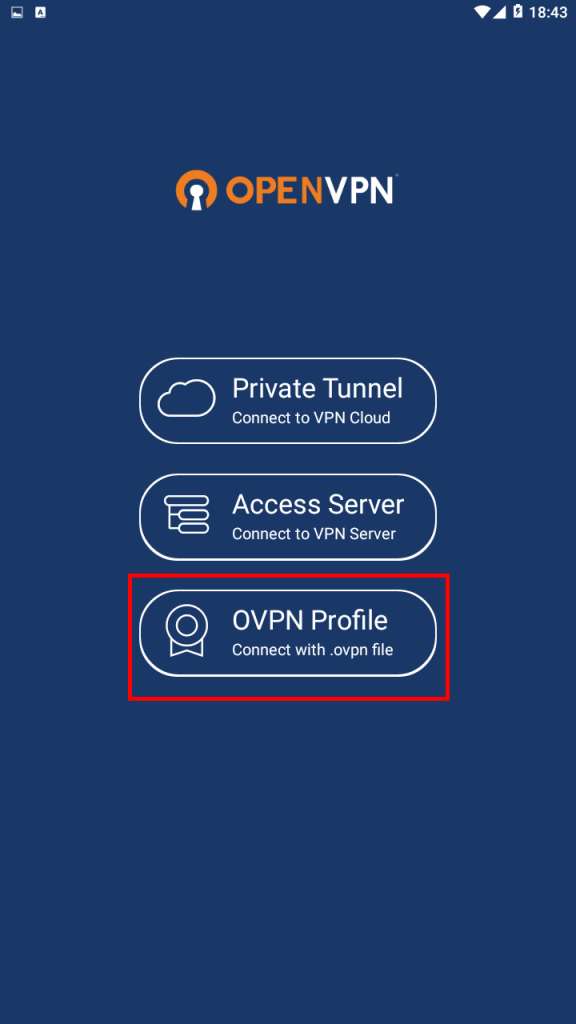
For your configuration, you must download the [DEEC.ovpn](https://kb.deec.uc.pt/attachments/21) file. Then go to “OVPN Profile”.

![](https://helpdesk.deec.uc.pt/api/v1/attachments/1568)

<div id="bkmrk-go-to-the-file-direc"><div>Go to the file directory, select it and do "Import".</div><div>![](https://helpdesk.deec.uc.pt/api/v1/attachments/1569)  
</div><div>  
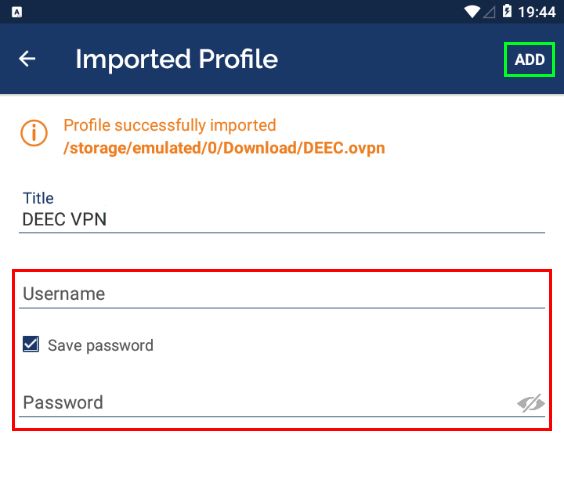
</div><div><div>To finish, you will have to insert the credentials obtained by the Management Office of the Computer Network and make "ADD".</div></div><div>![](https://helpdesk.deec.uc.pt/api/v1/attachments/1570)</div></div><div id="bkmrk--5"></div><div id="bkmrk--6"></div>
# VPN Client for teachers and researchers - iOS

<p class="callout warning">To use this service you need a @deec.uc.pt account!</p>

#### OpenVPN Installation, Configuration and Execution Manual on iOS

<div id="bkmrk-introdution%3A"><div><div>**Introdution:**  
</div></div></div>This document will present, step by step, the installation, configuration and execution of OpenVPN on the iOS operating system.

**Preparation:**

Before starting the installation and configuration of OpenVPN on your iPhone, you should check the following point:

<div id="bkmrk-have-an-account-for-"><div>- Have an account for configuring the VPN, which is requested at the Computer Network Management office.

</div></div>**Installation:**

To download OpenVPN just go to the AppStore and download the following application “*[OpenVPN Connect](https://itunes.apple.com/pt/app/openvpn-connect/id590379981?mt=8 "https://itunes.apple.com/pt/app/openvpn-connect/id590379981?mt=8")*”.

![](https://helpdesk.deec.uc.pt/api/v1/attachments/1571)

![](https://helpdesk.deec.uc.pt/api/v1/attachments/1572)

![](https://helpdesk.deec.uc.pt/api/v1/attachments/1573)

**Configuation:**

For your configuration, you must download the [DEEC.ovpn](https://informatica.deec.uc.pt/wp-content/uploads/2019/03/DEEC-Openvpn.zip "https://informatica.deec.uc.pt/wp-content/uploads/2019/03/DEEC-Openvpn.zip"). Then, open the application, select the “OVPN Profile” option and accept the policies.

![](https://helpdesk.deec.uc.pt/api/v1/attachments/1574)

![](https://helpdesk.deec.uc.pt/api/v1/attachments/1575)

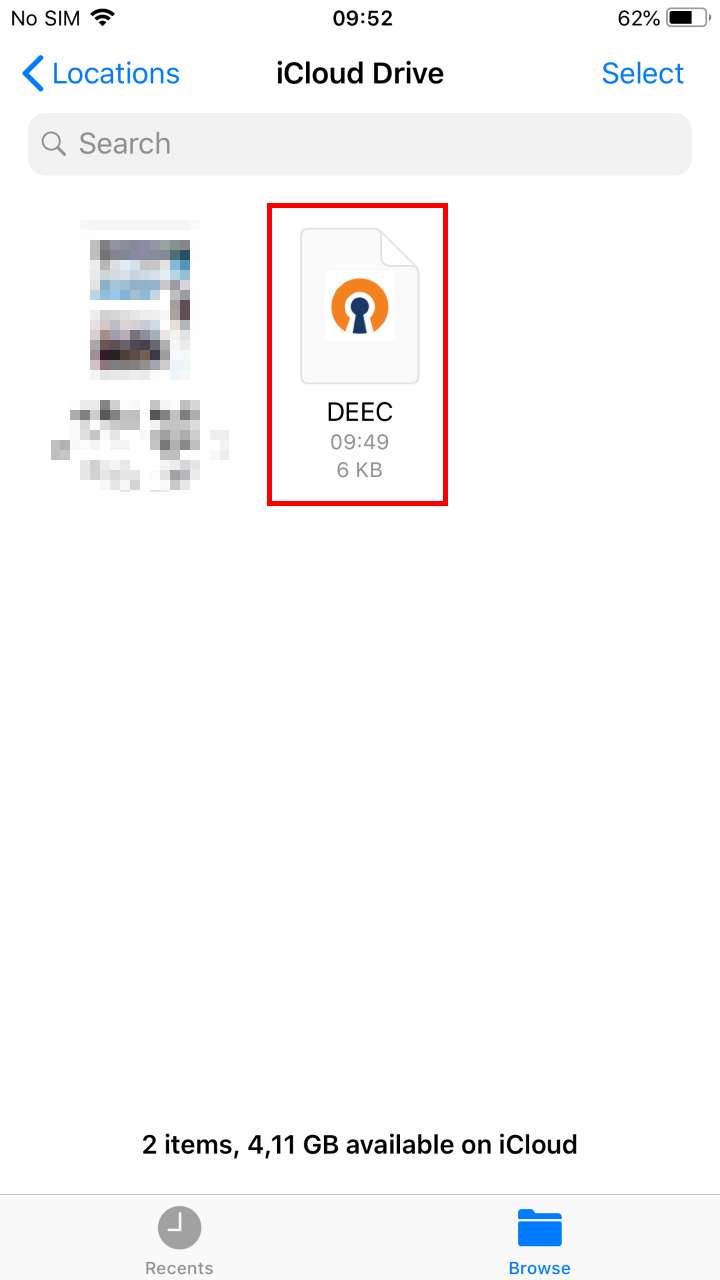
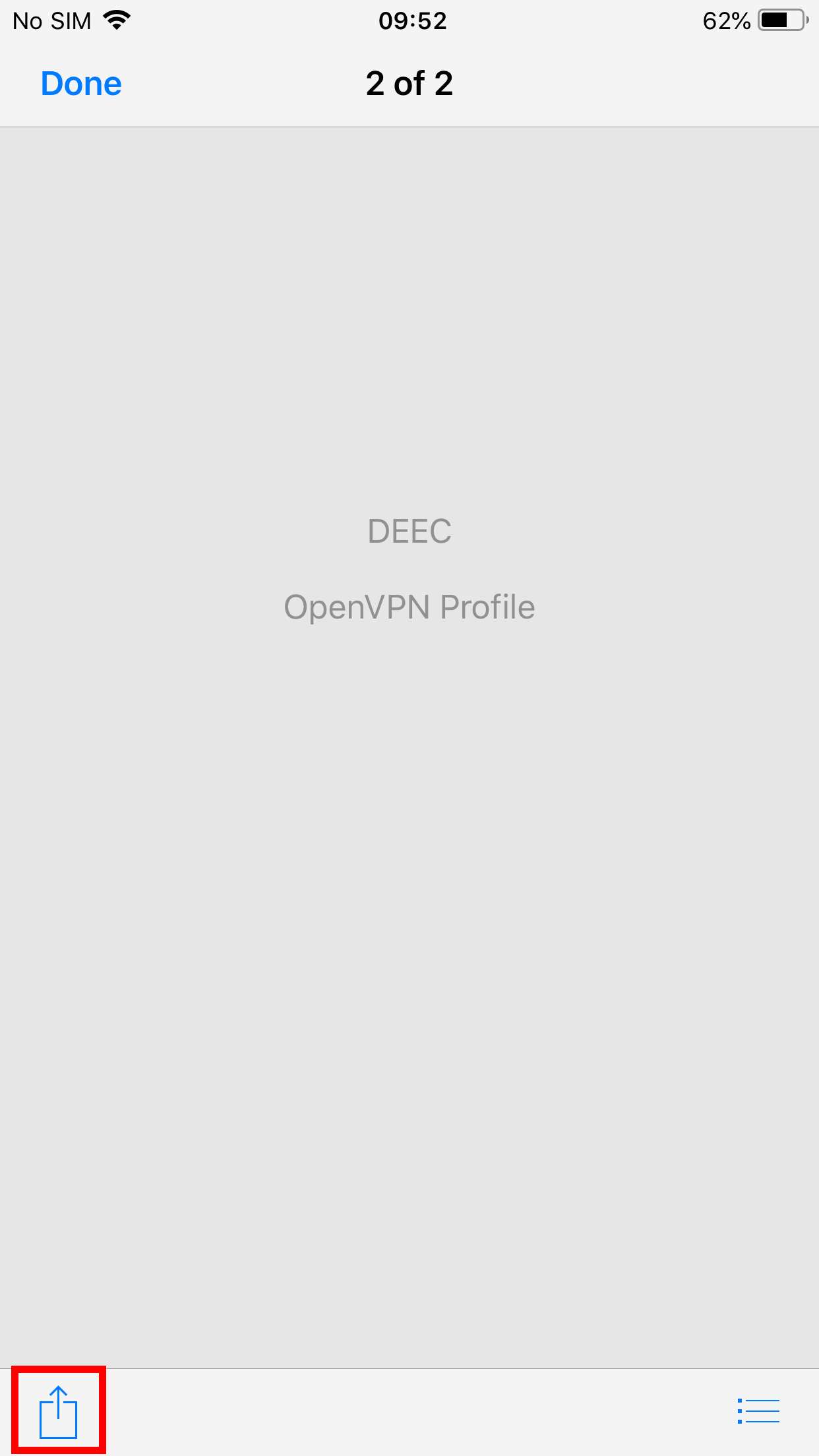
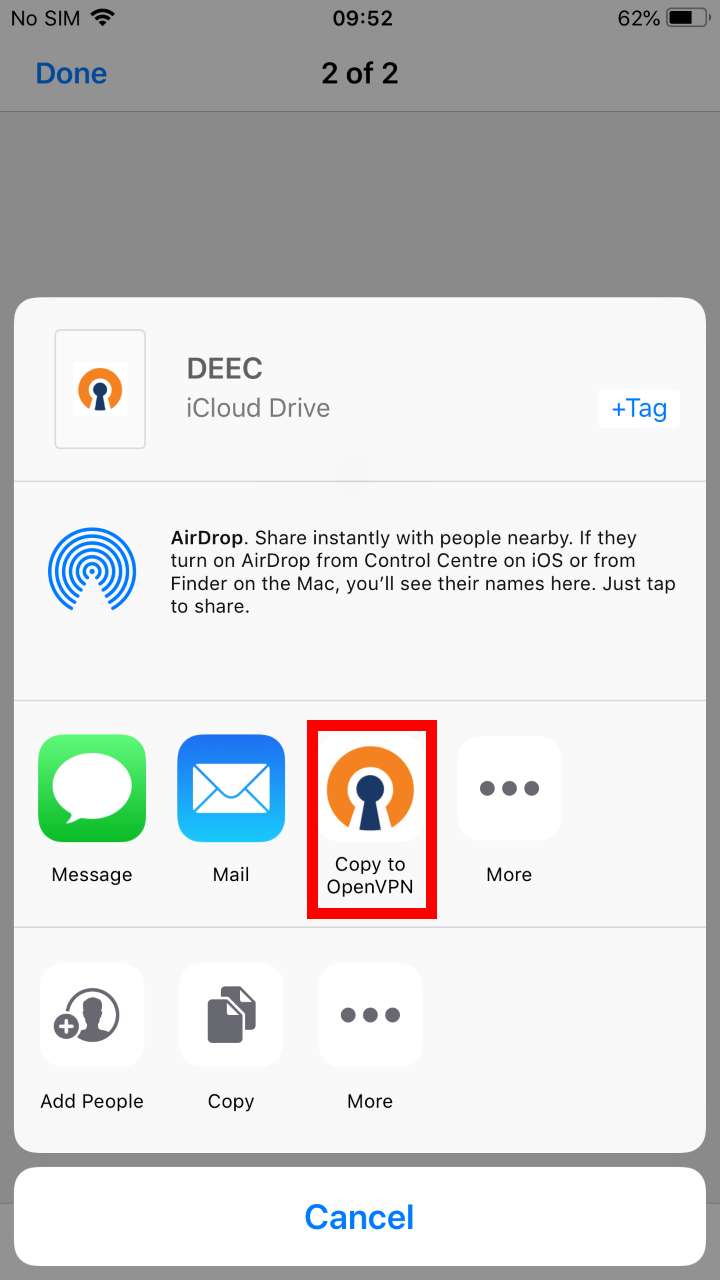
<div id="bkmrk-to-add-the-ovpn-file"><div>To add the ovpn file, just open the Files application, go to the downloaded file's directory and open it with OpenVPN.</div></div><div id="bkmrk--7">  
</div><div id="bkmrk--8">![](https://helpdesk.deec.uc.pt/api/v1/attachments/1576)</div><div id="bkmrk--9">  
</div><div id="bkmrk--10">![](https://helpdesk.deec.uc.pt/api/v1/attachments/1577)  
</div><div id="bkmrk--11">  
</div><div id="bkmrk--12">![](https://helpdesk.deec.uc.pt/api/v1/attachments/1578)  
</div><div id="bkmrk--13">  
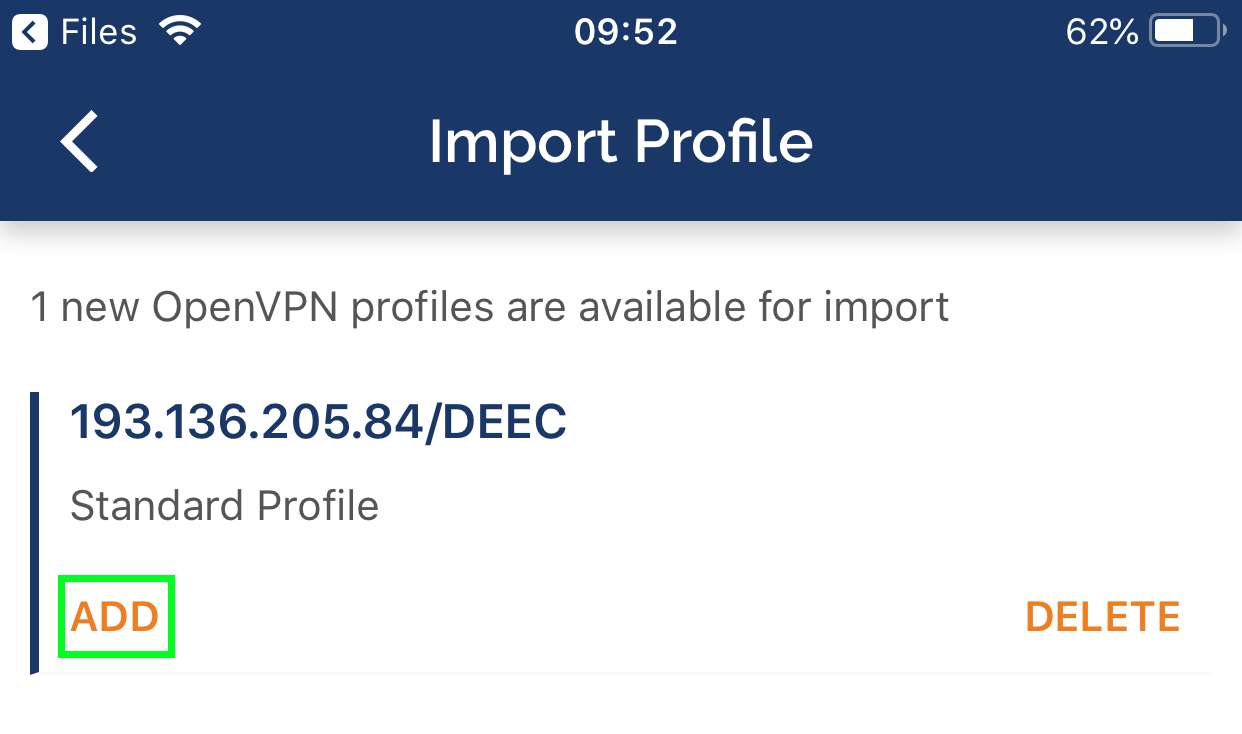
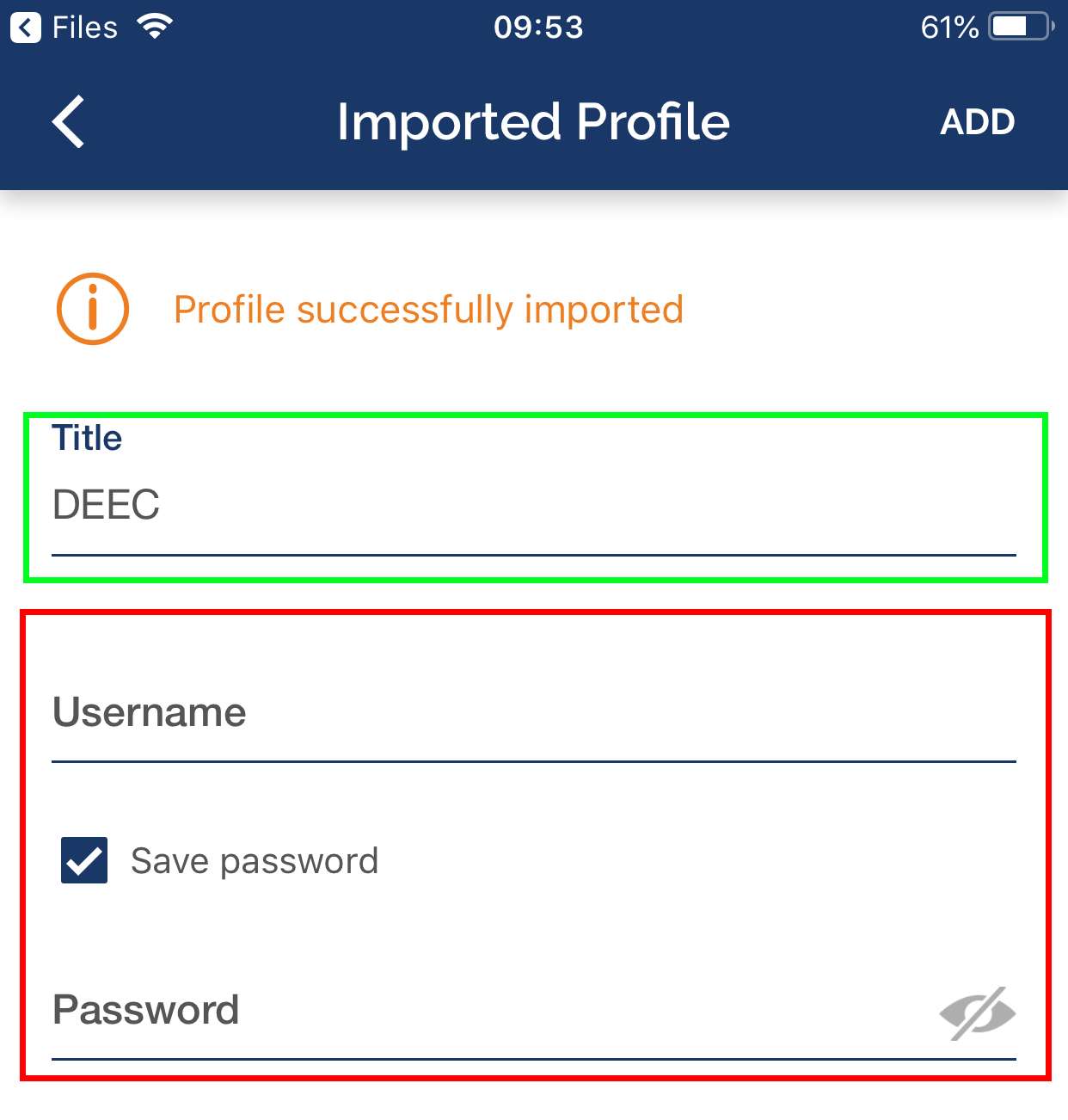
</div><div id="bkmrk--14"></div><div id="bkmrk-execution%3A"><div>**Execution:**</div></div><div id="bkmrk-finally%2C-select-%E2%80%9Cadd"><div>Finally, select “ADD” and enter the credentials and select “ADD” again. If you want, you can change the Title to an easier name to identify to the DEEC VPN.</div></div><div id="bkmrk--15">  
</div><div id="bkmrk--16">![](https://helpdesk.deec.uc.pt/api/v1/attachments/1579)  
</div><div id="bkmrk--17">  
</div><div id="bkmrk--18">![](https://helpdesk.deec.uc.pt/api/v1/attachments/1580)</div>