# Desktop Virtualization (VDS) @ LAI3

<p class="callout warning">To use this service you need a @deec.uc.pt account!</p>

#### Introduction

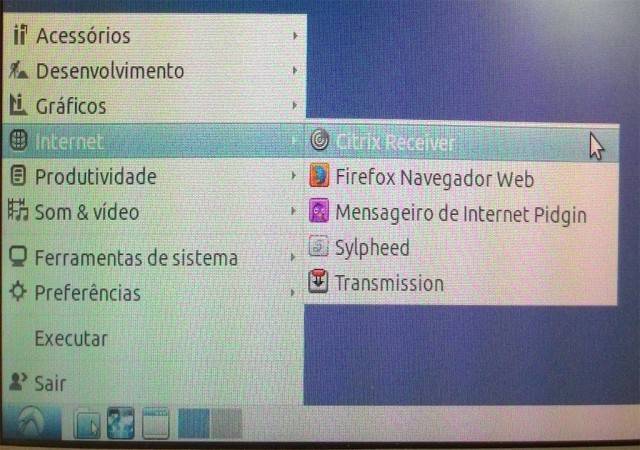
<div id="bkmrk-the-first-step-will-"><div>The first step will be to open the Lubuntu "Start" menu, select "Internet" and open the "Citrix Receiver":</div></div><div id="bkmrk-">![](https://helpdesk.deec.uc.pt/api/v1/attachments/1536)  
</div><div id="bkmrk--0">The software will start.  
</div><div id="bkmrk-the-software-will-st"><div>  
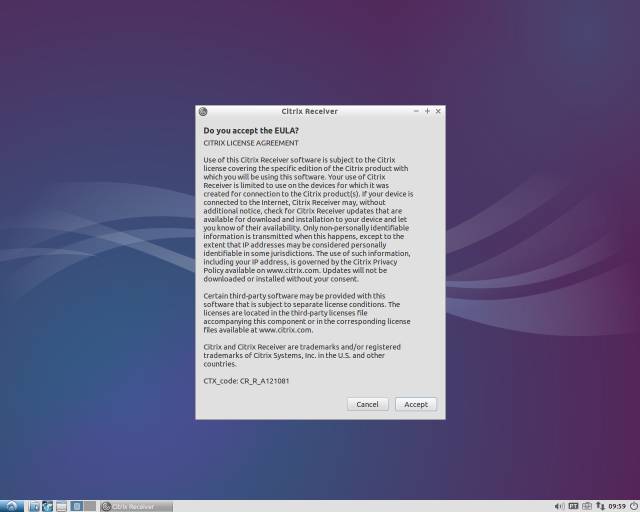
</div><div>Then, click on “Accept”</div></div><div id="bkmrk--1">![](https://helpdesk.deec.uc.pt/api/v1/attachments/1537)  
</div><div id="bkmrk--2">  
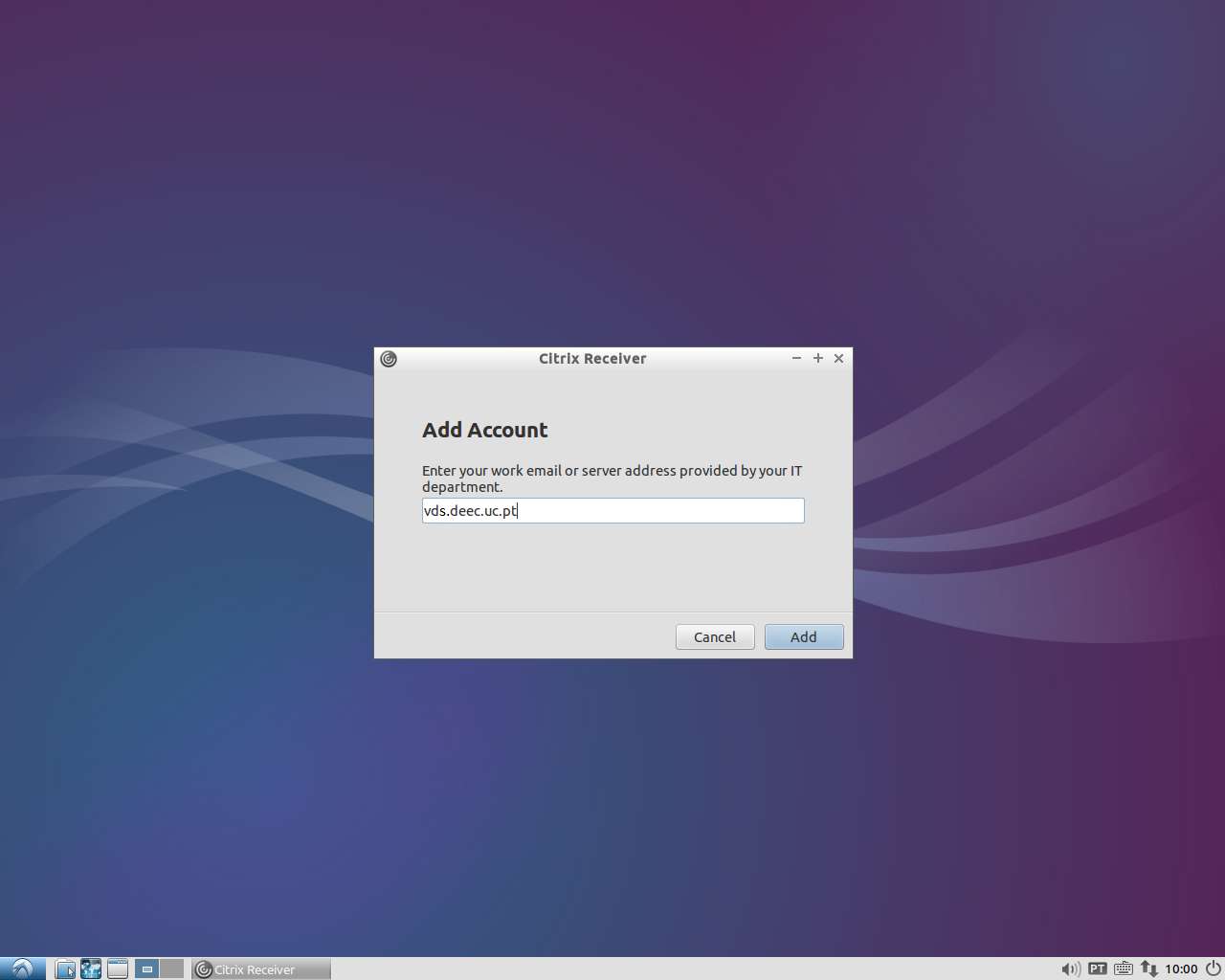
</div><div id="bkmrk-you-must-enter-the-f"><div>You must enter the following server address: vds.deec.uc.pt</div></div><div id="bkmrk--3">![](https://helpdesk.deec.uc.pt/api/v1/attachments/1538)  
</div><div id="bkmrk--4">  
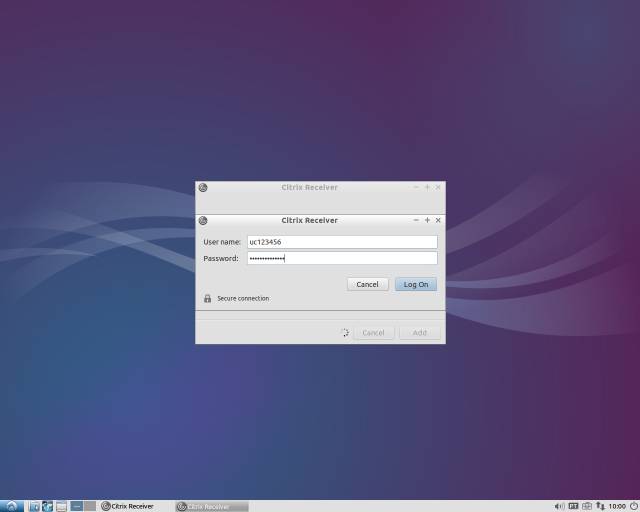
</div><div id="bkmrk-you-must-complete-yo"><div>You must complete your DEEC credentials</div><div>![](https://helpdesk.deec.uc.pt/api/v1/attachments/1539)  
</div><div>Authentication to the VDS system is now complete.</div><div>  
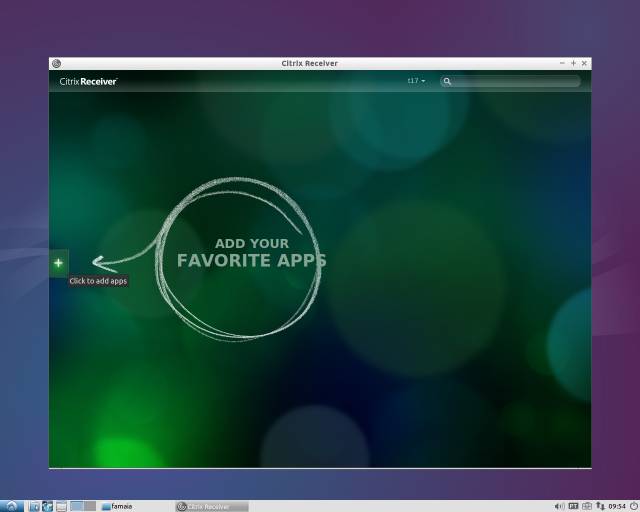
</div><div>Click on the “+” to add access to the Virtual Desktop:</div><div>![](https://helpdesk.deec.uc.pt/api/v1/attachments/1540)  
</div><div>  
</div><div>  
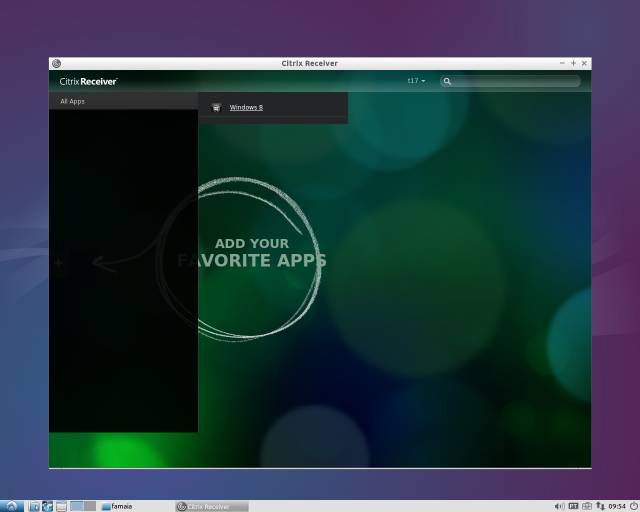
</div><div>Go to "All Apps" and select "Windows 8/10":</div><div>![](https://helpdesk.deec.uc.pt/api/v1/attachments/1541)  
</div><div>  
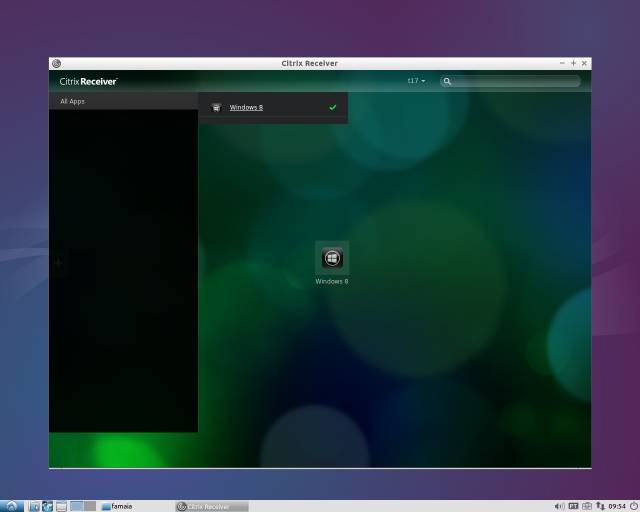
</div><div>Click on the icon and the Virtual Desktop with Windows 8 will start.</div><div>![](https://helpdesk.deec.uc.pt/api/v1/attachments/1542)  
</div><div>  
</div><div>Wait a moment for the working session to become available.</div></div><div id="bkmrk--5"></div>