# Printer Software Instalation for Windows

<p class="callout warning">To use this service you need a @deec.uc.pt or @uc.pt account!</p>

### Introduction

In this document, the installation of the printers in the locker room and cabinet 3A4 on Windows will be presented step by step.

Installing the printer

**1 –** To install the printers it is necessary to download the drivers [here](https://gofile.me/3Cvzn/W9C93v0LA "https://gofile.me/3Cvzn/W9C93v0LA").

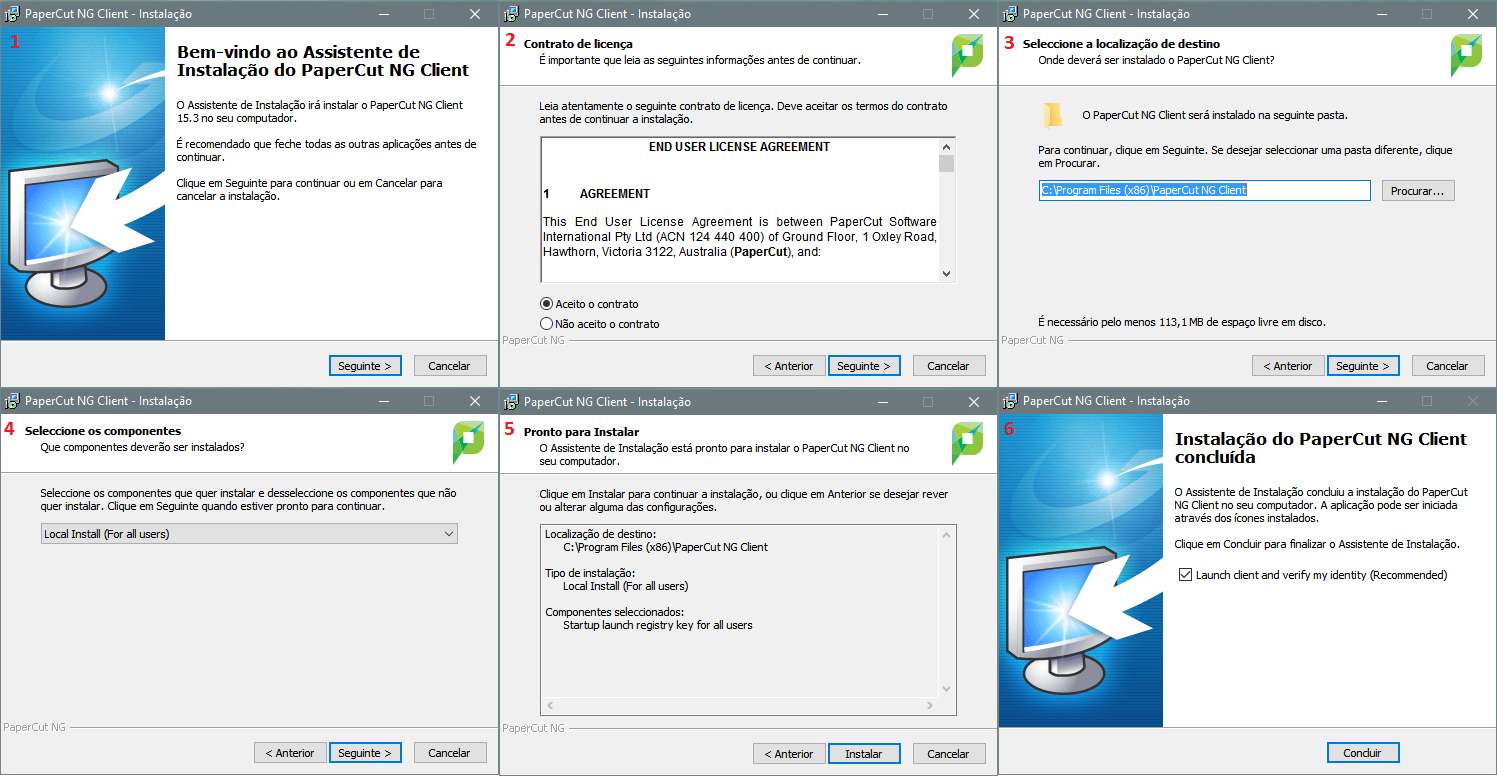
**2-** Run the client-local-install.exe installer located in the “drivers \\ client \\ win” folder in the ZIP file.
![](https://helpdesk.deec.uc.pt/api/v1/attachments/2314)

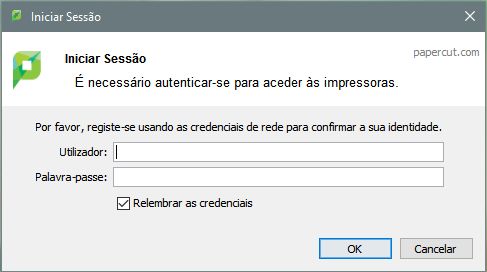
**3-** Enter your DEEC credentials.

![](https://helpdesk.deec.uc.pt/api/v1/attachments/2315)

**4-** Subsequently, access the Control Panel, option “View devices and printers” and select the option “Add new printer”.

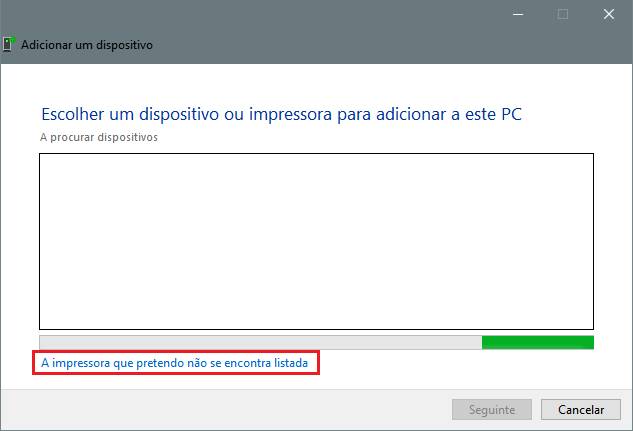
**5-** In the window that will open (Add a device), click on “The printer I want is not listed”.
![](https://helpdesk.deec.uc.pt/api/v1/attachments/2316)

**6-** Then select the option "Select a printer shared by name" and enter the address of the printer you want to install:

- Color printer in the locker room: [http://print.deec.uc.pt:631/printers/CacifosColor](http://print.deec.uc.pt:631/printers/CacifosColor)
- Black and white printer from the locker room: [http://print.deec.uc.pt:631/printers/CacifosGrayscale](http://print.deec.uc.pt:631/printers/CacifosGrayscale)
- Color printer in 3A4: [http://print.deec.uc.pt:631/printers/gab-3a4](http://print.deec.uc.pt:631/printers/gab-3a4)

<div id="bkmrk--3">![](https://helpdesk.deec.uc.pt/api/v1/attachments/2317)</div>**7**– Then click on the “Disk” button and choose the driver that you downloaded in the first step of this manual.

![](https://helpdesk.deec.uc.pt/api/v1/attachments/2318)

**8-** Select the driver in the “drivers \\ drivers \\ win \\ PC-Global-Print-Driver” folder and click on next.

![](https://helpdesk.deec.uc.pt/api/v1/attachments/2319)

![](https://helpdesk.deec.uc.pt/api/v1/attachments/2320)

##### <span style="color: #2dc26b;">The printer is now successfully installed.</span>

####   


#### Default duplex printing

<div id="bkmrk--7">  
</div><div id="bkmrk-to-perform-default-d">To perform default duplex printing, the following steps are required:</div>**1 –** Access the control panel.

**2 –** With the right mouse button on the desired printer, select the option “Printing preferences”.

![](https://helpdesk.deec.uc.pt/api/v1/attachments/2321)

**3 –** In the "Printing Preferences" window, select the "Layout" tab and in the "Print on both sides" dropdown, use the option "Flip to the widest edge" or "Flip to the narrowest edge".

![](https://helpdesk.deec.uc.pt/api/v1/attachments/2322)

<div id="bkmrk-in-this-way%2C-the-pri">In this way, the prints you make will default to these settings.</div>