# Setup DEEC Wi-Fi in MacOS

<p class="callout warning">To use this service you need a @deec.uc.pt or @uc.pt account!</p>

### DEEC Network Installation Guide on MacOS   


#### Introduction   


In this document, the installation of the DEEC Wireless Network will be presented step by step.

#### MacOS

Install the user profile, located at [wifi\_deec\_mschap.mobileconfig](https://kb.deec.uc.pt/attachments/17)

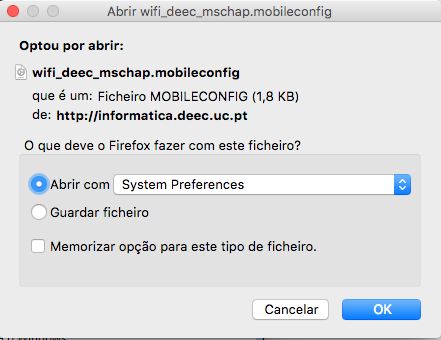
Choose "Open with" System Preferences.
![](https://helpdesk.deec.uc.pt/api/v1/attachments/1589)

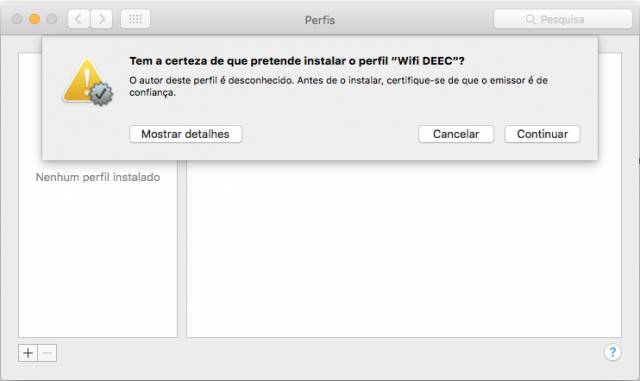
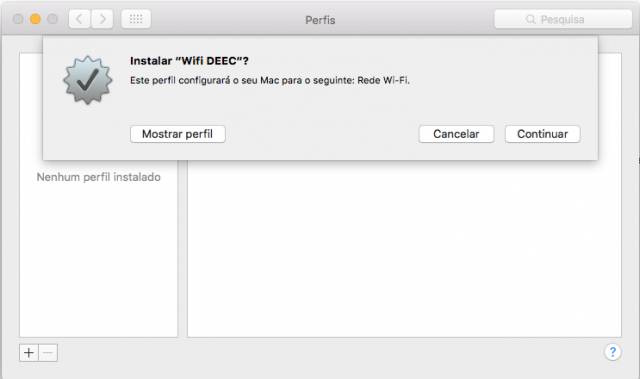
<div class="knowledge-base-article-content richtext-content js-answer-body" id="bkmrk-select-%22continue%22.-s"><div class="knowledge-base-article-content richtext-content js-answer-body"><div><div><div>Select "Continue".</div><div>![](https://helpdesk.deec.uc.pt/api/v1/attachments/1590)  
</div><div>  
</div><div>Select "Continue".</div><div>![](https://helpdesk.deec.uc.pt/api/v1/attachments/1591)  
</div><div>  
</div></div></div></div></div>Enter your e-mail (example: a2012123456@deec.uc.pt) and Password.

Select "Install".

![](https://helpdesk.deec.uc.pt/api/v1/attachments/1592)

Enter MacOS administrator credentials.

![](https://helpdesk.deec.uc.pt/api/v1/attachments/1593)

After installation, information similar to the following image should appear:

![](https://helpdesk.deec.uc.pt/api/v1/attachments/1594)

Activate the Wi-Fi network and select the DEEC network.

![](https://helpdesk.deec.uc.pt/api/v1/attachments/1595)