# Setup DEEC Wi-Fi in Windows 7

<p class="callout warning">To use this service you need a @deec.uc.pt or @uc.pt account!</p>

### DEEC Network Installation Guide on Windows 7

#### Introduction

In this document you will be presented step by step the installation of DEEC Wireless Network.

In the images in this document **DEEC-Labs** should be replaced by **DEEC**.

#### Windows 7

<div id="bkmrk-go-to-%22start-menu%22%2C-"><div>Go to "Start Menu", "Control Panel", "Network and Internet", "Network and Sharing Center":  
Then click on “Set up a new connection or network”: <div>![](https://helpdesk.deec.uc.pt/api/v1/attachments/328)</div><div>  
</div></div></div>Then click on “Manually connect to a wireless network”:
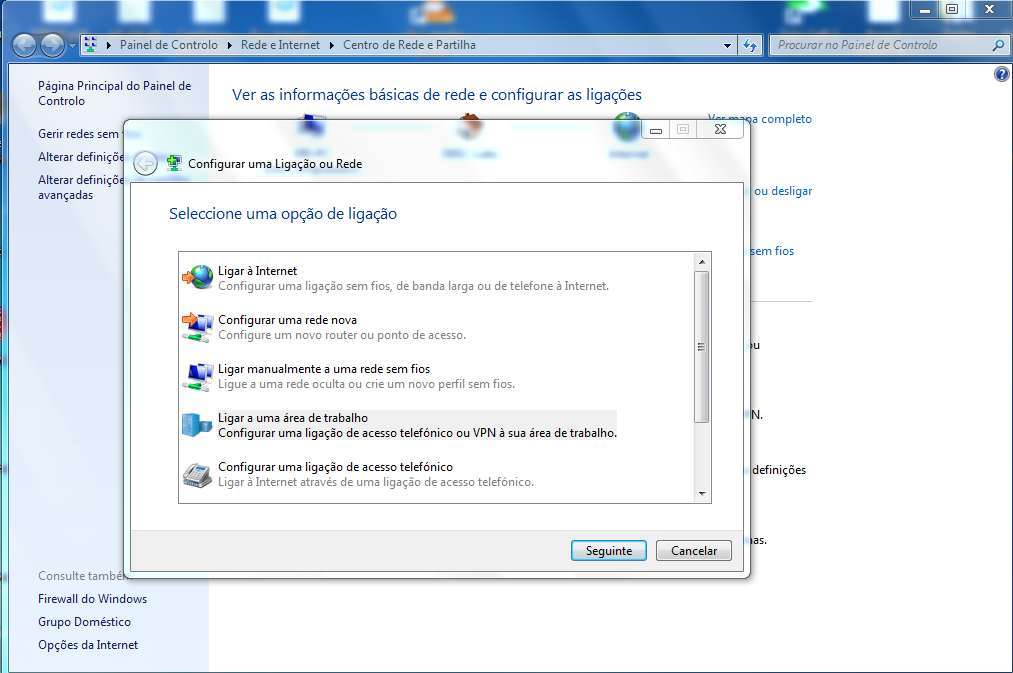
![](https://helpdesk.deec.uc.pt/api/v1/attachments/329)

<div id="bkmrk-the-fields-must-be-c"><div>The fields must be completed, according to the following image:  
Attention, the "Network Name" is case sensitive.</div></div>![](https://helpdesk.deec.uc.pt/api/v1/attachments/330)

<div id="bkmrk-on-the-next-page%2C-go"><div>On the next page, go to “Change Connection Settings”:</div></div>![](https://helpdesk.deec.uc.pt/api/v1/attachments/331)

<div id="bkmrk-the-configuration-to"><div>The configuration to be made in the "Connection" and "Security" tab is explicit in the two images below:</div></div>![](https://helpdesk.deec.uc.pt/api/v1/attachments/332)

![](https://helpdesk.deec.uc.pt/api/v1/attachments/333)

<div id="bkmrk-on-the-%E2%80%9Csecurity%E2%80%9D-ta"><div>On the “Security” tab, “DEEC Wireless Network Properties”, “Settings”, you should uncheck “Validate Server Certificate”:</div></div>![](https://helpdesk.deec.uc.pt/api/v1/attachments/334)

In turn go to “Configure” and uncheck “Automatically use login name (…)”:

![](https://helpdesk.deec.uc.pt/api/v1/attachments/335)

<div id="bkmrk-finally%2C-you-only-ne"><div><div><div>Finally, you only need to enter your user credentials in the DEEC.UC.PT domain:</div></div></div></div>![](https://helpdesk.deec.uc.pt/api/v1/attachments/336)