# Setup eduroam Wi-Fi in Iphone

<p class="callout warning">To use this service you need a @deec.uc.pt or @uc.pt account!</p>

### IPhone DEEC Network Installation Manual

#### Introduction

<div id="bkmrk-in-this-document%2C-th"><div><div>In this document, the installation of the Eduroam Wireless Network will be presented step by step.</div></div></div>#### iPhone

<div id="bkmrk-go-to-%22settings%22%2C-%22w"><div><div><div>Go to "Settings", "Wi-Fi", select the "eduroam" network, as in the following image:</div></div></div></div>![](https://helpdesk.deec.uc.pt/api/v1/attachments/1627)

<div id="bkmrk--1"><div><div>  
</div><div>  
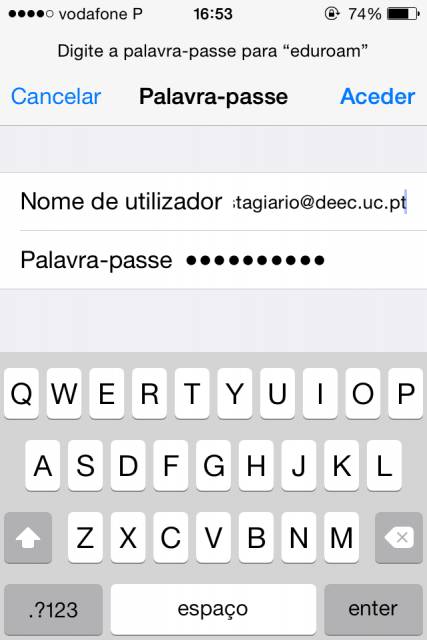
</div></div></div><div id="bkmrk-then%2C-you-only-need-"><div><div>Then, you only need to enter your user credentials (fields: “User name” and “Password”), as in the following example:</div><div>![](https://helpdesk.deec.uc.pt/api/v1/attachments/1628)  
</div><div>  
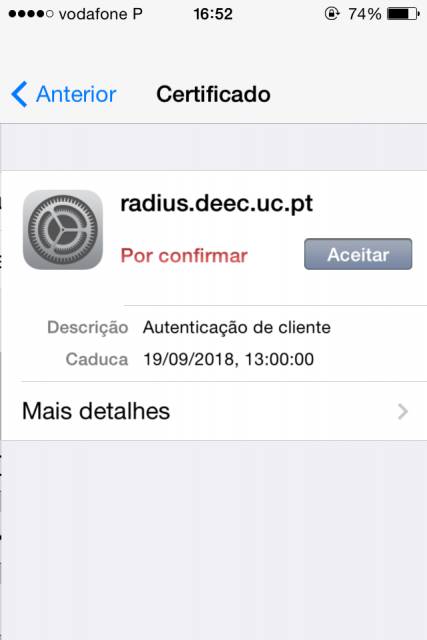
</div><div>Then it is necessary to press “Accept”, as in the following image.</div><div>  
</div><div>![](https://helpdesk.deec.uc.pt/api/v1/attachments/1629)  
</div><div>  
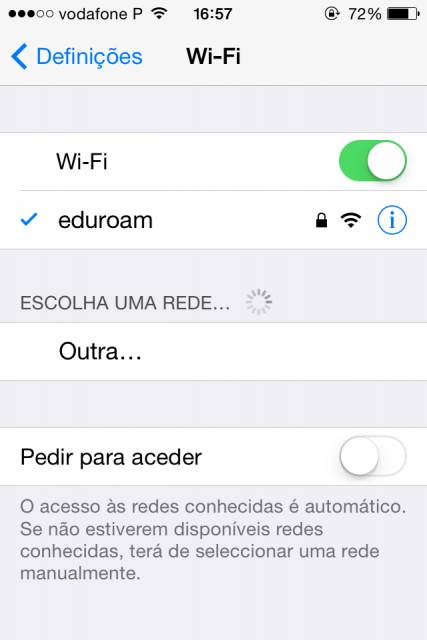
</div><div>After completing these steps, the device accesses the network:</div><div>  
</div><div>![](https://helpdesk.deec.uc.pt/api/v1/attachments/1630)</div></div></div>