# VPN Client for teachers and researchers - Ubuntu

<p class="callout warning">To use this service you need a @deec.uc.pt account!</p>

### Installation

Install OpenVPN network manager by entering (copy/paste) into the terminal

```bash
sudo apt-get install network-manager-openvpn-gnome
```

When the installation is complete, restart the network-manager service

```
systemctl restart NetworkManager
```

<div id="bkmrk-when-the-installatio"></div><div id="bkmrk-"></div>### Configuration

Download the OpenVPN profile: [DEEC.ovpn](https://kb.deec.uc.pt/attachments/20)

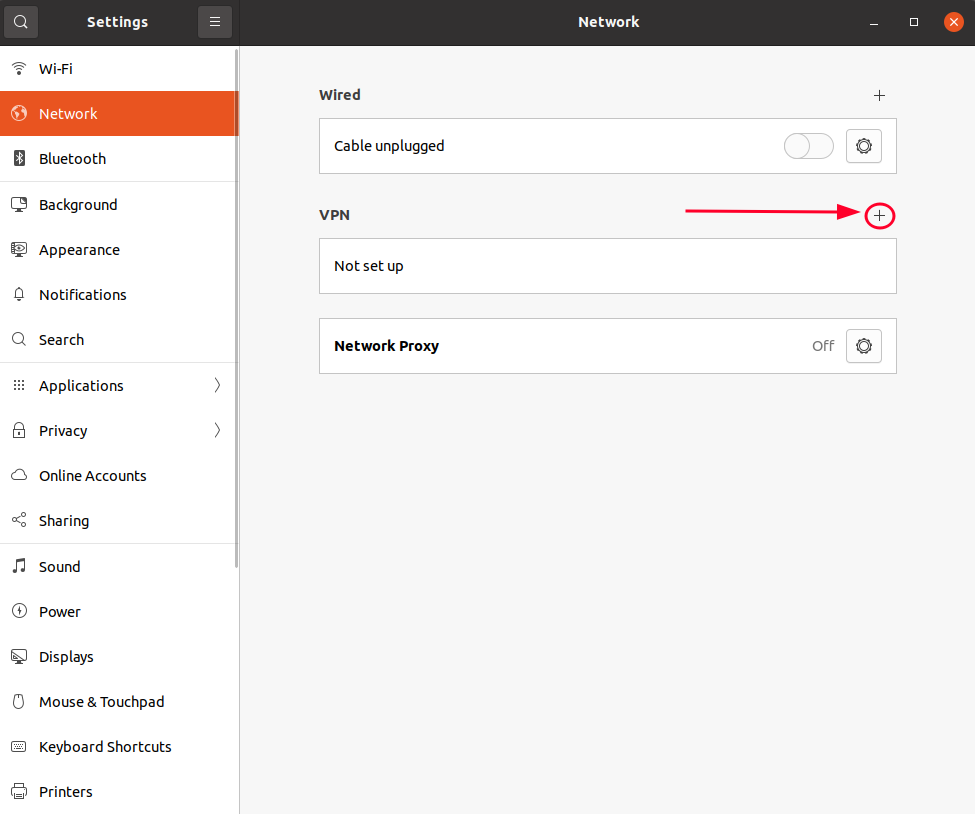
Go to the Network Manager and under VPN, click the "+" button

[![image-1667407490016.png](https://kb.deec.uc.pt/uploads/images/gallery/2022-11/scaled-1680-/image-1667407490016.png)](https://kb.deec.uc.pt/uploads/images/gallery/2022-11/image-1667407490016.png)
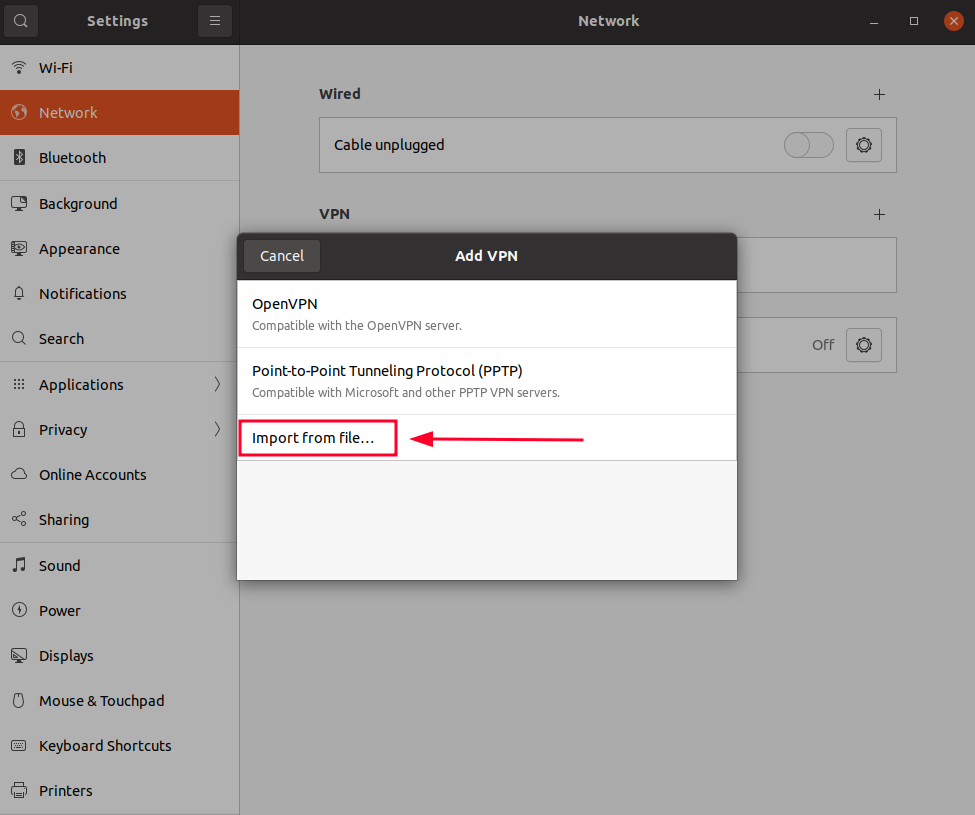
Click "Import from file..." and select the .ovpn file I've downloaded

[![image-1667407545580.png](https://kb.deec.uc.pt/uploads/images/gallery/2022-11/scaled-1680-/image-1667407545580.png)](https://kb.deec.uc.pt/uploads/images/gallery/2022-11/image-1667407545580.png)
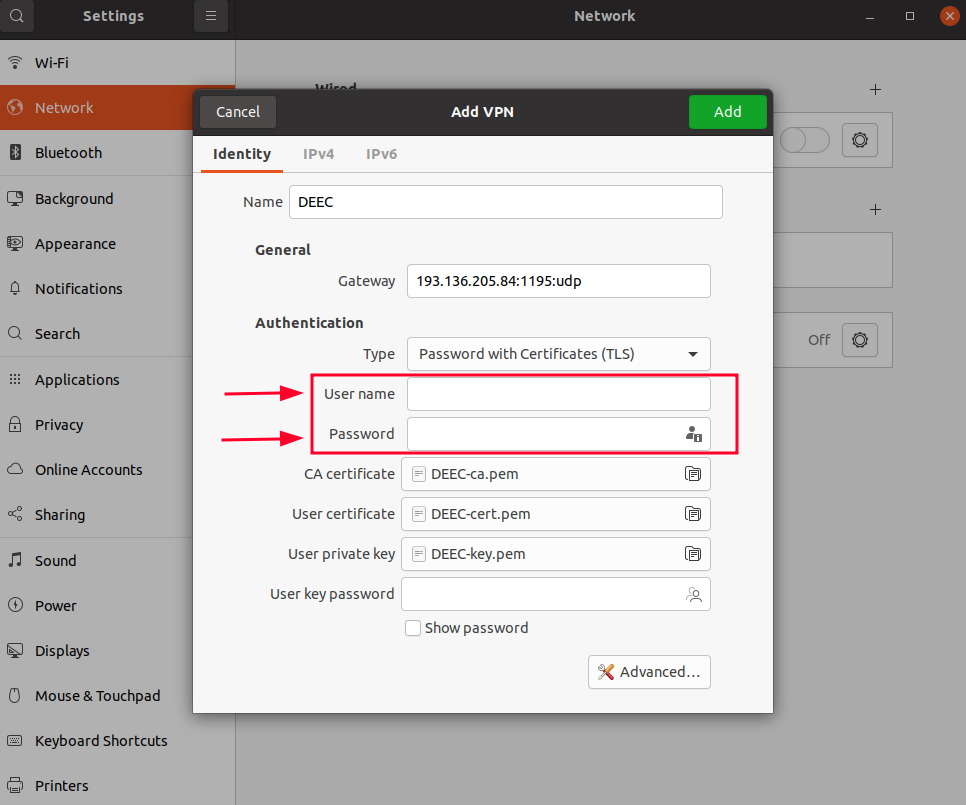
Input your credentials and click "Add"

[![image-1667407690728.png](https://kb.deec.uc.pt/uploads/images/gallery/2022-11/scaled-1680-/image-1667407690728.png)](https://kb.deec.uc.pt/uploads/images/gallery/2022-11/image-1667407690728.png)
### Connection

<div id="bkmrk-finally-select-the-n"><div><div><div>Finally select the network manager icon, go to VPN Connections and select the created VPN.</div><div>  
</div></div></div></div>[![image-1667407771826.png](https://kb.deec.uc.pt/uploads/images/gallery/2022-11/scaled-1680-/image-1667407771826.png)](https://kb.deec.uc.pt/uploads/images/gallery/2022-11/image-1667407771826.png)