# Cliente VPN para Colaboradores e Investigadores - Ubuntu

<p class="callout warning">Para utilizar esta VPN, deverá possuir uma conta @deec.uc.pt</p>

### **Instalação:**

Para utilizar o *OpenVPN* basta executar o seguinte comando “**$ sudo apt-get install network-manager-openvpn-gnome**”.
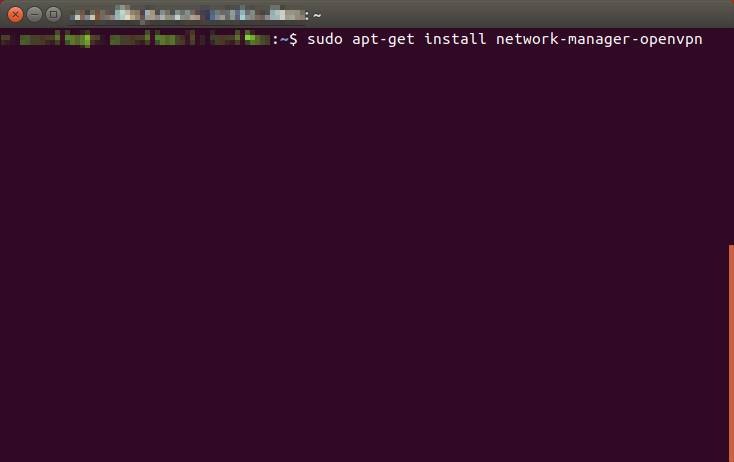
![](https://helpdesk.deec.uc.pt/api/v1/attachments/243)

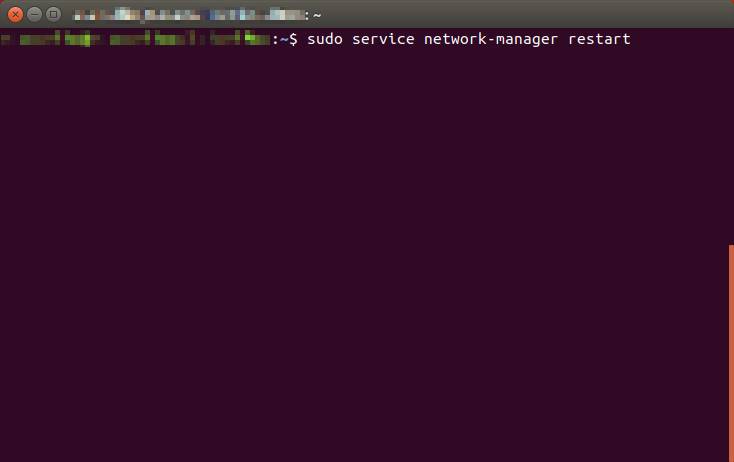
Quando a instalação terminar, reinicie o serviço **network-manager.**

###  ![](https://helpdesk.deec.uc.pt/api/v1/attachments/244)
<div class="knowledge-base-article-content richtext-content js-answer-body" id="bkmrk--1"><div class="knowledge-base-article-content richtext-content js-answer-body"><div>  
</div></div></div>### **Configuração:**

Para a sua configuração, deverá baixar o ficheiro [DEEC.ovpn](https://kb.deec.uc.pt/attachments/52). Com o rato ir ao ícone do *network manager* ir a “***Edit Connections …***”, depois “***Add a new connection***” e criar uma conexão com “***Import a saved VPN configuration…***”.

![](https://helpdesk.deec.uc.pt/api/v1/attachments/245)

![](https://helpdesk.deec.uc.pt/api/v1/attachments/246)

![](https://helpdesk.deec.uc.pt/api/v1/attachments/247)

![](https://helpdesk.deec.uc.pt/api/v1/attachments/248)

![](https://helpdesk.deec.uc.pt/api/v1/attachments/249)

Seguidamente, selecione o ficheiro *DEEC.ovpn* e digite as credencias do DEEC. Se quiser, poderá alterar o ***Connection name*** para um nome mais fácil de identificar a VPN do DEEC.

<div class="knowledge-base-article-content richtext-content js-answer-body" id="bkmrk-%C2%A0-1"><div class="knowledge-base-article-content richtext-content js-answer-body"><center></center> ![](https://helpdesk.deec.uc.pt/api/v1/attachments/250)<div>  
</div><div>![](https://helpdesk.deec.uc.pt/api/v1/attachments/251)</div><div>  
</div></div></div>### **Execução:**

Por fim selecione o ícone do ***network manager***, ir a ***VPN Connections*** e selecionar a *VPN* criada.

![](https://helpdesk.deec.uc.pt/api/v1/attachments/252)

![](https://helpdesk.deec.uc.pt/api/v1/attachments/253)