# ISR (English)
# E-mail
# E-mail Configuration
### *Incoming settings*
| **Protocol** | IMAP |
|---|
| **Host name** | imap.isr.uc.pt |
|---|
| **Security** | SSL |
|---|
| **Port** | 993 |
|---|
| **Authentication Method** | *Password* (normal) |
|---|
| **Username** | <your username> (for example, jsmith) |
|---|
| ***Password*** | <your password> |
|---|
| **Protocol**
| SMTP |
|---|
| **Host name**
| smtp.isr.uc.pt |
|---|
| **Security**
| STARTTLS |
|---|
| **Port** | 25 |
|---|
| **Authentication Method**
| *Password* (normal) |
|---|
| **Username**
| <your username> (for example, jsmith)
|
|---|
| ***Password*** | <your password>
|
|---|
In order to combat the growing computer security threats, specifically in electronic mail systems, it has become essential to review and modify some rules and requirements that govern the operation of these systems.
Sender Policy Framework (SPF) is a mechanism that identifies which email servers are allowed to send email on behalf of your domain, through the DNS system.
Systems that send e-mail with a sender address @ isr.uc.pt will most likely be classified as Spam, if they are not on the list of authorized persons in the SPF records.
If you need a system or service that sends e-mail with sender @ isr.uc.pt, you should contact the ISR Informatics Office (informatica@isr.uc.pt), with a view to obtaining instructions on how to proceed.
Implications of this requirement
It is no longer possible to use alternative identities for sending mail. For example, you cannot use the DEEC or IT SMTP server (sending) to send e-mail with the sender @ isr.uc.pt. For this, you must set up an ISR account.
### DKIM – DomainKeys Identified Mail
DomainKeys Identified Mail (DKIM) is a mechanism for validating and guaranteeing the integrity of the content of the email during its transport, with regard to its modification both in the content and in the headers. This mechanism also validates if the e-mail attachments, if any, have not been altered during transport from the sender to the recipient.
A digital signature of the issuing server is included in all emails sent.
This mechanism allows you to avoid spoofing attacks. Spoofing is a malicious technique of changing the sender of a message so that the victim opens emails, for example, with viruses or other malicious devices (phishing, etc.). This is because the malicious message arrives in the e-mail box with the sender of someone you know.
ISR systems implement the DKIM system, to increase security in e-mail.
### Anti-Spam
The widespread use of e-mail as a form of everyday communication has made it an obvious target for malicious activities by malicious people. Mail sent in this context is called Spam.
The response of system administrators to this threat is systems and mechanisms whose function is to filter and block unsolicited and malicious messages, which are called anti-spam systems.
These systems are placed before the end server, where the mail is delivered and normally work transparently for the end user. Currently, all email service providers implement some type of anti-spam filter.
Due to its nature, there is no perfect anti-spam system. For this reason, the system may, in particular situations, retain an email, classifying it as Spam. There are ways to recover these emails, when considered a false positive, associated with mechanisms that allow this to not be repeated.
Due to the discontinuation of the Anti-spam service in operation at ISR, it became necessary to proceed with its replacement with a new one. This process was the subject of a careful study of the existing alternatives followed by a phase of laboratory tests, having opted for the MailCleaner solution.
### MailCleaner Features
The MailCleaner system is based on a set of sophisticated filtering technologies that work together. End users have full control over the quarantine function: with a simple click, the user can delete or release any message held by the filter.
MailCleaner implements a number of complementary techniques for detecting and blocking Spam, combining artificial intelligence algorithms that are constantly adapting to the identification of ever-changing spammers' techniques.
The anti-virus filter built into MailCleaner filters messages for viruses, worms and suspicious attachments with potentially malicious content.
MailCleaner can recognize and classify newsletters. The user will only receive the newsletters that he / she really wants to receive and keep the rest in quarantine.
MailCleaner has an authenticated web interface for simplified self-service management of quarantined messages, black and white lists, among other features.
> The address for Self Service is [https://antispam.isr.uc.pt](https://antispam.isr.uc.pt/).
# POP3 Configuration for Gmail
# Configuração POP3 para
Below are screenshots of the GMail POP3 client setup procedure for ISR email, for a better illustration of the process.
In point 5, enter your ISR email address.
In point 7, enter the password associated with your ISR account.
In point 8, enter pop3.isr.uc.pt and make sure that port 995 is selected in point 9.
At this time, Gmail will get email from your ISR account at regular intervals.
ISR Coimbra has a centralized authentication system, that is, a unique identification system, which allows all its users to access the various informed services, using the same authentication credentials - the same username and password.
Given the degree of criticality of this keyword, which allows access to multiple computer services, were used according to the following rules:
- A keyword must have at least eight characters and three different variants (uppercase, lowercase, numbers and punctuation);
- The password must be renewed periodically by the user.
You can change your password at [https://password.isr.uc.pt](https://password.isr.uc.pt/)
# Information Systems
# Connection to Web and Home servers via FTP TLS / SSL
This document presents the necessary steps to access via FTP TLS / SSL the servers web.isr.uc.pt and home.isr.uc.pt.
1 - Download and install Cyberduck. To download it click [here ](https://cyberduck.io/ "https://cyberduck.io/")(select Windows or Mac OSX).
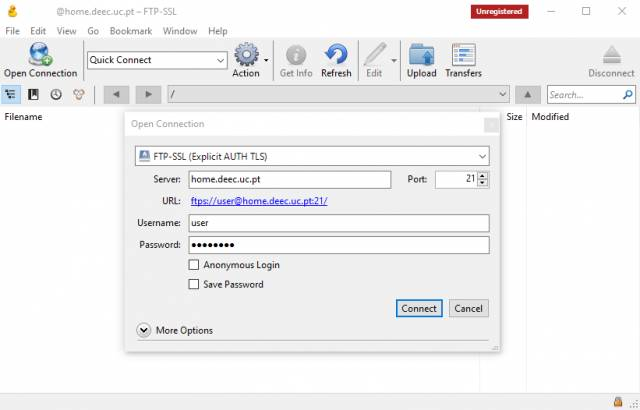
2 - Open Cyberduck, click on Open Connection, select FTP-SSL (Explicit AUTH TLS) and then fill in the server address, as well as your user and password:
[](https://kb.deec.uc.pt/uploads/images/gallery/2023-05/image-1683648457604.png)
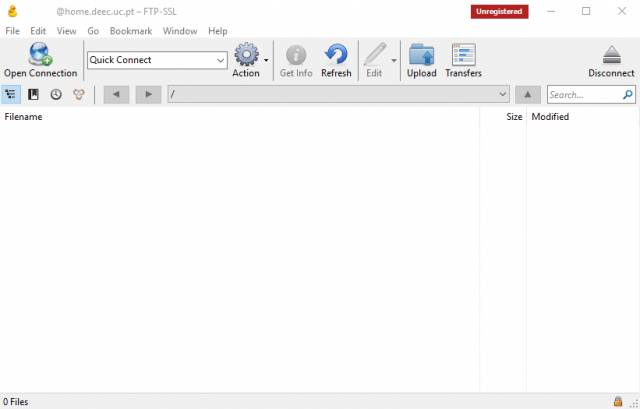
3 - After the connection is established, you can start transferring files between the server and your machine.
[](https://kb.deec.uc.pt/uploads/images/gallery/2023-05/image-1683648464097.png)
# Personal Page Hosting Service
### Presentation
ISR provides its employees with a service for the publication of personal web pages. This service is available through the URL [http://home.isr.uc.pt/~username](http://home.isr.uc.pt/~username).
The materials hosted through this service are the responsibility of each user and reflect their individual vision. The published information does not represent the opinion or policy of the Institute of Systems and Robotics. Thus, the institution should not be associated with the users' view, expressed in the pages hosted on this service.
Personal website management
The access to the server, for editing the pages, is done through the SFTP protocol and your ISR credentials.
The table below shows the settings you should use in your usual SFTP client (we suggest [Cyberduck ](https://cyberduck.io/ "https://cyberduck.io/")for OSX and [WinSCP ](https://winscp.net/eng/index.php "https://winscp.net/eng/index.php")for Windows).
| Definition | Description | Value to be configured |
|---|
| Server | Endereço do servidor que aloja o serviço | home.isr.uc.pt |
| Protocol | Protocol for interaction with the server, for the manipulation of remote files | SFTP (SSH File Transfer Protocol) |
| Username | Username of the user to be connected to the server | ISR domain username |
| Password | Password of the user to be connected to the server | Password of the respective account |
| Path | Path in the file system, where the site is hosted | /home/isr/*<username>*/public\_html |
### Location and Permissions
The website must be contained in a folder, named public_html, within your account. If it is not yet created, you must proceed with its creation.
In addition, you must ensure that the folder and all files contained have the correct permissions (755 - u = rwx, g = rx, o = rx), using the command below, using the SFTP client:
### Previous Systems
Forwarders of previously published URLs have been created to ensure their smooth operation. Thus [http://www.isr.uc.pt/~username](http://www.isr.uc.pt/~username) and [http://mail.isr.uc.pt/~username](http://mail.isr.uc.pt/~username), automatically point to [http://home.isr.uc.pt/~username](http://home.isr.uc.pt/~username).
The sites were automatically copied from the old server (MAIL ISR). If for some reason you were using the ISO-8859-1 encoding and your page contains unformatted characters, you can create an .htaccess file, with the following content, / home / <username> / public_html, to solve the problem:
```
AddDefaultCharset iso-8859-1
```
# Software
# Microsoft Office 365 Education
### Presentation
Office 365 Education Plus is available free of charge to students and employees enrolled at the University of Coimbra.
Install Office on a maximum of 5 PCs or Macs and on other mobile devices, including Android ™, iPad® and Windows tablets.
Enjoy access to Office 365 services, such as 1TB online storage on OneDrive and Yammer.
To make the initial registration, use the link (use your @ isr.uc.pt address for registration)
### What's Included
#### Complete applications installed
Create reports and presentations with the latest versions of the applications you know so well and trust. It includes Word, Excel, PowerPoint, OneNote, Outlook, Publisher and Access.
#### Easy real-time collaboration
Work with your colleagues online and see each other's changes in real time with Office Online and OneDrive. The time for exchanging emails with outdated versions is a thing of the past.
#### Optimized note-taking tools
Type or write notes by hand, capture web pages, record audio / video, embed spreadsheets and more with OneNote, available on all your devices.
# VPN
# OpenVPN
OpenVPN offers a flexible VPN solution to ensure the security of communications data, whether to guarantee privacy on the Internet or remote access by employees to the internal resources of organizations.
# OpenVPN Manual for Windows
To use this service you need a @isr.uc.pt account
### Installation
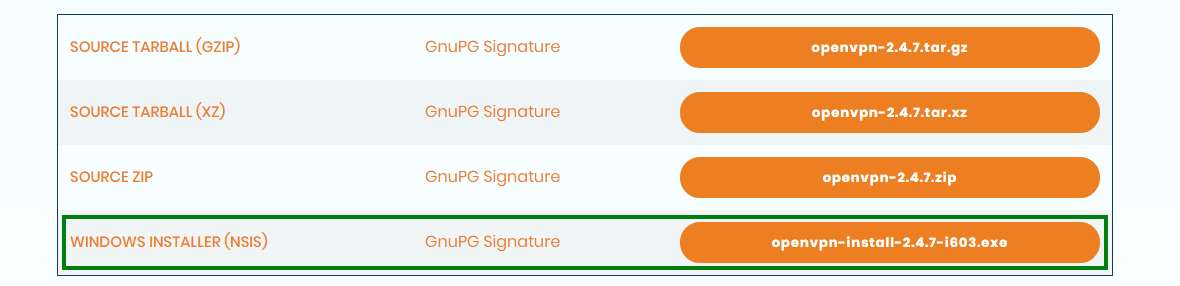
To download OpenVPN just go [here](https://openvpn.net/community-downloads/ "https://openvpn.net/community-downloads/"), and below you will find the respective download.
[](https://kb.deec.uc.pt/uploads/images/gallery/2023-08/image-1691400526657.png)
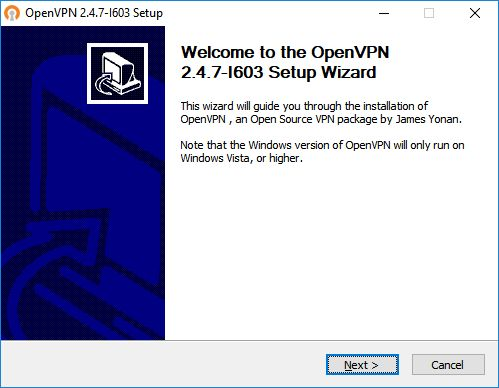
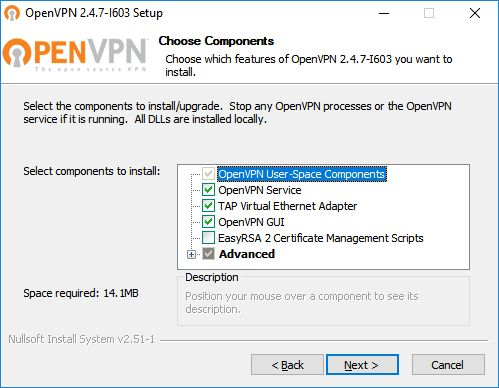
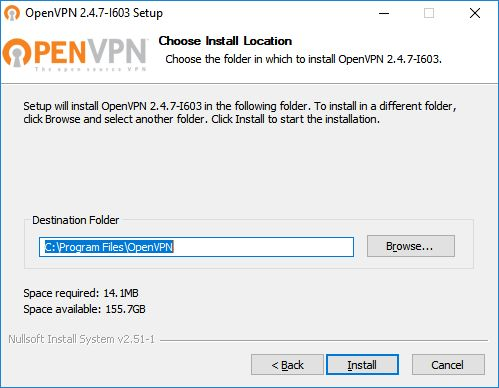
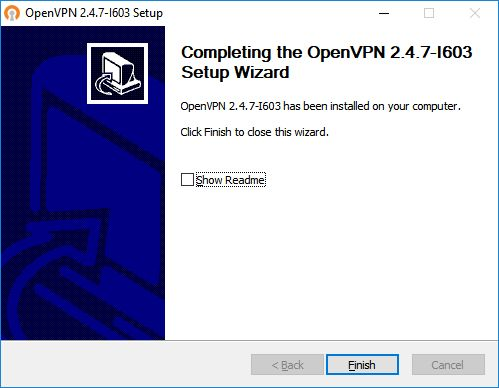
Then, perform the respective installation.
[](https://kb.deec.uc.pt/uploads/images/gallery/2023-08/image-1691400561021.png)
[](https://kb.deec.uc.pt/uploads/images/gallery/2023-08/image-1691400569370.png)
[](https://kb.deec.uc.pt/uploads/images/gallery/2023-08/image-1691400576715.png)
[](https://kb.deec.uc.pt/uploads/images/gallery/2023-08/image-1691400585213.png)
### Configuration
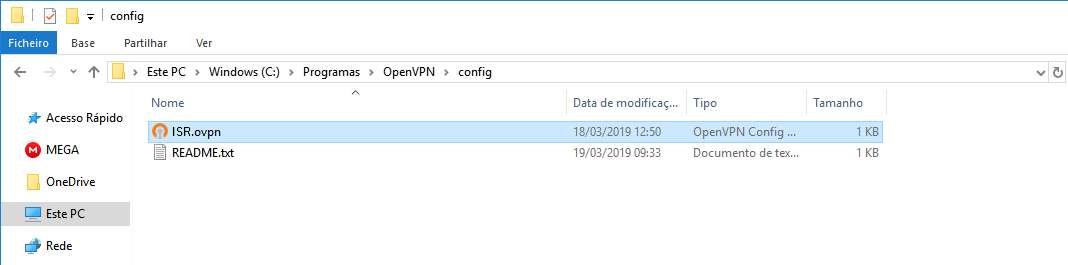
Download configuration file [ISR.opvn](https://kb.deec.uc.pt/attachments/6) and move it to “**C:\\Program Files\\OpenVPN\\config**”.
### Connection
To finish, you will have to start the program “OpenVPN GUI” which, with its execution, will show an icon of a monitor with a lock on your task bar.
[](https://kb.deec.uc.pt/uploads/images/gallery/2023-08/image-1691400700922.png)
With the right side of the mouse over the icon, click on Connect and enter the credentials.
This document will present, step by step, the installation, configuration and execution of OpenVPN on the Ubuntu operating system.
Before starting the installation and configuration of OpenVPN on your computer, you should check the following point:
Have an account for the configuration of OpenVPN, which is requested from the Management Office of the Computer Network.
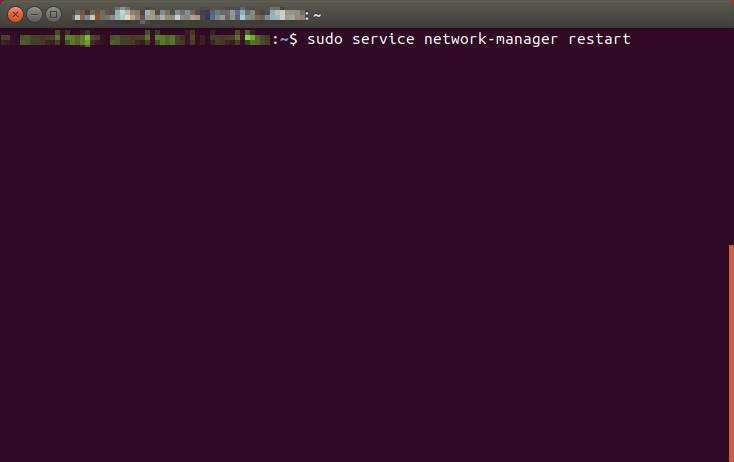
When the installation is complete, restart the network-manager service.
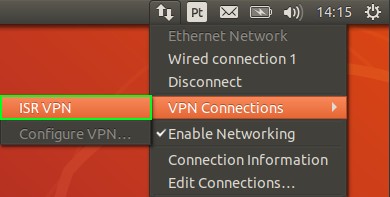
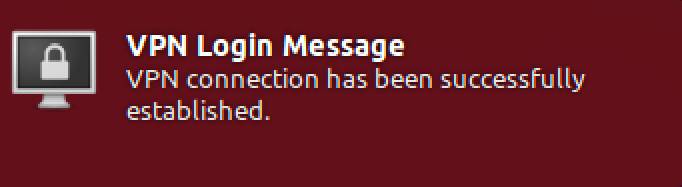
Finally select the network manager icon, go to VPN Connections and select the created VPN.
OpenVPN Installation, Configuration and Execution Manual on Android
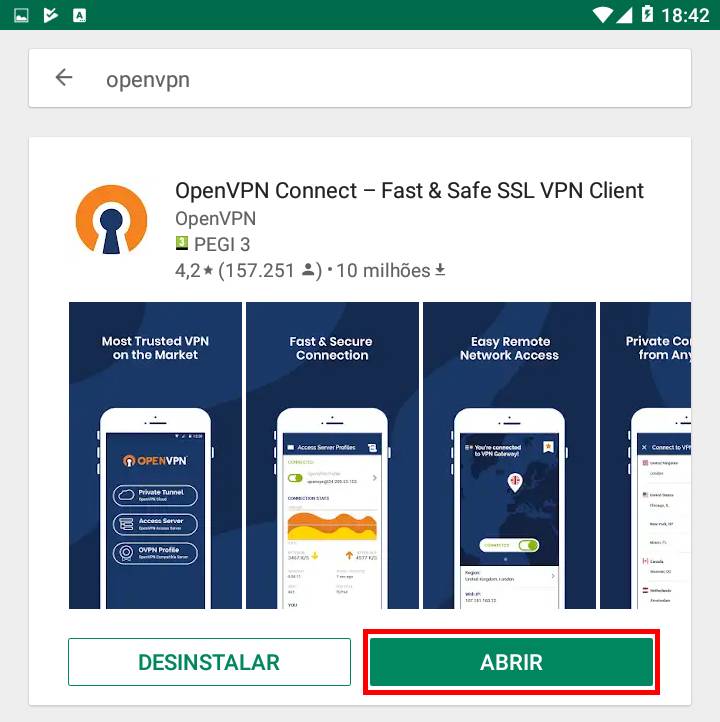
This document will present, step by step, the installation, configuration and execution of OpenVPN on Android operating systems.
Before starting the installation and configuration of OpenVPN on your SmartPhone, you should check the following point:
-
Have an account for the configuration of OpenVPN, which is requested from the Management Office of the Computer Network
### **Configuration and Execution:**
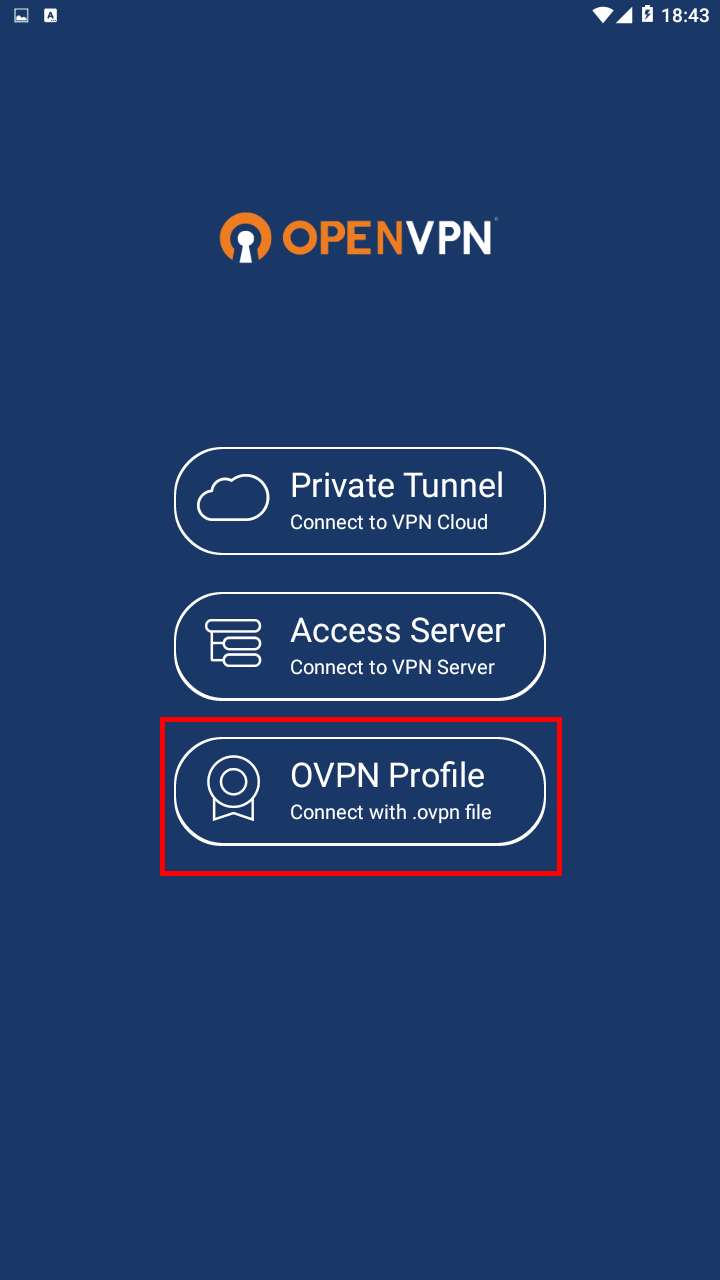
For your configuration, you must download the [ISR.ovpn](https://kb.deec.uc.pt/attachments/6?open=true) file. Then go to “OVPN Profile”.
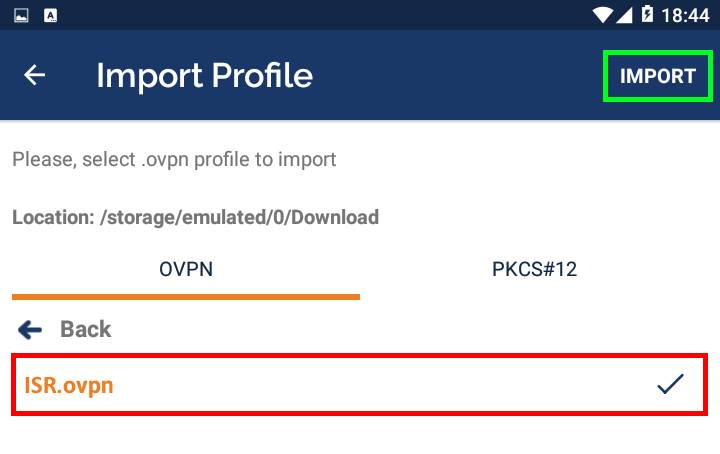
Go to the file directory, select it and do "Import".
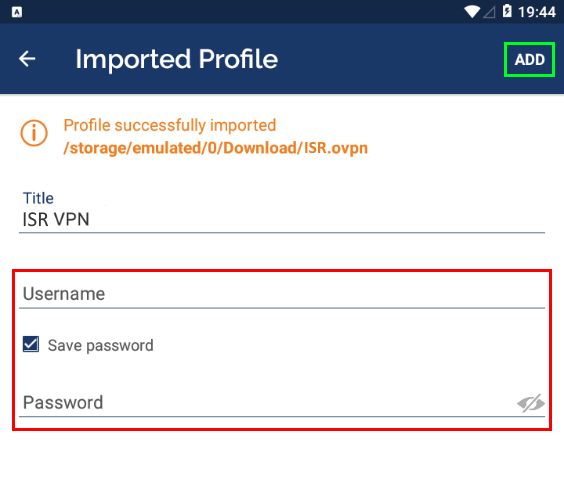
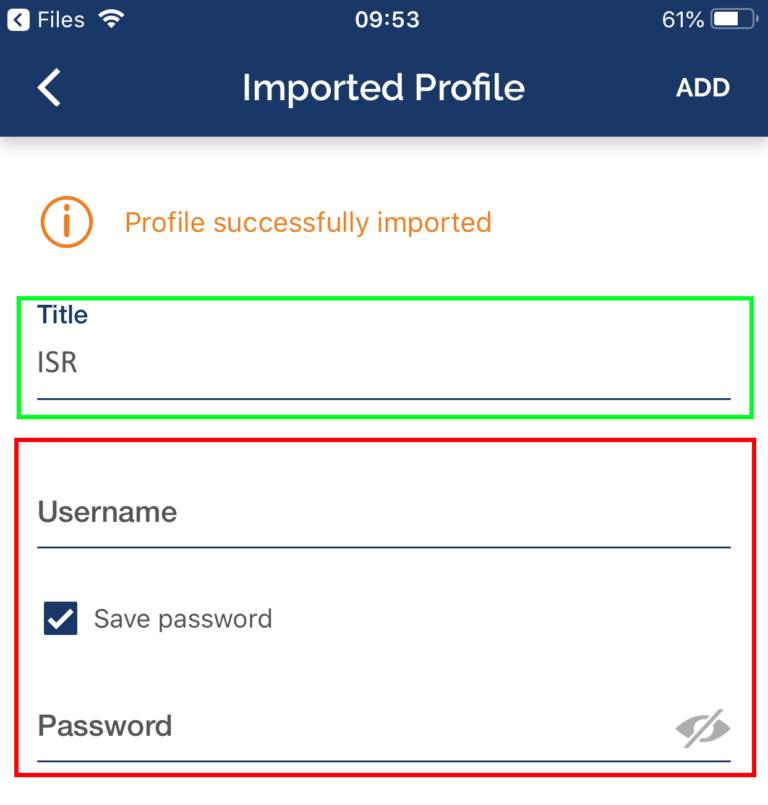
To finish, you will have to insert the credentials obtained by the Management Office of the Computer Network and make "ADD".
- Have an account for configuring the VPN, which is requested at the Computer Network Management office.
To add the ovpn file, just open the Files application, go to the downloaded file's directory and open it with OpenVPN.
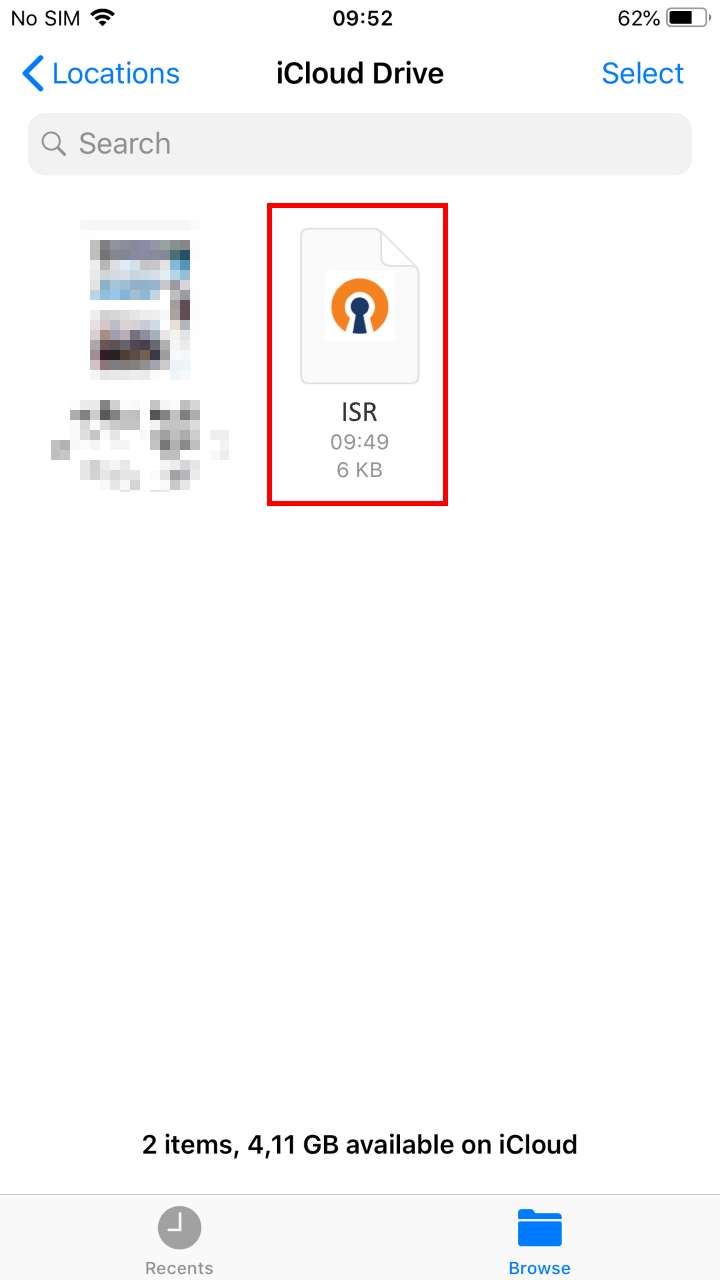
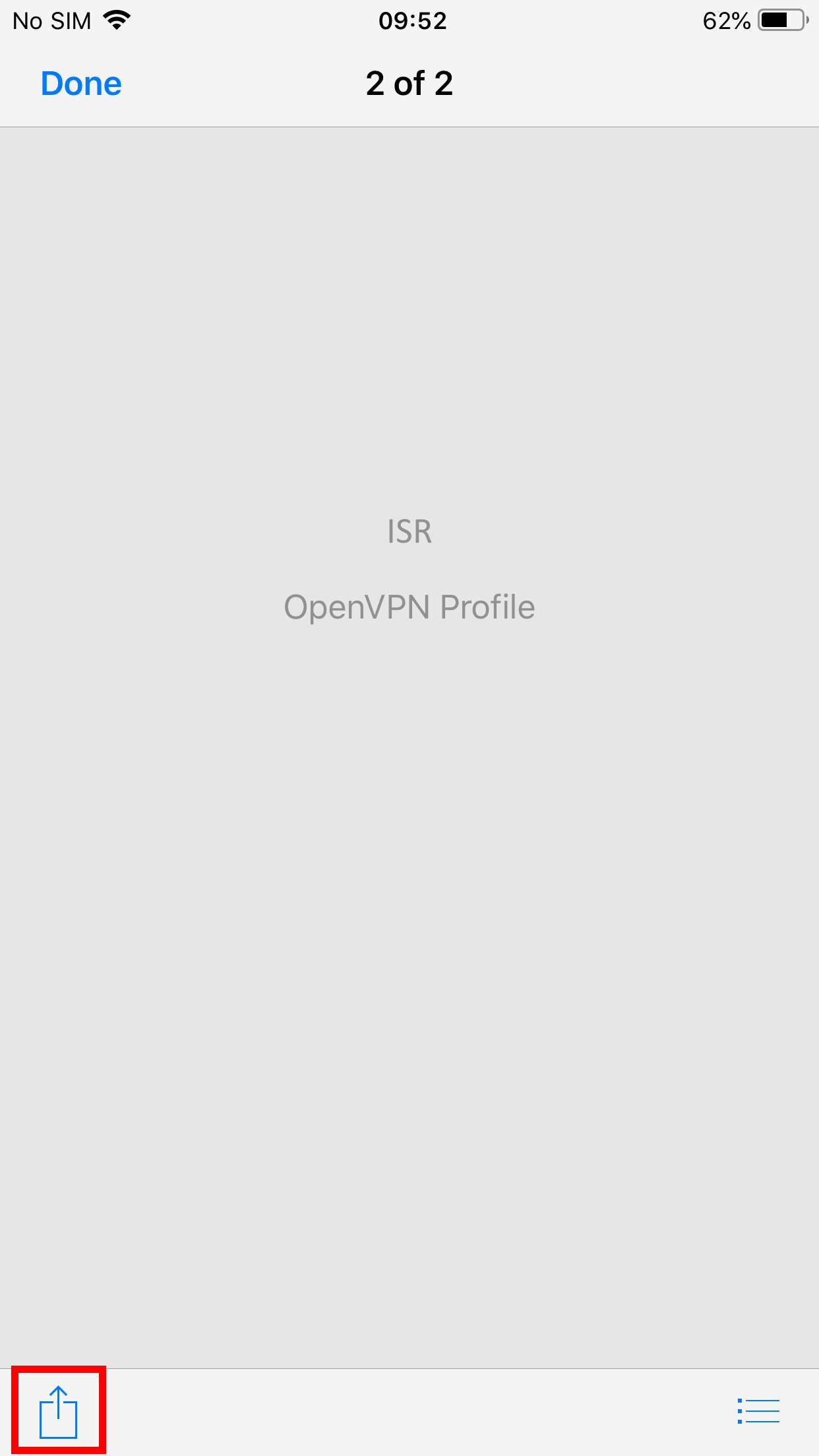
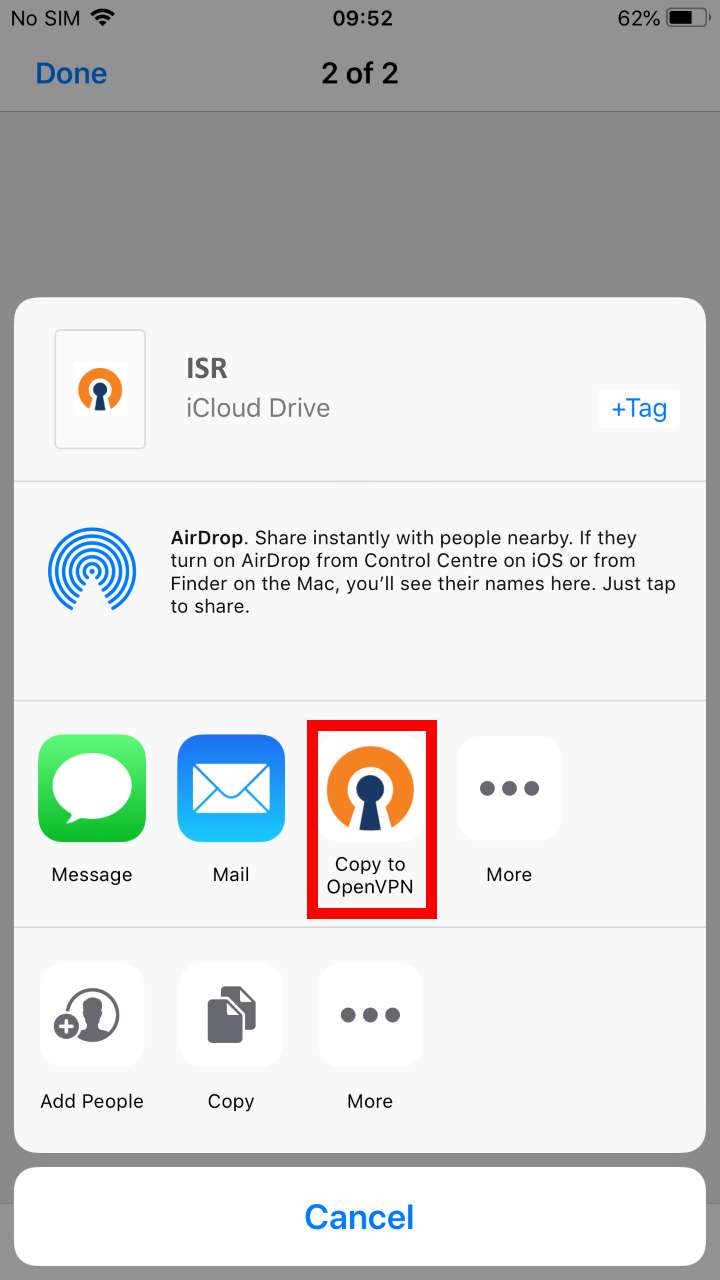
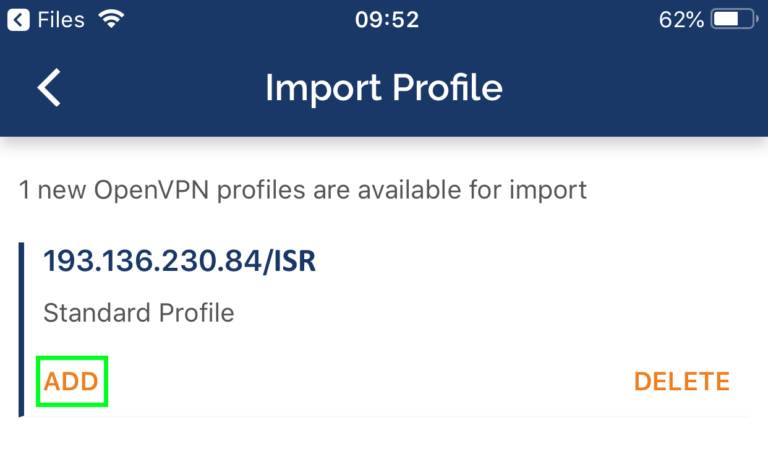
Finally, select “ADD” and enter the credentials and select “ADD” again. If you want, you can change the Title to an easier name to identify to the ISR VPN.
# Wi-Fi
# Wireless Network
In addition to the EDUROAM network, ISR has other wireless networks of its own, within the ISR's IT infrastructure, which cover most laboratories, providing addressing and local resources.
For this purpose, there are 5 Access Points installed at strategic points in the building.
### ISR
The ISR network provides addressing and local resources, in the 10.231.0.0 / 16 range.
Regarding technical configurations, the settings to be used for network access are as follows:
| **Definition** | **Description** | **Value to be configured** |
|---|
| Wireless Type | Types of wireless networking technology that supports wireless networking | 802.11 a/b/g/n
Bandwidth up to 450Mbps per space
Support for 2.4GHz and 5GHz frequencies
|
| SSID | Wireless Network Name
| ISR-Coimbra |
| Wireless Protection | Wireless Encryption System Type
| WPA 2 (AES/CCMP, Dynamic) |
| Authentication
(802.1X) | Method of authenticating a device / user to a protected network
| EAP-PEAP + MSCHAPv2 |
| Certificate Validation | Digital Certificate Verification and Validation System
| Do not check / disable |
| Login | Login of the user who wants to connect to the network
| ISR.UC.PT domain email address
(e.g., user@isr.uc.pt) |
| Password | Password of the user who wants to connect to the network
| Password of the respective account
|
| Anonymous Identity | Anonymous user login, for the first encryption layer | anonymous@isr.uc.pt |
In case of difficulty, you can contact the Helpdesk service, through the usual channels.
### ISR-Robots
The ISR-Robots network provides addressing and local resources, in the 10.234.0.0 / 16 range. This network should be used in situations where it is intended to test with devices without 802.1X support, such as robots, appliances, etc.
Regarding technical configurations, the settings to be used for network access are as follows:
| **Definition** | **Description** | **Value to be configured** |
|---|
| Wireless Type | Types of wireless networking technology that supports wireless networking | 802.11 a/b/g e 802.11 a/b/g/n/ac
Bandwidth up to 450Mbps per space
Support for 2.4GHz and 5GHz frequencies
|
| SSID | Wireless Network Name
| isr-robots |
| Wireless Protection | Wireless Encryption System Type
| WPA 2 com validação de MAC Address |
| Authentication | Method of authenticating a device / user to a protected network
| To access this network, you must request it through this [helpdesk@isr.uc.pt](http://helpdesk@isr.uc.pt/) |
In case of difficulty, they can contact the Helpdesk service, through the usual channels(helpdesk@isr.uc.pt).
### EDUROAM
The UC wireless network is part of the Eduroam network and can be used by all teachers, students and employees who have an email account at a UC organization or any other institution that has joined the Eduroam network. Likewise, UC users, when visiting Eduroam institutions, in Portugal or abroad, will be able to access their wireless networks without any change in the configuration of their equipment.
The EDUROAM network is available in the main public areas of DEEC.
The use of the UC wireless network is regulated by the UC network, RCTS network usage rules and applicable law.