# OpenVPN Manual for iOS

##### **OpenVPN Installation, Configuration and Execution Manual on iOS**

<div id="bkmrk-introdution%3A"><div><div>**Introdution:**</div></div></div>This document will present, step by step, the installation, configuration and execution of OpenVPN on the iOS operating system.

**Preparation:**

Before starting the installation and configuration of OpenVPN on your iPhone, you should check the following point:

<div id="bkmrk-have-an-account-for-"><div>- Have an account for configuring the VPN, which is requested at the Computer Network Management office.

</div></div>**Installation:**

To download OpenVPN just go to the AppStore and download the following application “*[OpenVPN Connect](https://itunes.apple.com/pt/app/openvpn-connect/id590379981?mt=8 "https://itunes.apple.com/pt/app/openvpn-connect/id590379981?mt=8")*”.

![](https://helpdesk.deec.uc.pt/api/v1/attachments/1731)

![](https://helpdesk.deec.uc.pt/api/v1/attachments/1732)

![](https://helpdesk.deec.uc.pt/api/v1/attachments/1733)

**Configuration:**

For your configuration, you must download the [ISR.ovpn](https://kb.deec.uc.pt/attachments/6?open=true). Then, open the application, select the “OVPN Profile” option and accept the policies.

![](https://helpdesk.deec.uc.pt/api/v1/attachments/1734)

![](https://helpdesk.deec.uc.pt/api/v1/attachments/1735)

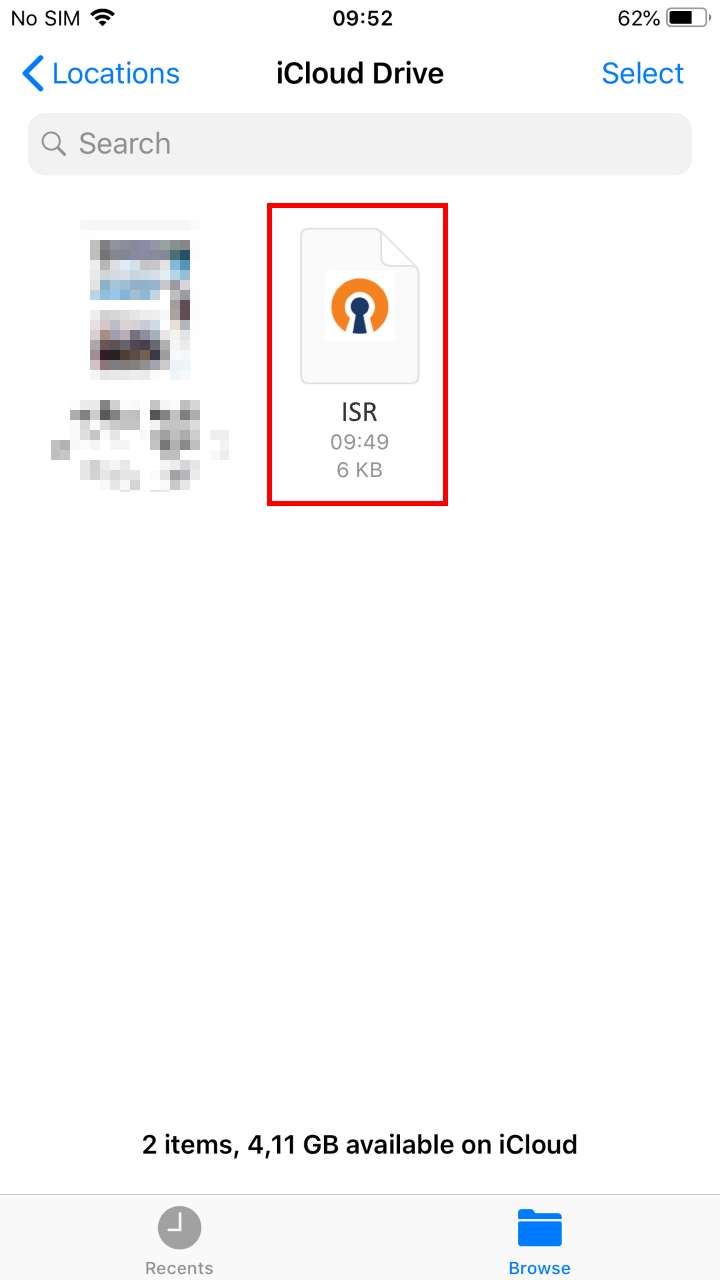
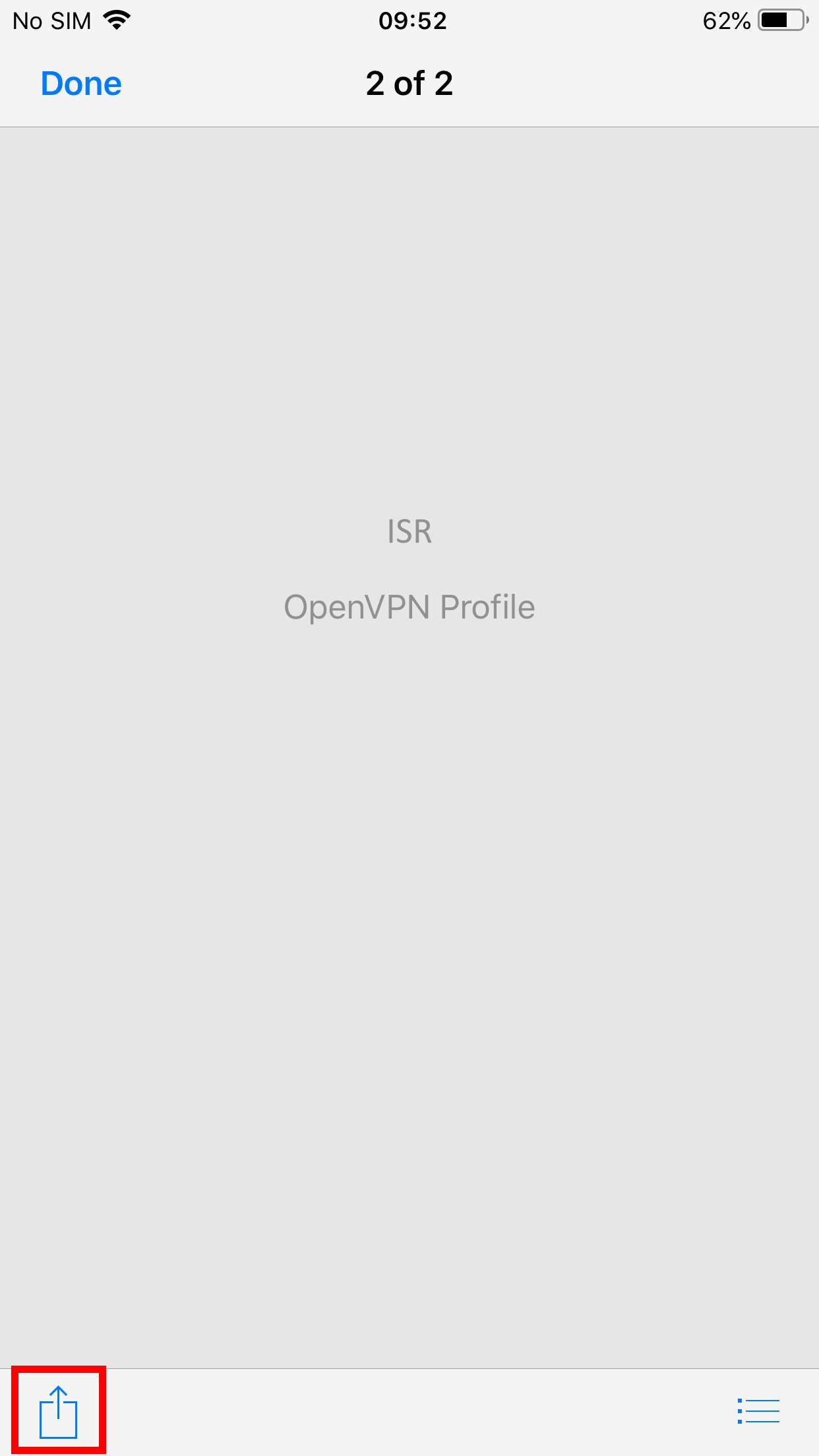
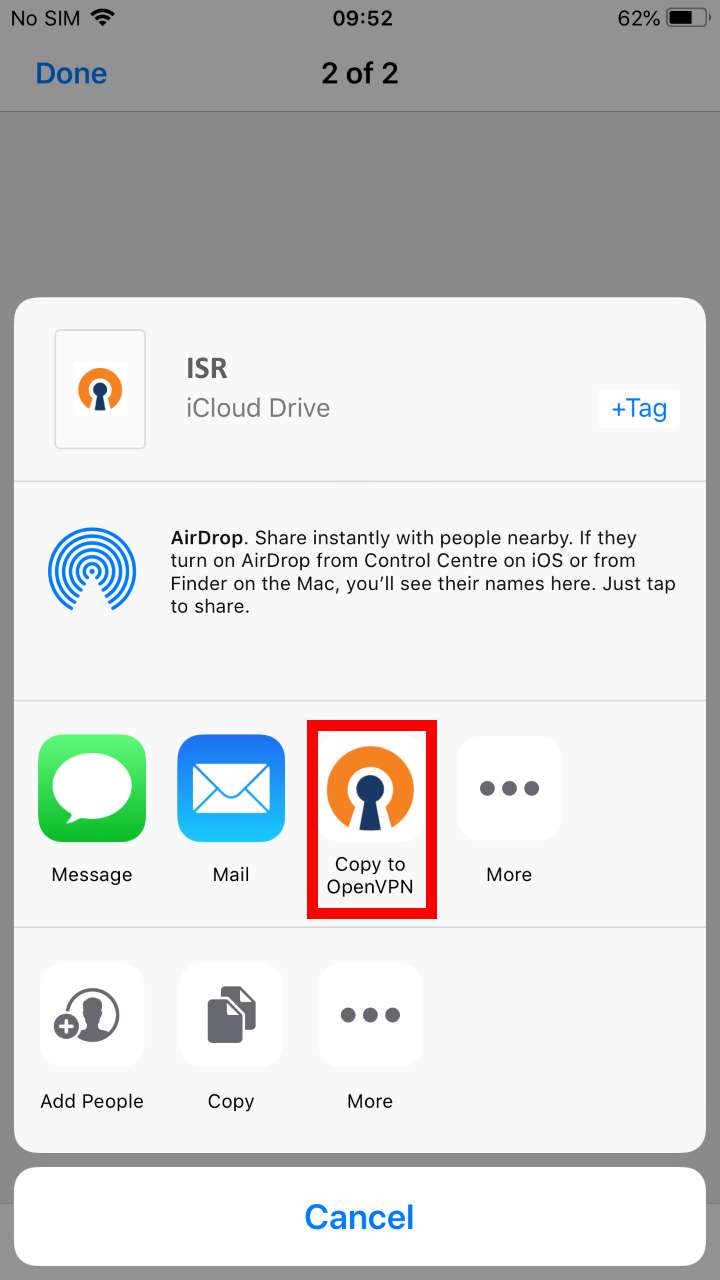
<div id="bkmrk-to-add-the-ovpn-file"><div>To add the ovpn file, just open the Files application, go to the downloaded file's directory and open it with OpenVPN.</div><div>  
</div></div><div id="bkmrk--12">![](https://helpdesk.deec.uc.pt/api/v1/attachments/1736)  
</div><div id="bkmrk--13">  
</div><div id="bkmrk--14">![](https://helpdesk.deec.uc.pt/api/v1/attachments/1737)  
</div><div id="bkmrk--15">  
</div><div id="bkmrk--16">![](https://helpdesk.deec.uc.pt/api/v1/attachments/1738)  
</div><div id="bkmrk--17">  
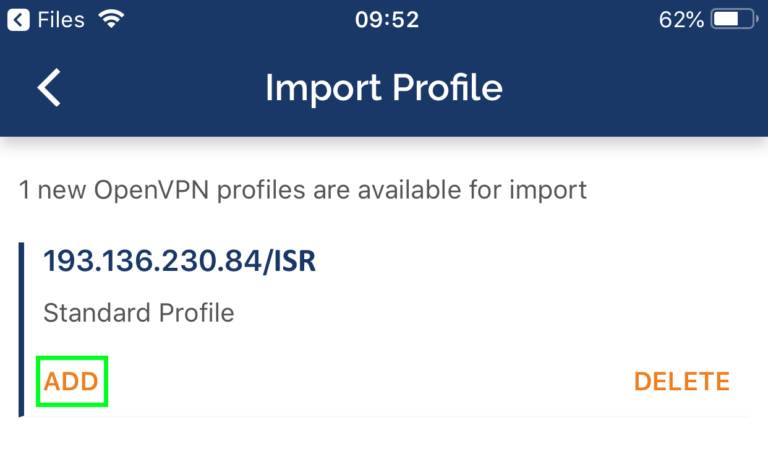
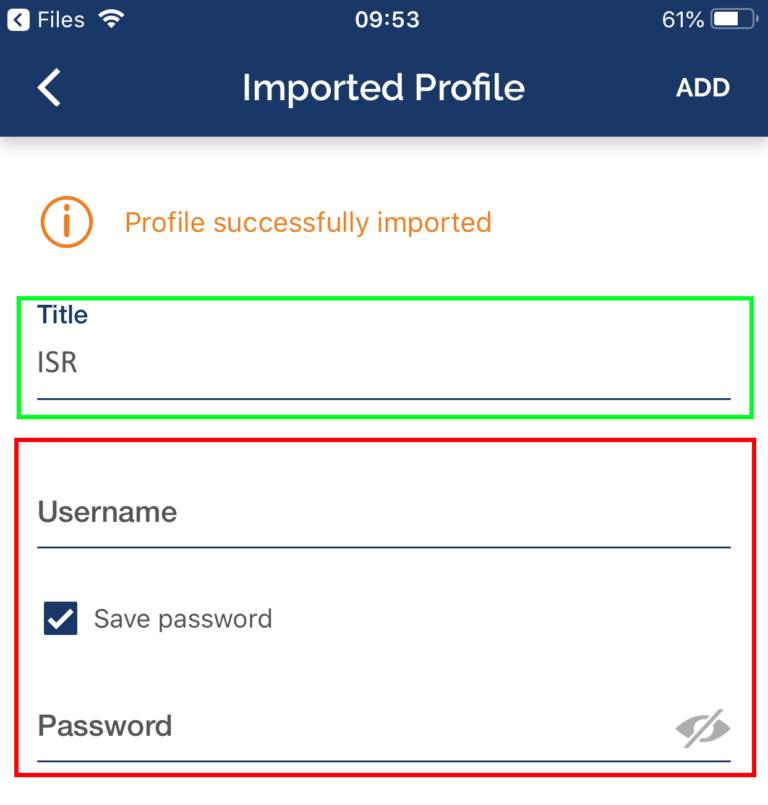
</div><div id="bkmrk-execution%3A"><div>**Execution:**</div></div><div id="bkmrk-finally%2C-select-%E2%80%9Cadd"><div>Finally, select “ADD” and enter the credentials and select “ADD” again. If you want, you can change the Title to an easier name to identify to the ISR VPN.</div></div><div id="bkmrk--19">![](https://helpdesk.deec.uc.pt/api/v1/attachments/1739)  
</div><div id="bkmrk-%C2%A0"><div> </div></div>![](https://helpdesk.deec.uc.pt/api/v1/attachments/1740)