# OpenVPN Manual for Windows

<p class="callout info">To use this service you need a @isr.uc.pt account</p>

### Installation

To download OpenVPN just go [here](https://openvpn.net/community-downloads/ "https://openvpn.net/community-downloads/"), and below you will find the respective download.

[![image-1691400526657.png](https://kb.deec.uc.pt/uploads/images/gallery/2023-08/scaled-1680-/image-1691400526657.png)](https://kb.deec.uc.pt/uploads/images/gallery/2023-08/image-1691400526657.png)
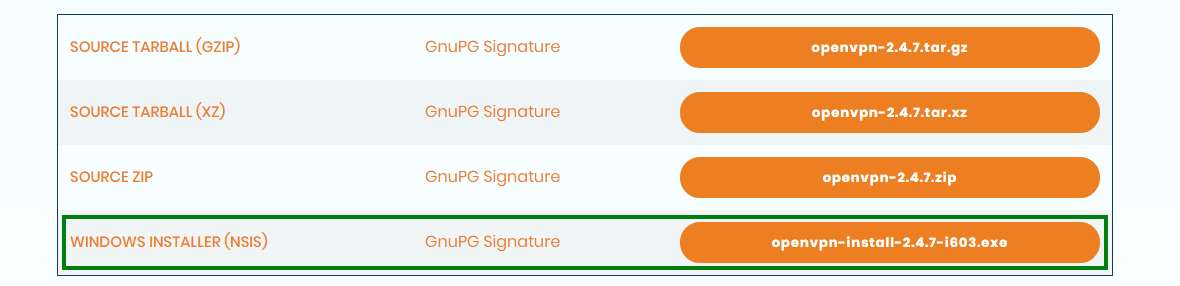
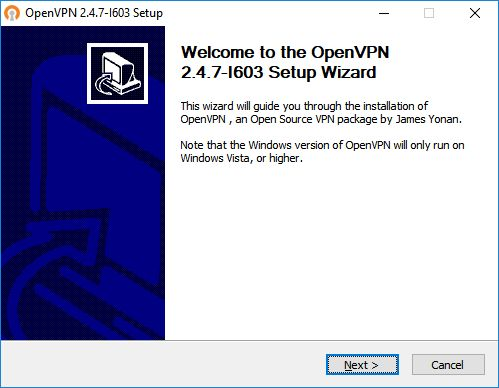
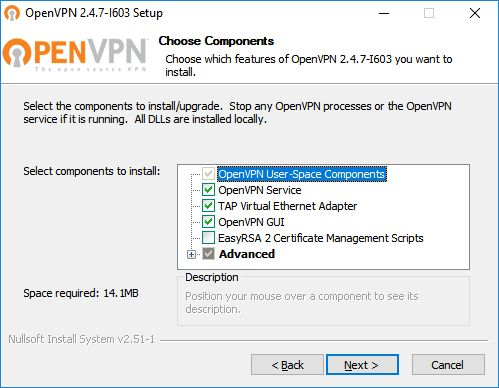
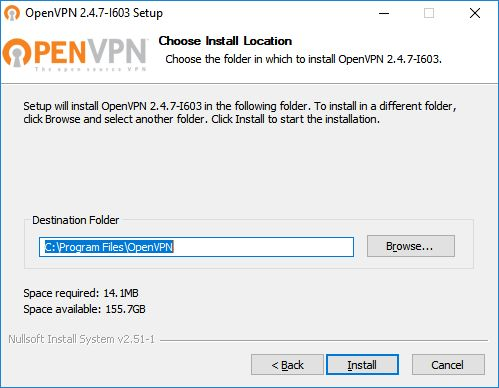
Then, perform the respective installation.

[![image-1691400561021.png](https://kb.deec.uc.pt/uploads/images/gallery/2023-08/scaled-1680-/image-1691400561021.png)](https://kb.deec.uc.pt/uploads/images/gallery/2023-08/image-1691400561021.png)
[![image-1691400569370.png](https://kb.deec.uc.pt/uploads/images/gallery/2023-08/scaled-1680-/image-1691400569370.png)](https://kb.deec.uc.pt/uploads/images/gallery/2023-08/image-1691400569370.png)
[![image-1691400576715.png](https://kb.deec.uc.pt/uploads/images/gallery/2023-08/scaled-1680-/image-1691400576715.png)](https://kb.deec.uc.pt/uploads/images/gallery/2023-08/image-1691400576715.png)
[![image-1691400585213.png](https://kb.deec.uc.pt/uploads/images/gallery/2023-08/scaled-1680-/image-1691400585213.png)](https://kb.deec.uc.pt/uploads/images/gallery/2023-08/image-1691400585213.png)
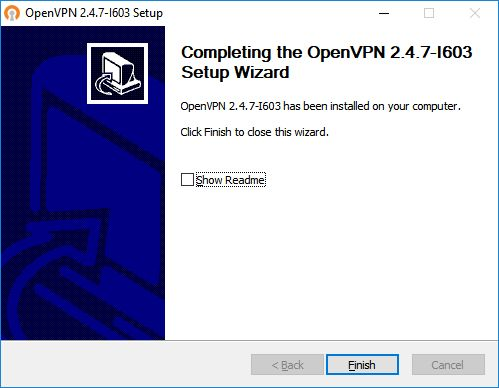
<div id="bkmrk--9"><center>  
</center></div>### Configuration

Download configuration file [ISR.opvn](https://kb.deec.uc.pt/attachments/6) and move it to “**C:\\Program Files\\OpenVPN\\config**”.

![](https://helpdesk.deec.uc.pt/api/v1/attachments/1701)

### Connection

<div id="bkmrk-to-finish%2C-you-will-">To finish, you will have to start the program “OpenVPN GUI” which, with its execution, will show an icon of a monitor with a lock on your task bar.</div>[![image-1691400700922.png](https://kb.deec.uc.pt/uploads/images/gallery/2023-08/scaled-1680-/image-1691400700922.png)](https://kb.deec.uc.pt/uploads/images/gallery/2023-08/image-1691400700922.png)

<div id="bkmrk-with-the-right-side-"><div>With the right side of the mouse over the icon, click on Connect and enter the credentials.</div><div>  
</div></div>[![image-1691400739580.png](https://kb.deec.uc.pt/uploads/images/gallery/2023-08/scaled-1680-/image-1691400739580.png)](https://kb.deec.uc.pt/uploads/images/gallery/2023-08/image-1691400739580.png)