# VPN installation manual on Ubuntu

### OpenVPN Installation, Configuration and Execution Manual on Ubuntu 18.04.2 LTS

###   


### **Introduction:**

<div class="knowledge-base-article-content richtext-content js-answer-body" id="bkmrk-this-document-will-p"><div class="knowledge-base-article-content richtext-content js-answer-body"><div><div>This document will present, step by step, the installation, configuration and execution of OpenVPN on the Ubuntu operating system.</div><div>  
</div></div></div></div>**Preparation:**

<div class="knowledge-base-article-content richtext-content js-answer-body" id="bkmrk-before-starting-the-"><div class="knowledge-base-article-content richtext-content js-answer-body"><div><div>Before starting the installation and configuration of OpenVPN on your computer, you should check the following point:</div><div>Have an account for the configuration of OpenVPN, which is requested from the Management Office of the Computer Network.</div></div></div></div>### **Installation:**

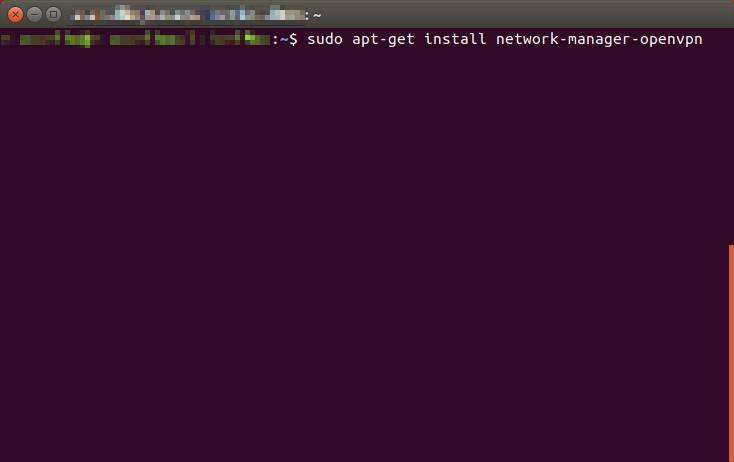
To use *OpenVPN* just run the following command “**$ sudo apt-get install network-manager-openvpn-gnome**”.
![](https://helpdesk.deec.uc.pt/api/v1/attachments/1652)

<div class="knowledge-base-article-content richtext-content js-answer-body" id="bkmrk-when-the-installatio"><div class="knowledge-base-article-content richtext-content js-answer-body"><div><div><div><div><div><div><div><div>  
</div><div>When the installation is complete, restart the network-manager service.  
</div></div></div></div></div></div></div><div>![](https://helpdesk.deec.uc.pt/api/v1/attachments/1653)  
</div><div>  
</div><div>  
</div></div></div></div>### **Configuration:**

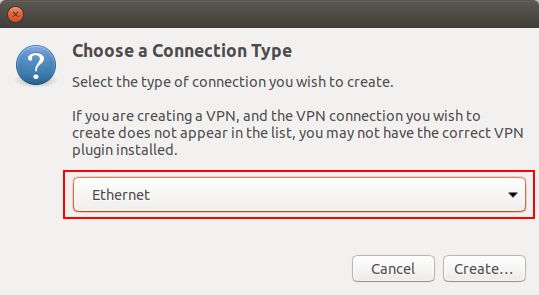
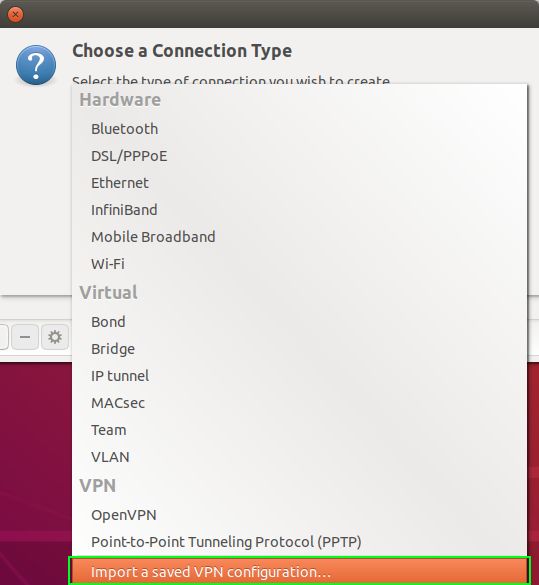
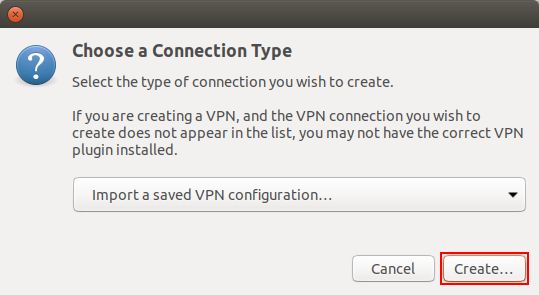
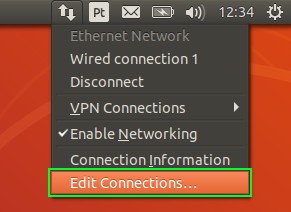
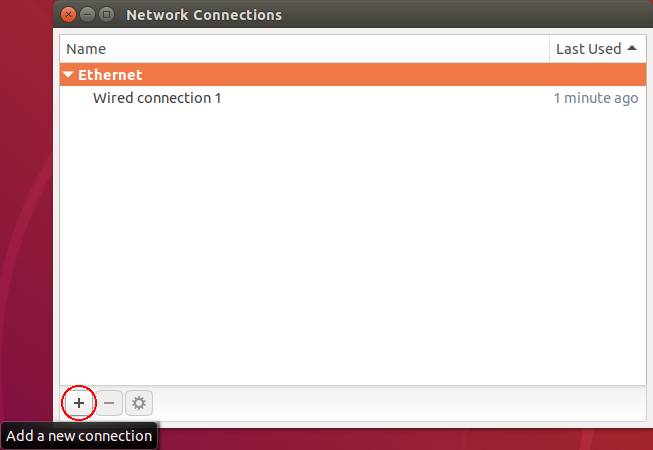
For your configuration, you must download [IT.ovpn](https://kb.deec.uc.pt/attachments/26). Use the mouse to go to the network manager icon to go to “***Edit Connections …***”, then “***Add a new connection***” and create a connection with “***Import a saved VPN configuration…***”.
![](https://helpdesk.deec.uc.pt/api/v1/attachments/1654)

![](https://helpdesk.deec.uc.pt/api/v1/attachments/1655)

![](https://helpdesk.deec.uc.pt/api/v1/attachments/1656)

![](https://helpdesk.deec.uc.pt/api/v1/attachments/1657)

![](https://helpdesk.deec.uc.pt/api/v1/attachments/1658)

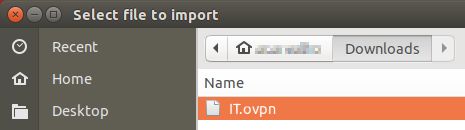
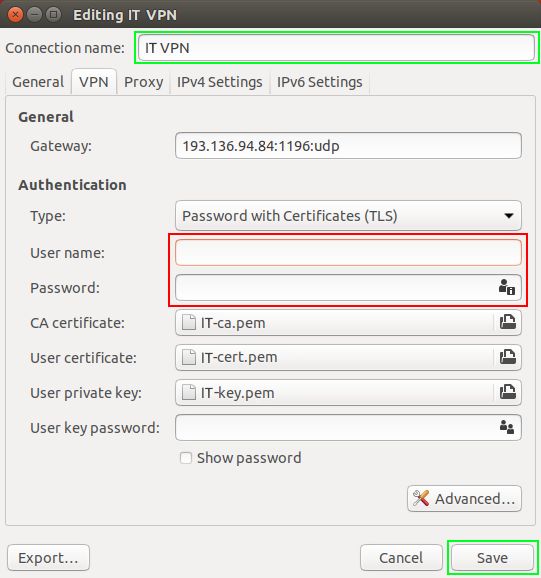
Then select the IT.ovpn file and enter the IT credentials. If you want, you can change the Connection name to an easier name to identify the IT VPN.
![](https://helpdesk.deec.uc.pt/api/v1/attachments/1659)

![](https://helpdesk.deec.uc.pt/api/v1/attachments/1660)

 **Execution:**

<div class="knowledge-base-article-content richtext-content js-answer-body" id="bkmrk-finally-select-the-n"><div class="knowledge-base-article-content richtext-content js-answer-body"><div><div><div>Finally select the network manager icon, go to VPN Connections and select the created VPN.</div><div>![](https://helpdesk.deec.uc.pt/api/v1/attachments/1661)</div></div></div></div></div> ![](https://helpdesk.deec.uc.pt/api/v1/attachments/1662)