# VPN installation manual on windows
### OpenVPN Installation, Configuration and Run Guide on Windows
### **Introduction:**
This document will present, step by step, the installation, configuration and execution of OpenVPN on the Windows operating system.
**Preparation:**
Before starting the installation and configuration of OpenVPN on your computer, you should check the following point:
- Have an account for the configuration of OpenVPN, which is requested from the Management Office of the Computer Network.
### **Installation:**
To download OpenVPN just go [here](https://openvpn.net/community-downloads/ "https://openvpn.net/community-downloads/"), and below you will find the respective download.
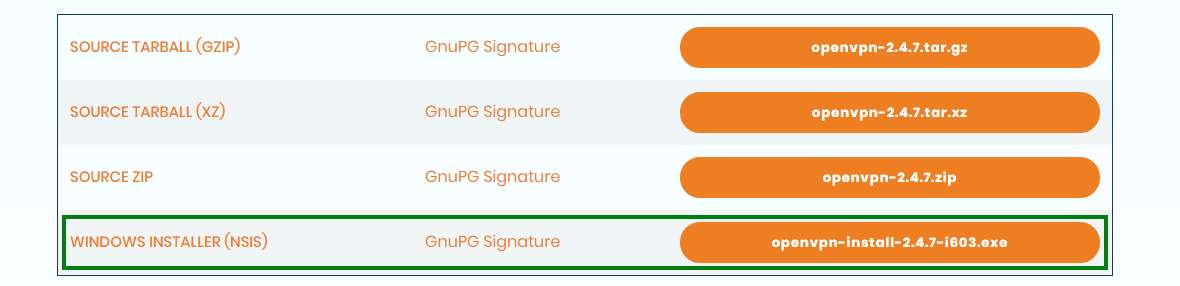
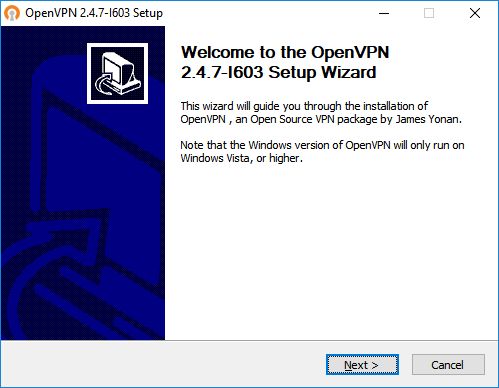
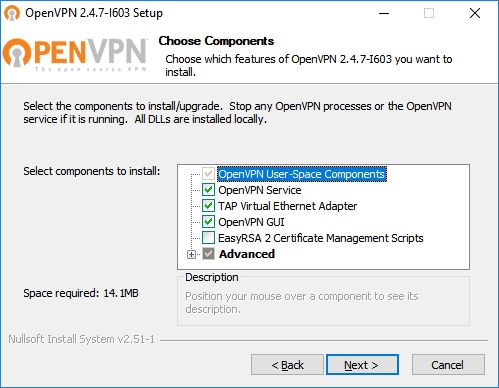
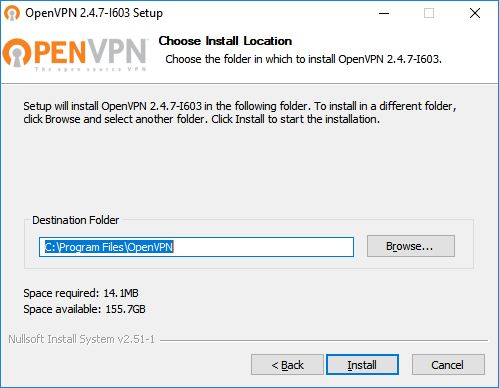
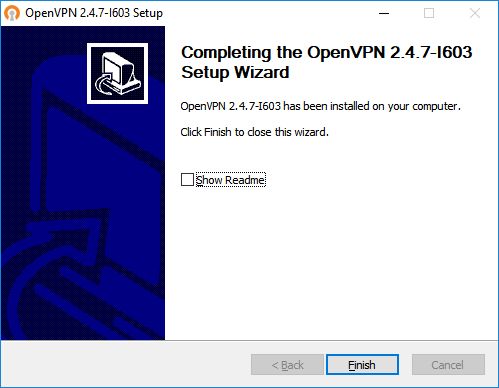
Then, perform the respective installation.
### **Configuration:**
For your configuration, you should download [IT.ovpn](https://kb.deec.uc.pt/attachments/25) e movê-lo a “**C:\\Program Files\\OpenVPN\\config**”.

### **Execution**
To finish, you will have to start the program “OpenVPN GUI” which, with its execution, will show an icon of a monitor with a lock on your task bar.

With the right side of the mouse over the icon, click on Connect and enter the credentials obtained by GRI.